






By popular demand I have created a Google Docs poster for keyboard shortcuts similar to the Google Slides poster. Print out this poster for an easy reference to some helpful Google Docs tricks.
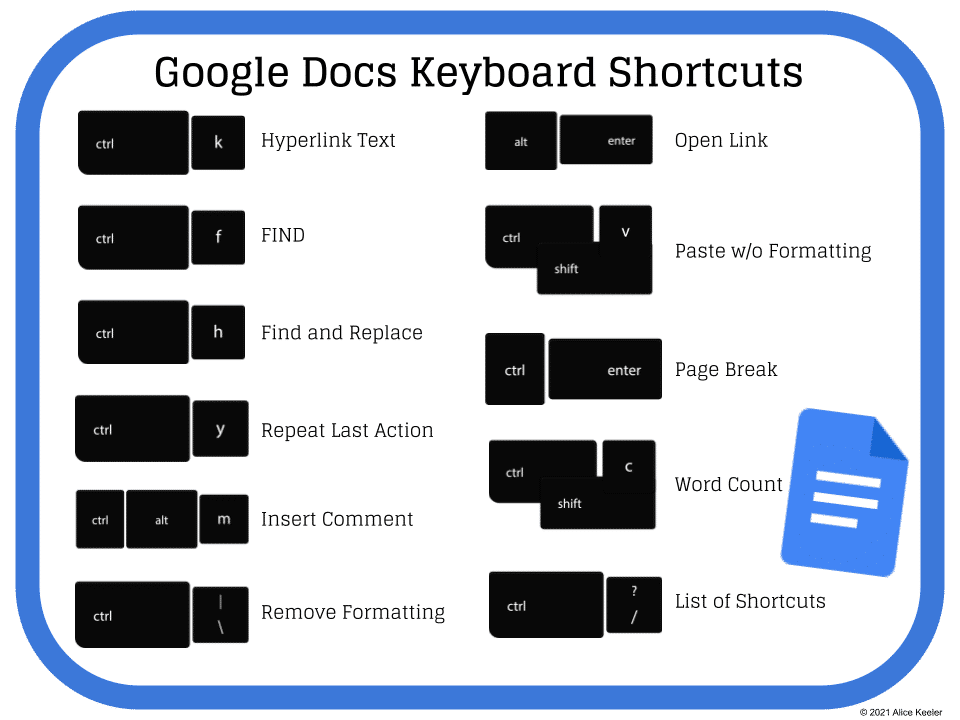
Popular Keyboard Shortcuts
The shortcuts I chose for this poster are the ones I use most often! I use Control Shift C for a word count quite often. Not because I am more concerned about quantity over quality of student work but because things I work on it is helpful to know the word count! (For example the ideal number of words for a blog post is 300).
Insert Comment
Insert Comment is my probably most used keyboard shortcut besides Control C and Control V is Control Alt M. This inserts a comment! I am ALWAYS collaborating, even if I am collaborating with myself. I’ll highlight some text and use Control Alt M to comment on that text. It might be a note to myself to come back to reword it or a note to someone else for them to look at it.
Page Break
Forcing the text to start on a new page can be really helpful. I hate when my directions are split in half. Control Enter forces the page break and I can be sure that the text is where I want it.
Please Do Not Republish
Please feel free to share the link to this blog post on your newsletter/blog. However, please do not repost it. Use this smaller image to link people back to this post.

Doc to Slides
After creating a Google Doc maybe you want to present your ideas also in Google Slides. Use this Add-on (created by Alice Keeler… me) to quickly create a Google Slides from your text. Note: this does not work with tables or images.





