

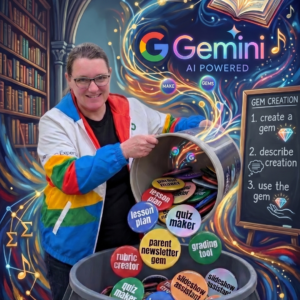




I am highly skeptical of any AI tools for educators. What prompt are they using? What are they doing with our data? Just because they sign a paper that says they are FERPA compliant doesn’t mean they are taking the necessary safeguards. My personal opinion, I am highly skeptical of Magic School and what they are doing with the data. I personally avoid using it. You can, FOR FREE, recreate what tools like Magic School do, and have a safer experience. I choose Google Gemini. More specifically, I create Gems in Gemini.
You Already Use Google Workspace
Your school uses Google Workspace. Google Gemini is free and built in. Choosing Gemini for your “AI lesson plan generator” is easier to integrate and the data is all in your account.
What is Google Gemini?
Gemini is a large language model (LLM) as is ChatGPT or Claude.
What is a Magic Button?
All of these EDU AI websites have a “magic” button to create something, such as a lesson plan. There is nothing magic about these buttons. They are simply prompts that are saved and run when you push the button. Oftentimes, you do not have control over the exact prompt (boo).

Gemini Gems are Magic Buttons
Gemini Gems save your prompts. Same thing. But you own them and you control them. You can use other people’s gems (see Eric Curts EduGems) but you can copy them and modify the prompt so they are personalized to you.
Why use 3rd party AI tools when you can use Google Gems?!

Delivering high-quality content, tools, and support for reading comprehension
ReadWorks is a free, research-based website designed to support educators in teaching reading comprehension across grades K–12. It provides a rich library of high-quality, standards-aligned instructional content.
Article-A-Day, helps students build knowledge and vocabulary in just 10-minutes a day.
When you use Gemini Gems, you are the one pulling the strings. You control the prompt, your data remains secure, and you are not locked into someone else’s closed system. It is a safer, free, and incredibly powerful way to bring AI into your workflow while keeping your focus firmly on student success.
Try My Magic Buttons
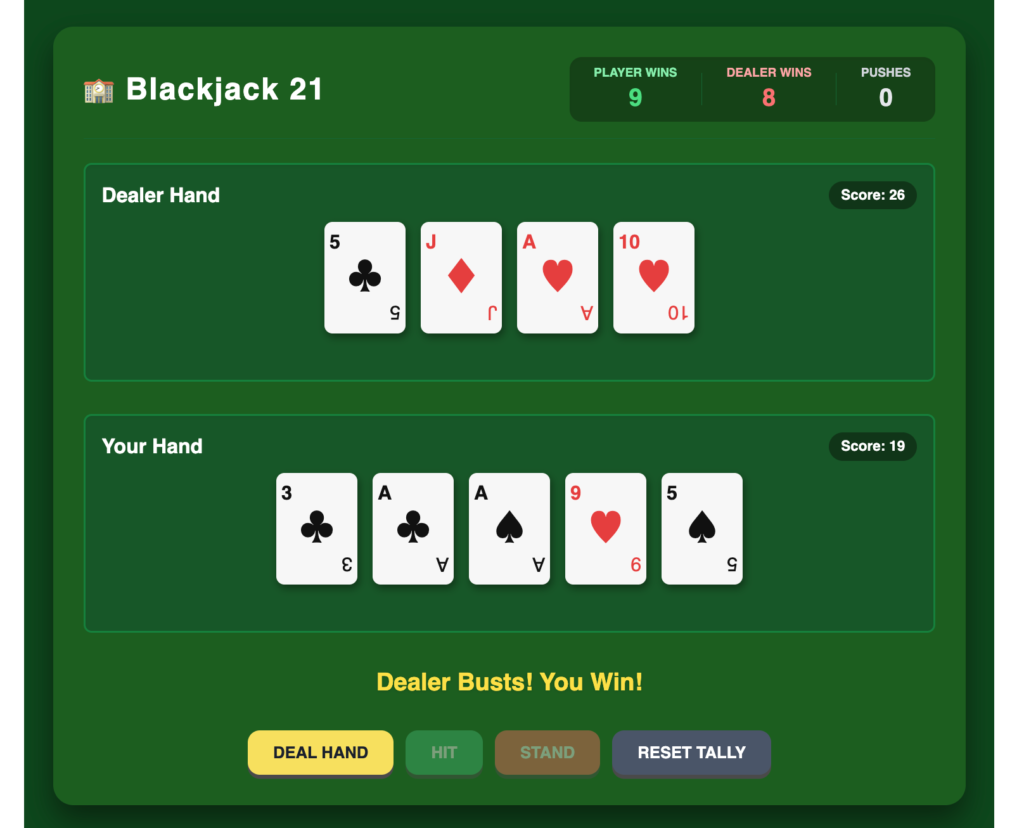
I don’t use 3rd party sites, I only use Google Gemini Gems. Here is one I created that allows you to describe a game idea and it creates the interactive game for you.
As a statistics teacher, card games can be great examples for students. However, gambling and betting is not great. I asked Gemini to create me a Blackjack game that I could use in the classroom. Notice the word “bet” is not present. AND some game website is not collecting my data, double win!

Create Your Own Magic Buttons
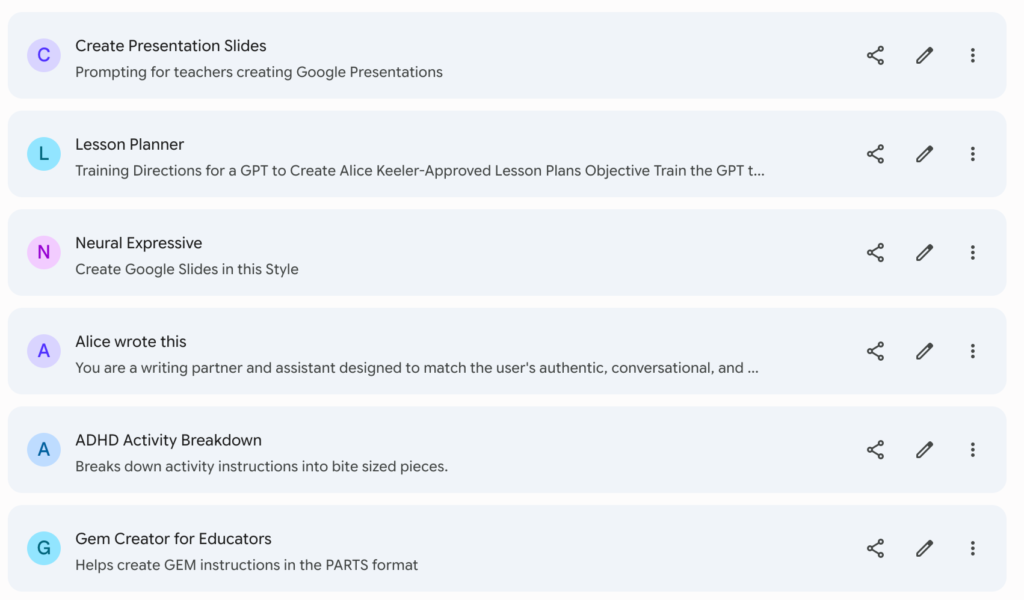
Find Your Gemini Gems
In Google Gemini, look for the Gem icon in the left sidebar to find a list of your magic buttons.
Click on any of them to start using your AI powered assistants.
Get a Head Start with EduGems
Eric Curts has kindly created a library of magic buttons (Gems) for you! Find Gems that you like and they are copied to your Gems list. The best part… they open in the edit screen so you can customize the Gem for how you want to use it. You’re not locked in!
Sharing Your Gems Magic Buttons
This job is too hard to go alone. As Harry Wong said… Steal Steal Steal. Start with Eric Curts and “steal” his EduGems, they are free. Why recreate the wheel and he did a great job.
When you create your own Gems, share them with others on your team. Use the share icon on the Gem stripe on the Gems page to share a Gem just like you would share a Google Doc. They are private by default, so make sure you change the sharing permissions.
Force a Copy of a Gem
When you share your Gem, try this one for ADHD, the other person can use it. But, what if they want a COPY of it so they can customize it. So long as they used your Gem, it will show up under “Shared with me” at the bottom of the Gems page. They can use the 3 dots to make a copy of the Gem and customize it.
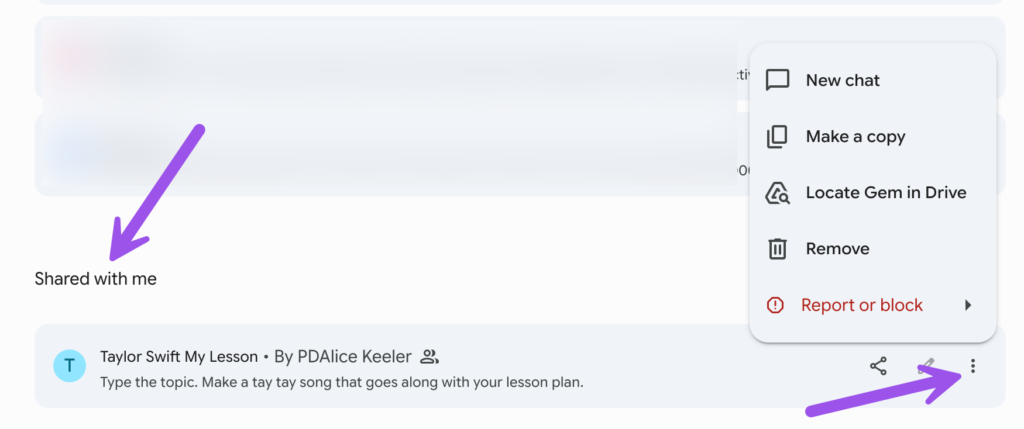
Alternatively, you can modify the sharing link to force a copy. It’s a little tricky.
Sharing Link
https://gemini.google.com/gem/1HjxCOePCPVhfc4bZ3i7DLU_dpxfOsPo_?usp=sharing
Forced Copy Link
https://gemini.google.com/gems/copy/1HjxCOePCPVhfc4bZ3i7DLU_dpxfOsPo_
Do you notice the difference? The end was cut off. The word gem was made plural to gems and slash copy was added into the middle.
I created a Gem for you that does this for you. Simply paste your sharing link and it will give you the forced copy link.
Create Your Own Magic Page
Your Gem page is easy to find, it’s right in Google Gemini by just clicking on the gem icon on the left hand side. However, it will look different than your teacher besties Gem page.
Create a Google Site
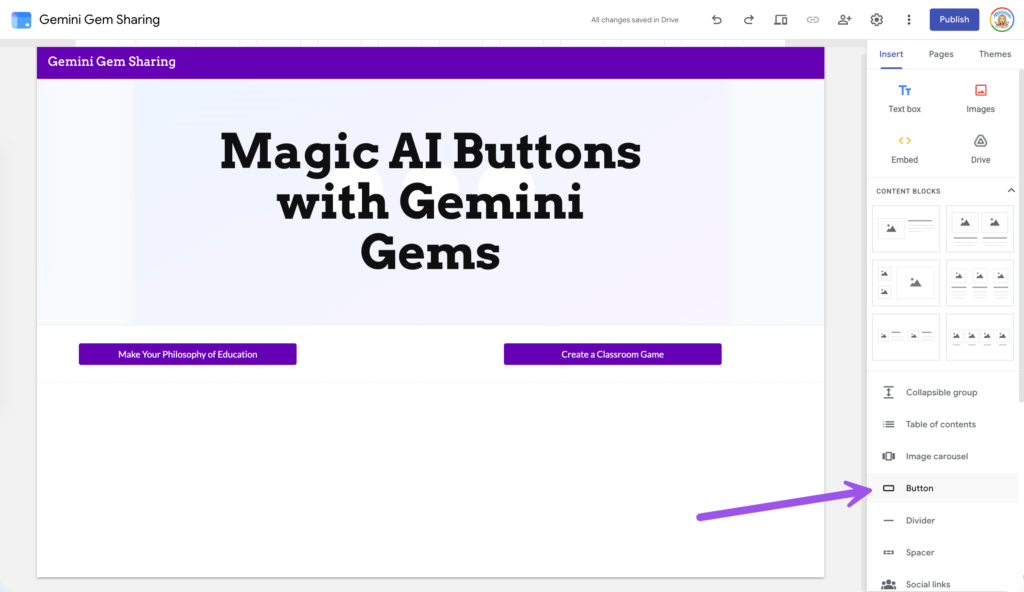
Since you can share a Gem by clicking on the share icon on the Gem stripe, you can also use this to customize a magic button page.
Create a Google Site
Add buttons to the site using the button maker in the sidebar. Share this site with a teacher friend where you can collaborate to organize your own magic buttons.
And all of this is FREE.
See my sample Google Site with magic buttons linking to Google Gemini Gems.
I asked Gemini to come up with 100 magic button Gem ideas. Feel free to use these for inspiration.





