

Welcome to your Google Gemini for Teachers Quick Start Guide! Google Gemini is your complete AI toolkit for the classroom. Gemini is a safe, secure, and free way to transform your teaching workflow. Because From drafting instant lesson hooks and leveling complex texts to generating custom rubrics and creating interactive visuals, Gemini gives you a complete, safe environment to save hours of prep time every single week.
Gemini is built directly into Google Workspace for Education, you get full enterprise-grade privacy protection when you log in with your school account. Your data and student information stay private, protected, and will never be used to train public AI models.
Gemini is Your Teaching Assistant
Gemini is a conversational tool that helps you brainstorm, design, and create.
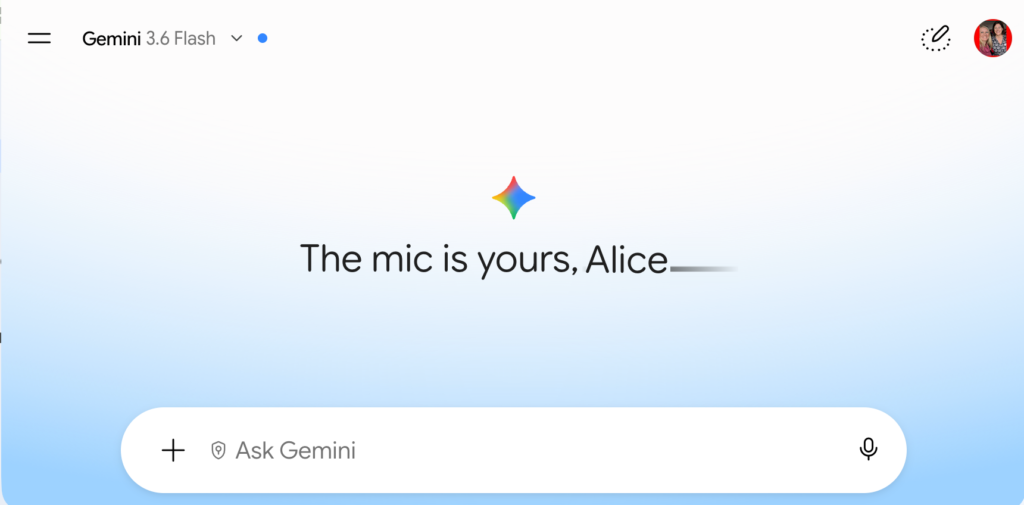
Start By Asking a Question
If you were to hire an assistant for your classroom, what would you ask them to do? Probably, Gemini can do that. Dream big, doesn’t hurt to ask.
Let’s say your PD this year was on the 5 E’s lesson plan model. You may have questions about it, ask Gemini!
Add PD Resources
Tip: Click the plus icon to add the documents/resources you received in the professional learning training.
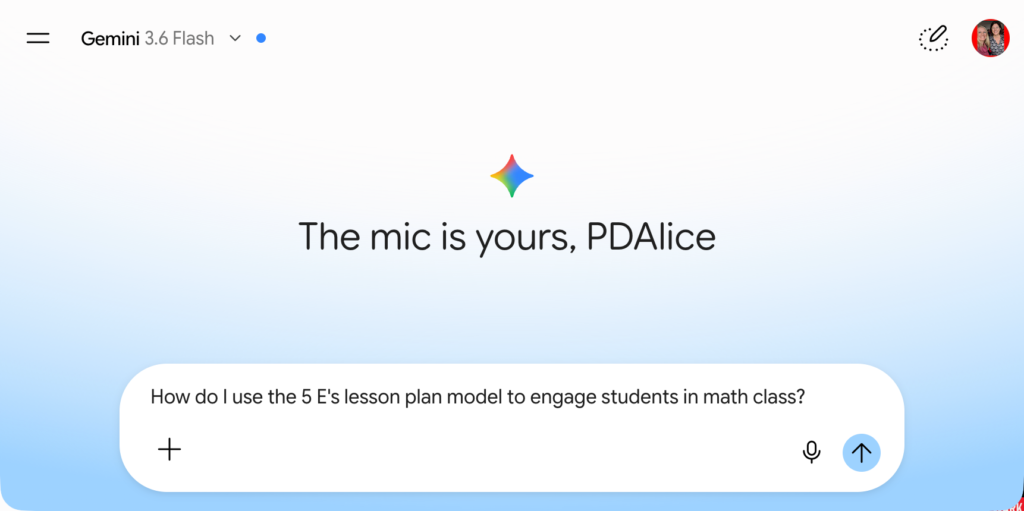
How do I use the 5 E’s lesson plan model to engage students in math class?
Add your current lesson plan, using the plus icon, and upload the resources your school provided you for what the focus is this school and ask Gemini to please update the lesson plan to apply these ideas.
Chat with Gemini
When you put in a prompt into Gemini, the response is not going to be perfect (ALWAYS fact check!). Provide your assistant some feedback to better assist you.
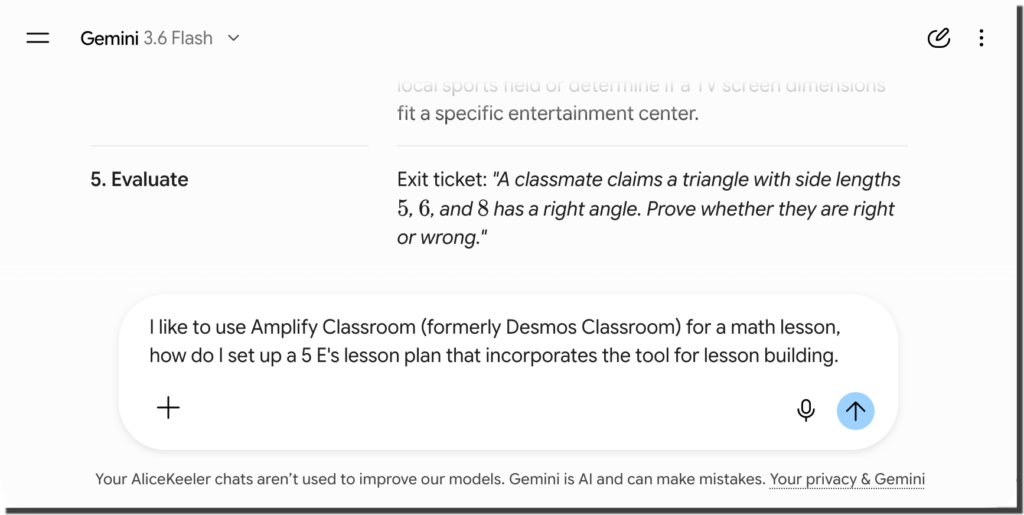

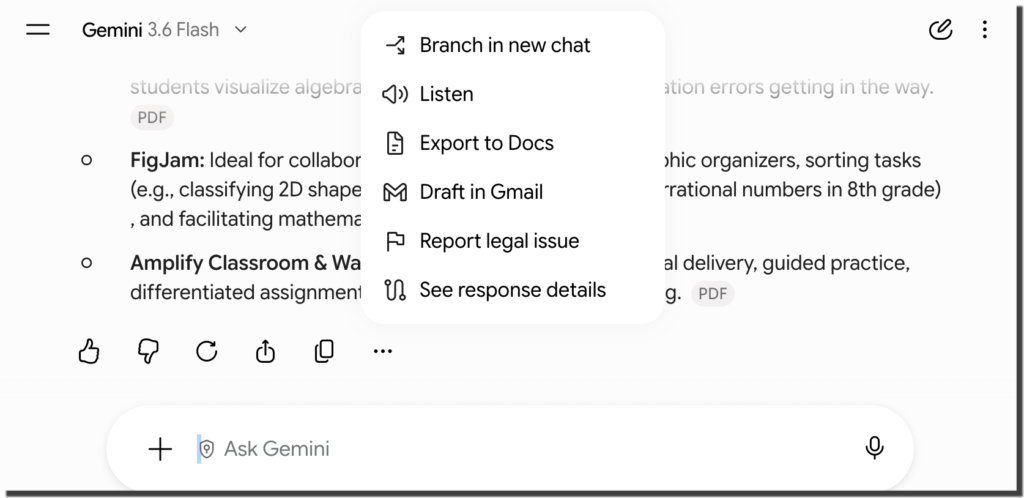
Export to Google Docs
One thing that is nice about using Google Gemini is that it is connected to your Google Workspace account. Thus, it exports right to Google Docs. Use the 3 dots at the end of the response output to select “Export to Docs.”
Use the Gemini Sidebar
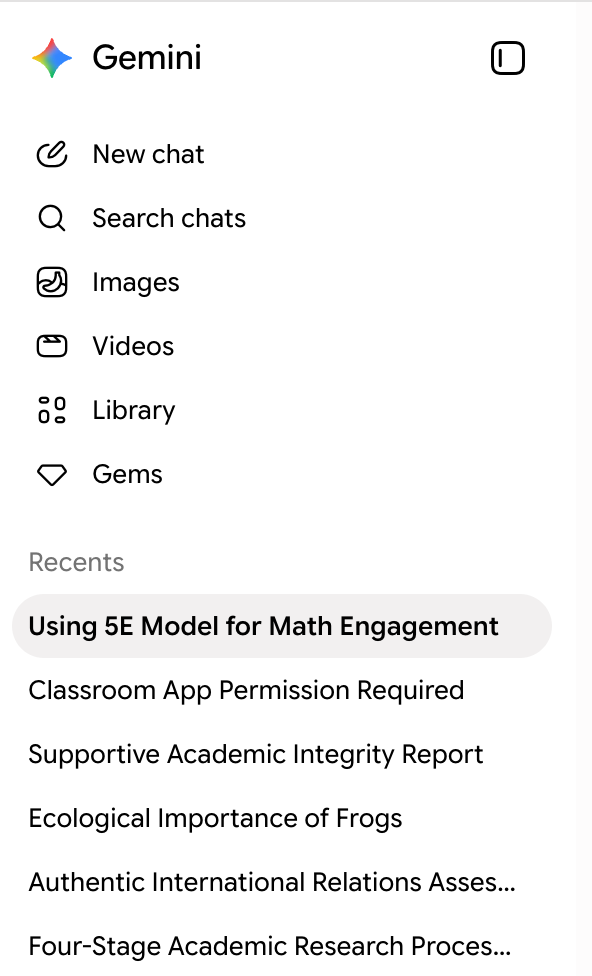
The sidebar collapses. Click on the very left of the Gemini screen to view the sidebar. You will notice a list of all of your conversations. This allows you to go back and continue conversations.
For example, if you prompt Gemini “Write a 5 E’s lesson plan about figurative language.” Then later you return to the conversation to ask “Please create a rubric for the assignment” you can pick up where you left off.
Pin the Conversation
If you hover over a chat title in the sidebar, you have the option to PIN the chat. If you use a conversation to write your weekly newsletter, pin it so you don’t have to remind Gemini how you structure your newsletter Return to the conversation and ask for the next weeks newsletter.
Connect to Google Workspace
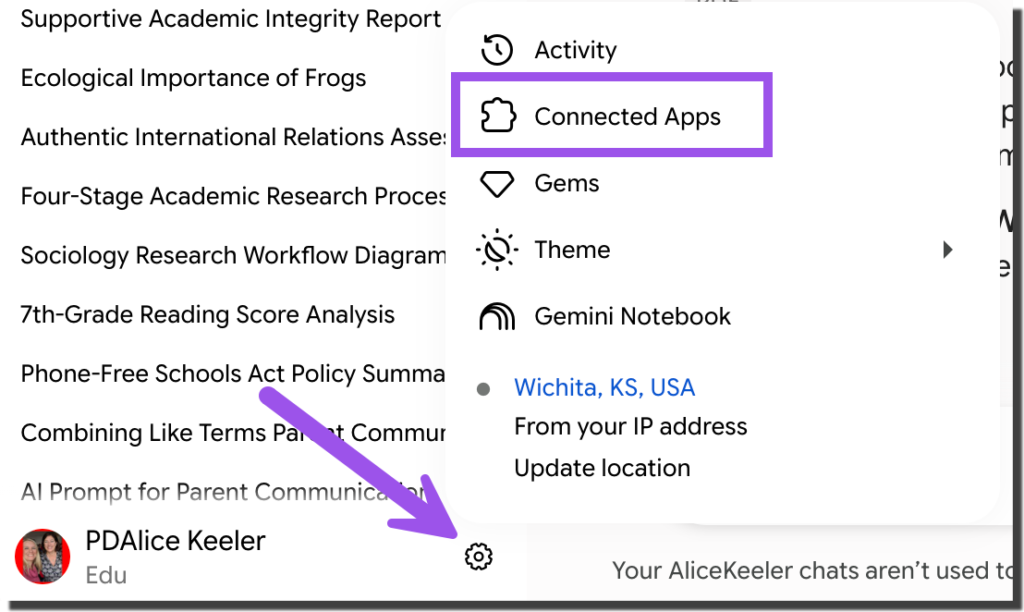
One prompt I like to give Gemini is to send the response to a Google Keep note or add a list of dates to Google Calendar. Click on the settings cog in the bottom left of the sidebar to choose “Connected Apps.” This allows you to have Gemini integrate with your Gmail, Docs, etc..
Slides to Spanish+ by AliceKeeler

Collects NO User Data
Convert your Google Slides™ to “ANY” language.
Creates a copy of your Google Slides with a quick option to convert to Spanish. Use the sidebar to select any language supported by Google Translate™. FREE
10 Suggested Prompts to Try in Gemini
To get you started with 10 ideas here are 10 ideas. For best results, use the plus (+) icon in the prompt box to attach your own files, or paste your content text directly into the prompt box.
1. Differentiating and Leveling Text Passages
Act as a literacy specialist. Take the following text passage and generate two differentiated versions to support all my learners. Version 1: Rewrite it at an accessible reading level with shorter sentences and simple language for emerging readers. Version 2: Keep it at grade level, but highlight 5 key vocabulary words in bold and include a simple glossary at the bottom .
[Attach or paste your text passage here]
2. Generate a Lesson Plan
Act as an engaging [your subject] teacher. Create a complete lesson plan introducing [your topic] using an inquiry-based approach. Include an interactive opening hook to spark curiosity, three small-group discussion questions, and an authentic performance task for students to demonstrate their understanding instead of a traditional test.
3. Creating Custom Visual Diagrams and Anchors
Create an image of a clean, minimalist vector-style diagram showing [your topic or process, e.g., the stages of the water cycle, a timeline of ancient Egypt, or a story mountain plot diagram] . Use a professional blue and slate color palette . Strictly avoid generic stock photos, complex human figures, or childlike cartoon elements.
4. Drafting Clear, Friendly Family Communications
Act as my communications assistant . Draft a warm, collaborative email to families about [topic, e.g., an upcoming project, field trip, or classroom policy update] . Focus on student wellbeing and excitement rather than strict rules. Provide a 3-bullet point summary at the top for busy parents reading on mobile phones, and translate those 3 bullet points into [Spanish or local language] .
5. Building Progress-Focused Assessment Rubrics
Act as an assessment designer. Create a 3-point grading rubric (Developing, Proficient, Exemplary) for a [grade level/subject] project on [topic]. Label the columns clearly and ensure that the “Proficient” level explicitly represents complete mastery and full credit expectations . Include criteria rows for Content Knowledge, Critical Thinking, and Communication . Format the result as a table .
6. Explaining Complex Vocabulary with Metaphors
Identify the key vocabulary words or complex concepts in this text. Explain each word or concept using a simple metaphor or real-world analogy that a [grade level or age] student would easily understand and relate to.
[Attach or paste your text or concept list here]
7. Digitizing Paper Resources via File Upload
Look at the uploaded image of this printed vocabulary page. Extract all 10 vocabulary words and their definitions. Convert them into a clean 2-column table, and write one new example sentence for each word written at a 5th-grade reading level.
[Attach photo or PDF file here]
8. Pulling Insights Across Your Google Workspace
@Google Drive Scan my Drive folder for my [enter folder name] unit documents. Synthesize the key learning objectives across all my files into a clean summary table, and point out any topic areas where I might need to add more supporting activities .
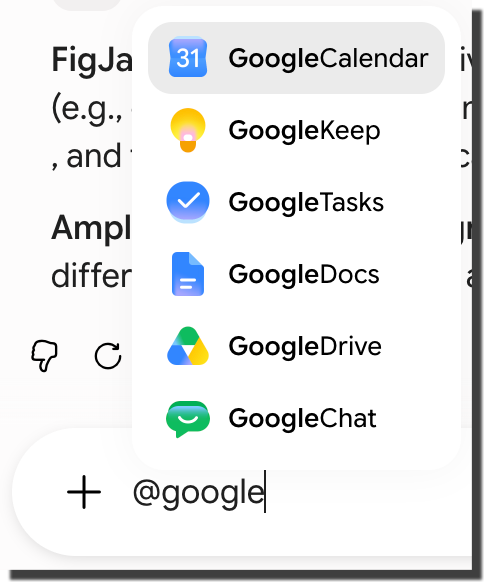
Tip: type the @ symbol in the prompt box and start typing the google product to integrate.
9. Generating Creative Lesson Hooks and Discussion Prompts
Act as an engaging [your subject] teacher. Generate 3 creative, low-cost opening lesson hooks to introduce a unit on [your topic]. For each hook, include a thought-provoking, open-ended discussion question to get students talking and active in small groups.
10. Turning Anonymized Benchmark Data into Actionable Strategies
Act as an instructional data analyst. Analyze this table of anonymized student benchmark scores . Summarize the overall growth for the group, identify the top two skills where students are struggling most, and suggest two specific, hands-on reteaching strategies I can use in small groups next week.
Use Gemini in Google Classroom
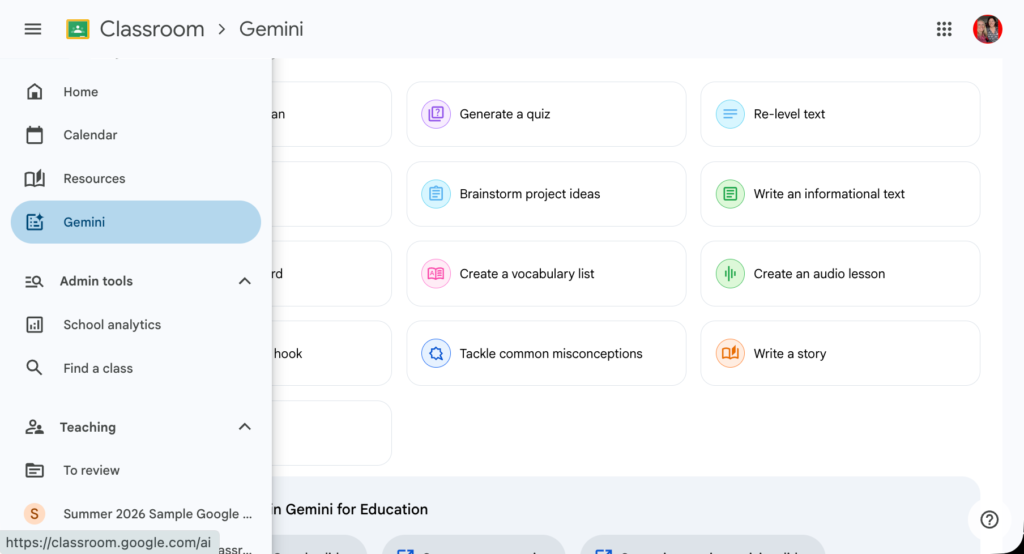
If your school is using Google Gemini, it is even easier as Google provides you with magic buttons to help you use Gemini to write lesson plans, quizzes, lesson resources, etc…
A Good Prompt is A Long Prompt
The more details you include in a prompt, the better job Gemini does as your assistant.
Bad: create a lesson plan on figurative language.
Better: Act as an expert instructional designer. Create a 5 Es lesson plan on figurative language for a class of 9th graders. At least 20% of the students are below grade level. Many students in my class struggle with following oral directions. Please include discussion questions that help students to understand the concept of figurative language.
A good prompt is at least 400 words.
Okay, I made up that 400 words suggestion. But the more words (details) the better. Use the microphone to voice type your prompt if you need to. Explain everything you know about your students, your teaching style, goals for the outcome, etc.. .
Want more help with this?

Cancel Anytime
Benefits of Premium Membership
- Supports Teacher Tech.
- Exclusive Add-ons & Templates.
- Help with student-centered teaching.
- Office hours with Alice.
- Webinars & recordings.
Save Your Long Prompts - GEMS
Instead of using AI websites who may do sketchy things with your student data, use Gemini. When you use a magic button, like in Google Classroom or other AI websites, there is nothing magic happening. Simply, they have written the prompt using a lot of words for you and have saved the prompt for you.
Save Your Own Prompts
Google Gemini Gems save your prompts!
Sample Gem Prompt
For the given topic act as an expert instructional designer. Create a 5 Es lesson plan on the given topoic for a class of 9th graders. At least 20% of the students are below grade level. Many students in my class struggle with following oral directions. Please include discussion questions that help students to understand the concept of the given topic.
Notice I adapted the prompt above to be GENERIC. Instead of “figurative language” as the topic, I indicated I would provide the topic.
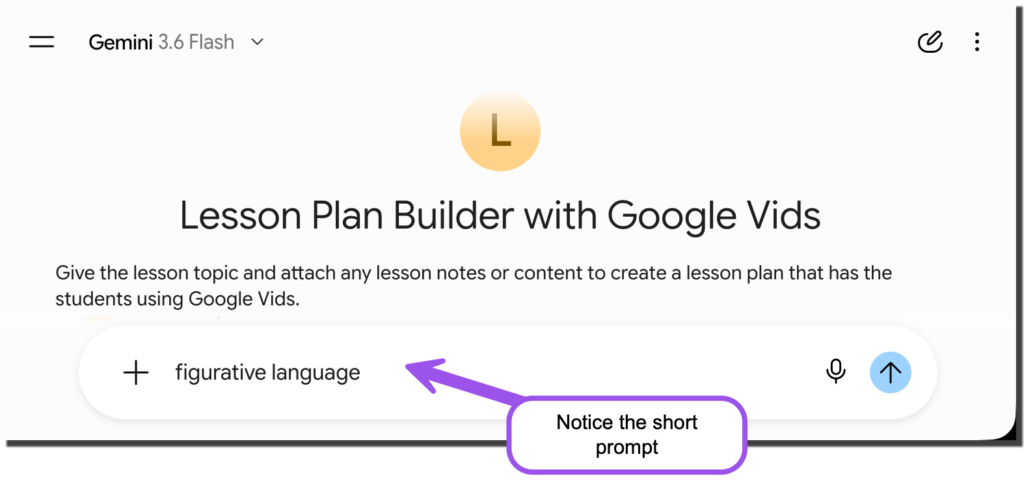
When I save the prompt I can simply type “figurative language”
Try My Saved Prompts (Gems)
I have used a lot of words to create a prompt. I used Google Gems to SAVE the prompt. Gems allow you to SHARE the prompt. So try some of my saved prompts! Click the buttons to the right and simply type in the topic you want to teach. See what happens.
I have more I saved on this Google Site:
Make a Lesson Plan that Uses Google Vids
Make a Taylor Swift Style Song
How to Save Your Prompts with Google Gems
I have previously blogged this process. The basic steps are
- Click on Gems in the sidebar of Gemini.
- Click New Gem
- Name your Gem
- Describe what information to include when using the Gem (such as “enter lesson topic”)
- In the Instructions put your generic prompt.
- Choose a desired default tool (optional.)
- Save
- Return to the Gems page to start a conversation with your saved prompt.
Use Gemini Notebook
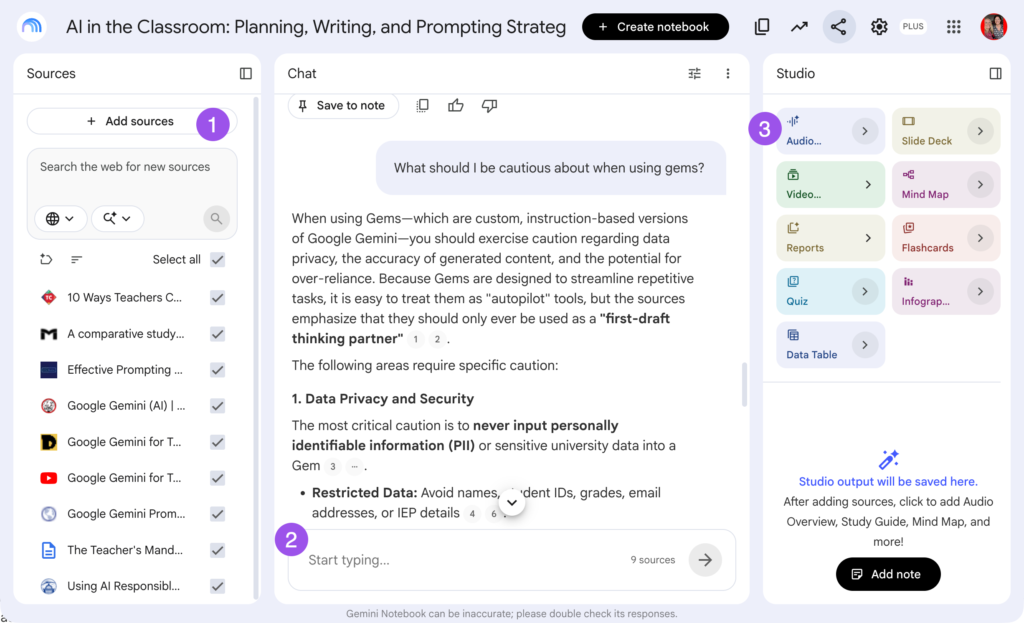
Gemini Notebook, formerly NotebookLM, is another way to use Google Gemini. Unlike a traditional Gemini conversation, Gemini Notebook ONLY sources the documents you provide it.
Upload Resources
Upload your standards, lesson notes, link to websites you trust, link to YouTube videos you like. Curate the knowledge base.
Chat with Your Sources
You can also have a conversation in Gemini Notebook. Try asking a question off topic, such as “What color is the sky?” . Gemini Notebook will return that it does not know if the sources you added don’t expressly provide that information.
Create Studio Resources
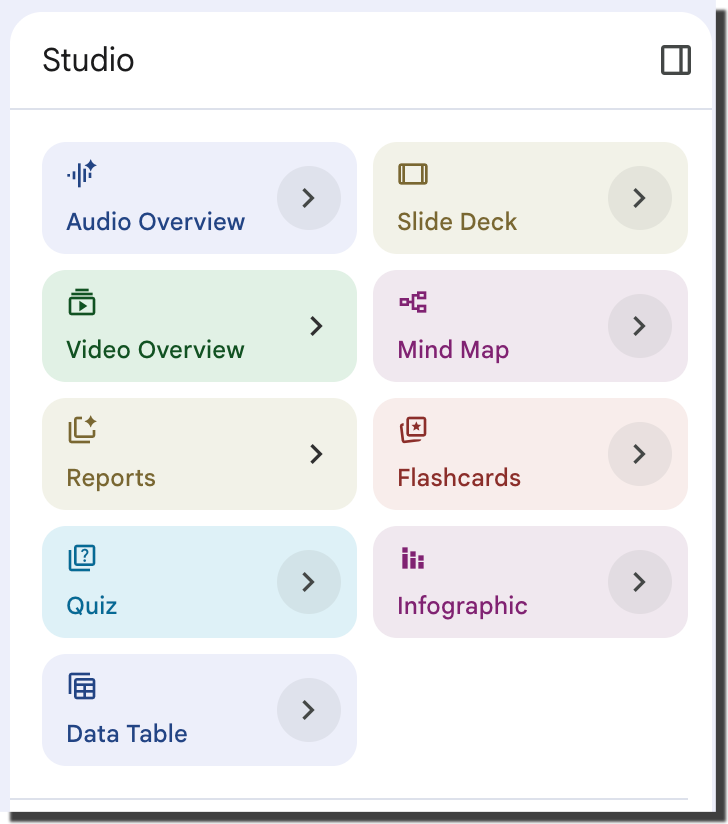
Use the Studio panel on the right to generate podcasts, videos, quizzes, etc… based on the resources you’ve curated on the left.
Differentiate Your Content with Gemini Notebook
I create a Gemini Notebook every time I plan a unit. I want to use Gemini Notebook to help me outline the unit, create lesson plans, help me with assessment generation, etc…
How Gemini Notebook can really shine is in it’s ability to adapt content for students. Prompt your sources to rewrite a student reading to be at a particular reading level, to include particular vocabulary, or even to translate it to another language.
When generating Studio resources, notice the > icon on the tile.
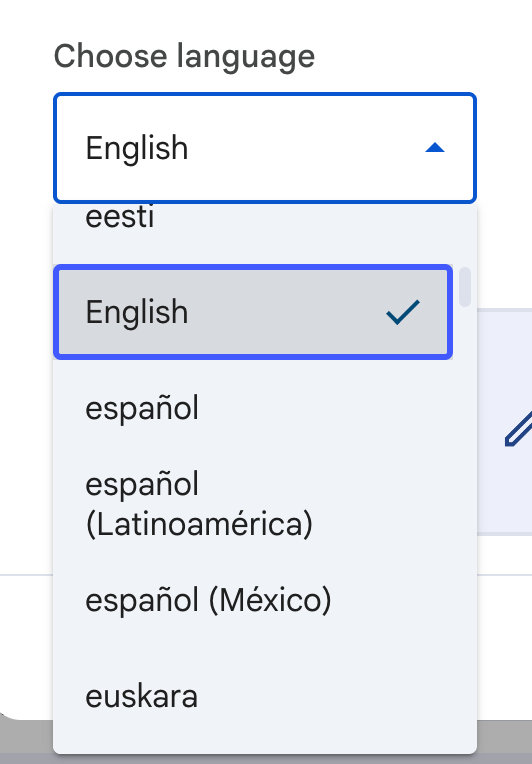
When generating, for example, a video you can select what language the video is created in. You can also use the description box to indicate focus on the video, grade level, and particular vocabulary words you want to emphasize.
Getting Started with Google Gemini
This guide is intended to be a quick start to using Google Gemini. There are a lot more things you can do with Google Gemini and integrating Gemini into Google Workspace. Follow me for more on using Google Gemini. Join my Teacher Tech Facebook group.