
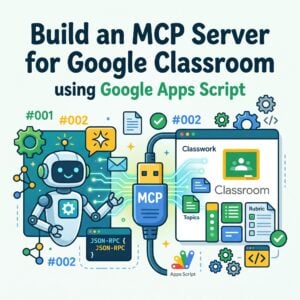

My newest coding obsession is building an MCP server for Google Classroom using Google Apps Script. I have created hundreds of Google Apps Script projects over the years to make Google Classroom more efficient. If you have a specific use case, do not hold your breath that Google will add it as a feature. Code it yourself! Now, instead of just running a script from a spreadsheet menu, an MCP server lets me connect my Google Classroom code directly to Gemini.
Is MCP For You?
I may have lost you already! If you are just looking for tips on how to organize your Classwork page or post an assignment for Monday morning, you do NOT need an MCP server. It is way faster to just open Google Classroom and post it yourself.
This post is not your first coding project. However, if you already love coding in Google Apps Script, or you have been playing with vibe coding and the Gemini API, this is for you. You are going to want to try this.
The Problem With Course IDs
In my ReuseGC unofficial Add-on, the first action is to generate a list of your Google Classroom classes so I can grab the Course ID. If you’re doing your own coding for Google Classroom you’ll also need to figure out how to get that 12 digit Course ID number.
With an MCP server for Google Classroom, I never have to look up a Course ID again.
What Is an MCP Server
MCP stands for Model Context Protocol. When I first ran my MCP code in the Apps Script execution log, I thought it looked pretty stupid. It spits out a giant wall of JSON text.
Then it clicked. That ugly output is not for me to read. It is for Gemini to read!
Normally, Gemini cannot see inside your Google Classroom. When you set up an MCP server in Google Apps Script, you write functions that tell the AI what tools it is allowed to use.
When I type a prompt like, “Post an announcement to my Algebra class to share their project links in the comments,” Gemini asks my MCP server for my list of courses. Gemini reads that giant list of over 300 classes in a second, finds the right Course ID on its own, and runs my function to post the announcement.
Does an MCP Server Change Your Permissions
When you hear the word “server,” it is easy to worry about student data and permissions. Does creating an MCP server change your Google Workspace permissions? No.
What is great about using Google Apps Script is that it runs in your browser and uses your existing Google account permissions. You do not even need to set up a Google Cloud project or mess with OAuth verification.
Even better, the AI can NOT just do whatever it wants in your Google Classroom. It can only run the exact functions you write in your script. If you only code a function to list your classes and a function to post an announcement, those are the only two things Gemini can do. It cannot delete a class or touch your grades because you did not write code for that.
Why Not Just Use a Regular Script
If you already know how to call Google Classroom in Apps Script, why bother wrapping it in an MCP server?
When I code a traditional script or a Google Workspace Add-on, I have to build the whole user interface. I have to code a sidebar menu, create a dropdown or a Picker so the user can select a class, and pre-program the exact steps in order.
With an MCP server, I do not have to build a menu or pre-program the sequence. I just write the building blocks. If I give my MCP server a function to read a Google Doc and a function to post to Google Classroom, Gemini figures out how to combine them. I can take my rough notes from a project observation Doc and tell Gemini to post discussion starters to three different classes without clicking through a single menu.
10 Ways to Use a Google Apps Script MCP Server With Google Classroom
Once you realize you do not have to build a spreadsheet menu for every single script, your brain starts spinning with ideas. Because Google Apps Script already talks to Docs, Sheets, Slides, Forms, and Drive, adding those tools to your Google Classroom MCP server lets Gemini connect the dots across your whole Google Workspace.
1. Turn Your Clipboard Observations Into Class Announcements
Perhaps you’re walking around the room and typing quick notes into a Google Doc while students are working in groups. With an MCP server that connects Google Docs and Google Classroom, I can tell Gemini to read my messy observation notes from today and post a customized shout-out announcement to Period 2 and a completely different hint announcement to Period 4.
2. Update an Assignment Across Multiple Classes at Once
Google Classroom lets you post an assignment to multiple classes at the same time, which is great until you realize five minutes later that you need to change the directions or push back the due date! Editing an existing post across five different sections is a total booger because you have to open every single class and edit them one by one. With an MCP server, you just tell Gemini to find that assignment in all five of your Algebra classes and update the instructions or due date in one go.
3. Automatically Number Any Unnumbered Assignments
I always tell teachers to number every assignment in Google Classroom with a hashtag like #001, #002, and #003. It makes it so much easier for students to communicate what students are working on! However, if you get busy during the week and forget to put numbers on your last few posts, going back to check what number you left off on and editing the titles is a pain. With an MCP server, you can tell Gemini to look at your Classwork list, see where your numbering stopped, find any assignments that do not have a # number yet, and rename them in chronological order automatically.
4. Draft Small Group Project Spaces From a Google Sheet
When students choose their own inquiry topics in a Google Form or Google Sheet, your MCP server can read the spreadsheet groups, create a collaborative Google Slides deck for each group in Drive, and assign that specific link to just the members of that group in Google Classroom.
5. Pull Student Project Links Into One Class Showcase Doc
When students turn in links to their digital portfolios or creative projects, clicking into 30 individual submission cards in Google Classroom is painful. An MCP tool can grab all the submitted links for a specific assignment and format them into a clean Google Doc or Google Sheet so the whole class can view and give peer feedback.
6. Drop Feedback Directly Into Student Google Docs Without Opening 30 Tabs
While I wish when I was using the Classroom API personally I could manage Private Comments, I don’t want 3rd parties connecting to Google Classroom to have access to those Private Comments. So… we can’t directly read/write to the Private Comments but we can modify text in an appended Google Doc.
Instead of waiting for 30 separate Google Docs to load in your browser, you can dictate or type your feedback notes for each student into one running Google Doc while you walk around the room. Then, tell Gemini to use your MCP server to find each student’s attached Google Doc on that assignment and insert a feedback callout table right at the top of their Doc!
7. Clean Up and Archive Old Workshop and Semester Classes
Remember how I said I have over 300 classes in my Google Classroom account? Archiving old demo classes one by one on the home screen is not how I want to spend my Saturday. With an MCP tool that updates course states, I can tell Gemini to find every active class with “2023” or “Sample” in the title and archive them for me.
8. Check Which Classes Are Missing a Resource Link
Have you ever posted a great resource to two of your classes and totally forgotten the third? Instead of clicking into each Classwork page to check, you can ask Gemini to look across your active classes and tell you which period did not get the link yet, and then tell it to post the missing material right there.
9. Turn a Google Slides Presentation Into a Guided Discussion Assignment
If you just finished making a Google Slides deck for tomorrow, you can ask Gemini to read the text on your slides, write three critical thinking prompts that ask students to defend their reasoning, and save them as a draft assignment in your Google Classroom under the right topic.
10. Generate Individual Student Rubric Reports
Rubrics should help students understand where they are in their learning and how to grow, not just slap a percentage on their work. The Google Classroom API lets your script extract both the rubric criteria (courses.courseWork.rubrics) and the exact level each student achieved on every criterion! Instead of making students click into old assignments to see their rubric breakdown, your MCP server can pull a student’s rubric results across multiple projects and generate an individualized Google Doc report for each student showing the criteria where they have met the standard and concrete next steps for the skills they are still developing.
Vibe Code Your Own MCP Server With This Prompt
Since Google Apps Script is what I typically code in, here is how to use Apps Script to get started.
Start with script.new
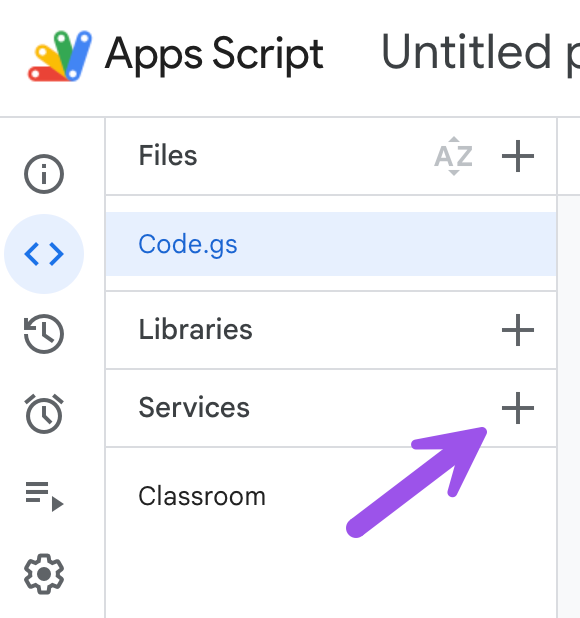
Click on the plus icon in the Services section on the left hand side. Add the Google Classroom API.
Prompt Gemini
Write a single-file Google Apps Script project (Code.gs) that acts as a Model Context Protocol (MCP) server for Google Classroom using doPost(e). Keep it beginner-friendly and do not require a Google Cloud project.
Include two MCP tools in the server using the built-in Classroom Advanced Service:
1. list_courses: Lists the 20 most recent ACTIVE courses (returning id, name, and section).
2. create_announcement: Posts an announcement to a specified courseId with text.
Also include a test function called askClassroomAgent() right in the same file that uses UrlFetchApp and the gemini-3.8-flash model so I can paste in my Gemini API key, type a natural language prompt like ‘Find my Algebra class and post an announcement’, and watch Gemini call my MCP tools in the Apps Script Execution Log.
Gemini API Key
Go to aistudio.google.com and get an API key. The code generated by Gemini should have a placeholder for the API key that you will swap out.
I Tried the Rubric Reports
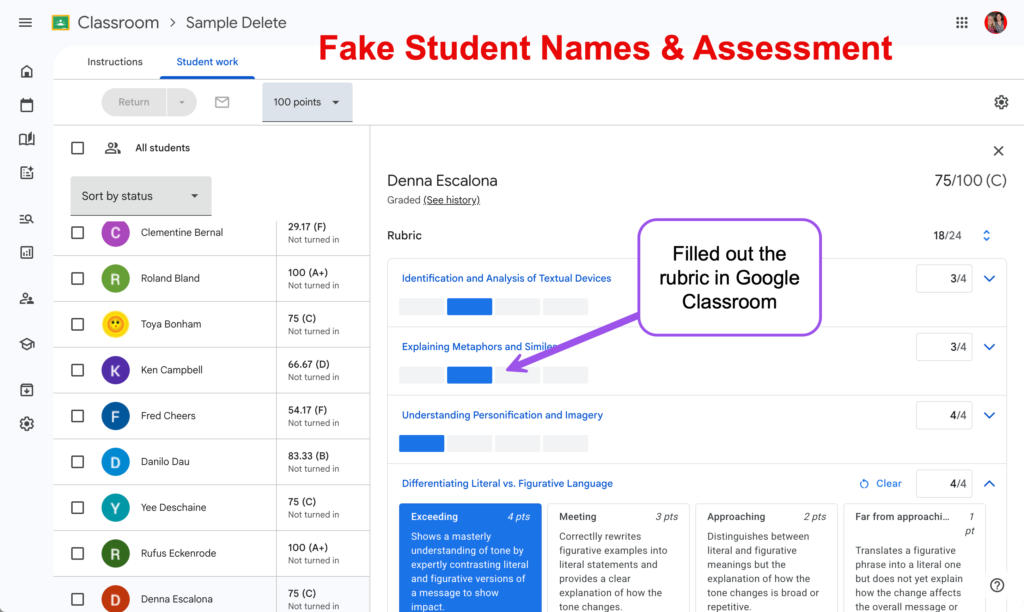
If you use rubrics in Google Classroom, you might want to print out the reports for the students. Using the MCP server and vibe coding made it insanely easy. In the screenshots below, I tappety tapped in Google Classroom to assign rubric levels. Then when I ran the vibe coded request to
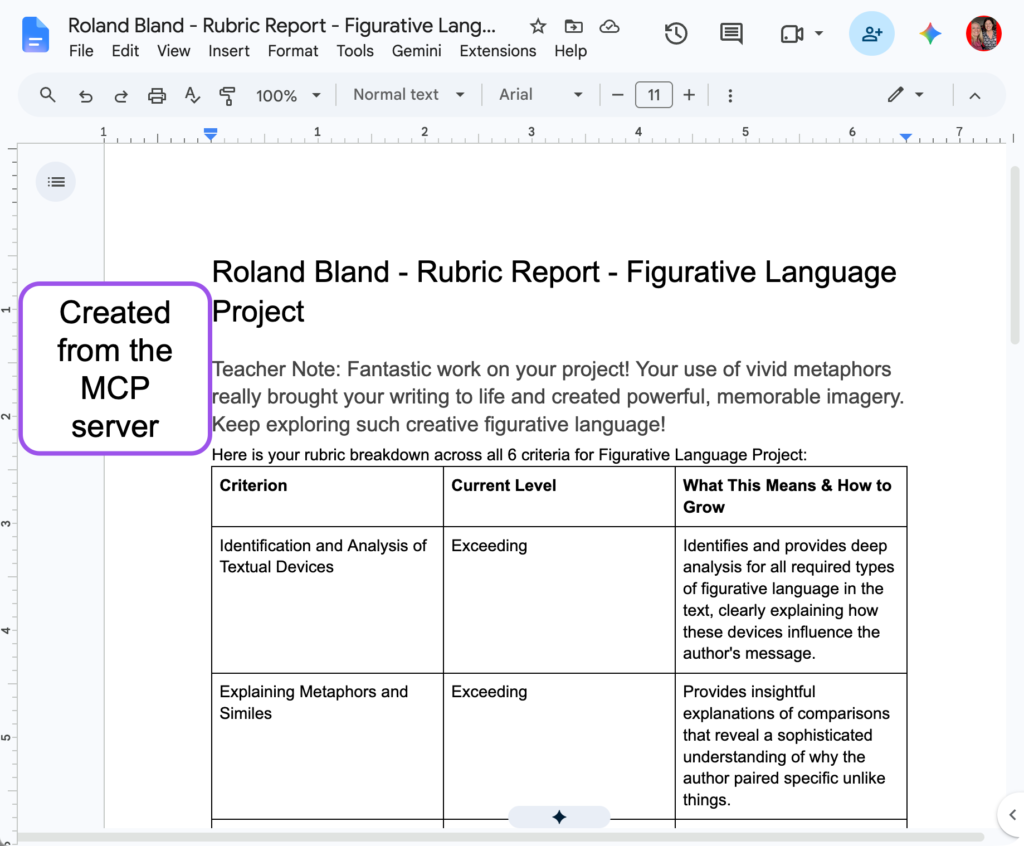
“Find my ‘Sample Delete’ course, look up the ‘Figurative Language Project’ assignment, and create a student rubric report for any student who has rubric grades (or the first student in the class).”
This generated a Google Doc with the full rubric formatted in the Doc, despite my prompt not being detailed to include all of the details.
Sample Code
Technical Note and Disclaimer: The tutorial in this article provides a custom, single-file Google Apps Script (Code.gs) workaround that operates entirely under your active session permissions, using a doPost(e) endpoint, lightweight tools/list and tools/call JSON-RPC handlers, and the built-in Google Classroom Advanced Service to proxy prompts directly to the Gemini API. Please note that this self-contained solution is not the official, spec-compliant remote Google Classroom MCP server (https://classroommcp.googleapis.com/mcp/v1) provided by Google. Setting up Google’s official remote MCP server for external client hosts like Google Antigravity or Claude Desktop requires membership in the Google Workspace Developer Preview Program, an active Google Cloud project with both the Google Classroom API and Classroom MCP services enabled, configured OAuth 2.0 credentials for AI agents, and standard Streamable HTTP transport configuration.