



Have you started vibe coding yet? Vibe coding is when you code with your words. Here is an easy way to start. In Google Gemini, enable the CANVAS, and ask Gemini to create you an app for your classroom that does…. for example, “Create a spinny wheel to randomly choose a student from my class list.” I made you a Gem to get started, simply type the topic you want to teach. When you’re ready to kick it up notch, try vibe coding in Google Antigravity.
Vibe Coding with Google Antigravity
Google Antigravity is incredibly powerful for educators who want to move beyond off-the-shelf software and create custom, dynamic learning experiences. Because it uses an agent-first approach, teachers do not need a computer science degree to build functional applications. They just need a clear vision of what their students need.
Building Custom Google Workspace Tools
Have you ever bought (or very likely been given) an EdTech tool only to realize you are being forced into a particular pedagogy and have to go along with it or hack it? For example, Google Classroom grading drives me crazy at how old school it is and not allowing for more modern concepts. Antigravity allows you to code your own custom applications.
Installing Antigravity
What is nice about vibe coding with Gemini is you can use it in the browser. Upgrading your experience to Google Antigravity requires you install it on your computer.
Note that you can not install it on a Chromebook.
Launch and authenticate with your Google account.
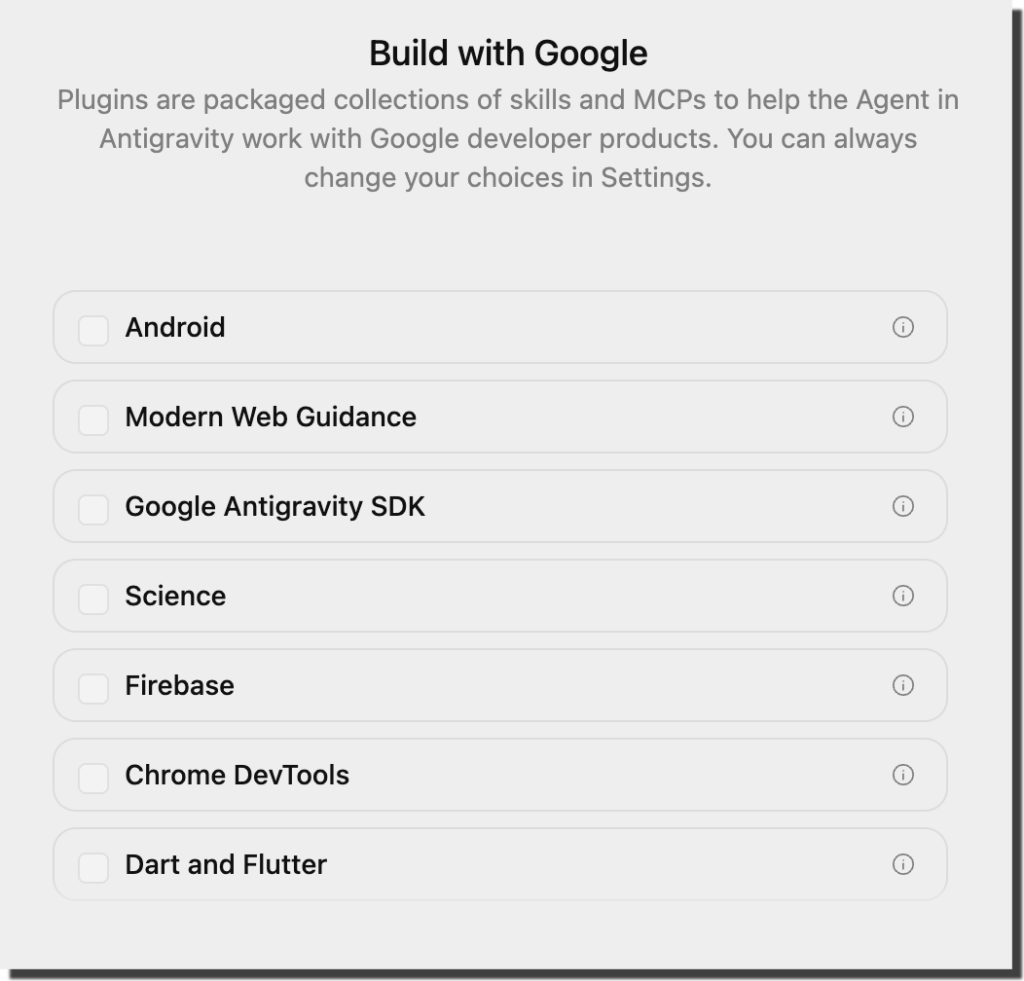
Choose Your Antigravity Plugins
You will be prompted to add collections of skills and MCP’s.
An MCP, or Model Context Protocol, is a standardized framework that allows AI agents to securely connect to and interact with external developer tools, datasets, and APIs to expand their capabilities.
Perhaps start with Modern Web Guidance. By enabling this bundle, your agent receives a package of evergreen and expert-vetted skills for the modern web.
The Essential Recommendations
For building responsive web applications and custom utility tools, checking these three options provides the best starting baseline:
Modern Web Guidance: This is a must have. It equips your agent with best practices and optimized frameworks for building standard web apps, interactive layouts, and modern frontend interfaces.
Google Antigravity SDK: This unlocks the platform’s core capabilities, ensuring the agent can seamlessly orchestrate sandboxes, manage files, and execute autonomous coding loops.
Chrome DevTools: Selecting this allows the browser sub agent to properly inspect, debug, and visually audit the user interfaces you build, giving you reliable screenshots and live verifications.
🔬 Recommended Additions for Specific Contexts
Depending on the types of projects you want to experiment with right out of the gate, consider these specialized additions:
Science: If you plan to generate data visualizations, graphing tools, or simulations that model real world concepts, this plugin provides the agent with deep scientific and computational reasoning capabilities.
Firebase: Choose this if your apps will eventually require a database to save user progress, log information, or handle secure user authentication.


Start Your Vibe Coding Conversation
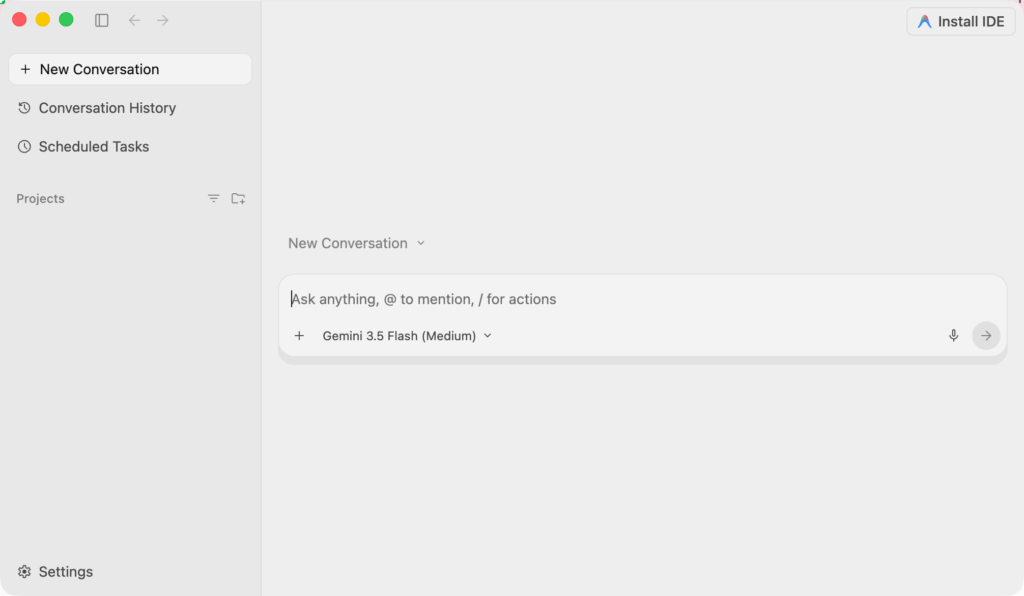
The interface is not so dissimilar from other AI tools you have used. Start describing your project in the prompt box.
Sample Project
Since I am a math teacher, let’s do a math example.
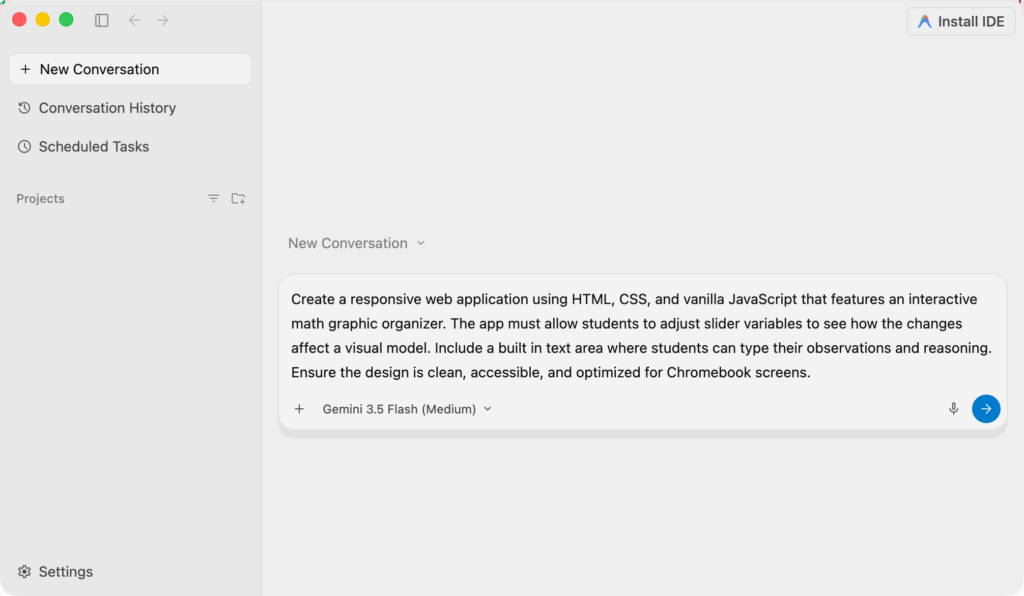
“Create a responsive web application using HTML, CSS, and vanilla JavaScript that features an interactive math graphic organizer. The app must allow students to adjust slider variables to see how the changes affect a visual model. Include a built in text area where students can type their observations and reasoning. Ensure the design is clean, accessible, and optimized for Chromebook screens.”
Giving Agents Permission
No one wants rogue agents doing mystery interactions with your computer. Antigravity will ask you what permissions you want to grant.
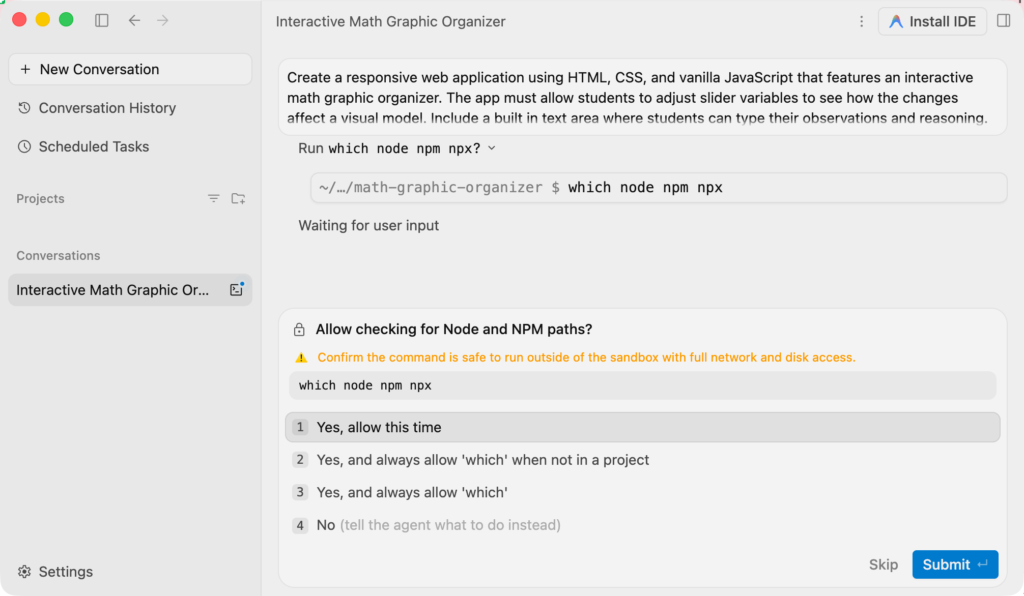
In this Google Antigravity screenshot, the platform acts as a secure assistant by pausing before it interacts directly with your local system. In this step, the AI agent is operating inside an isolated cloud environment called a sandbox and is requesting explicit permission to run a quick terminal command to see if your machine has the necessary background development tools to run web applications. For anyone learning the platform, encountering this prompt is a completely normal safety feature that guarantees you maintain absolute control over your device while the autonomous agents handle the heavy lifting of building your interactive software.
Continue to Grant Permissions
the Antigravity agent is performing a deeper investigation of your computer’s internal setup to ensure it has what it needs to build your project. Because the AI operates within a secure, isolated sandbox, it is once again pausing to ask for explicit permission before running a command that reads your system’s core directories and environment variables.
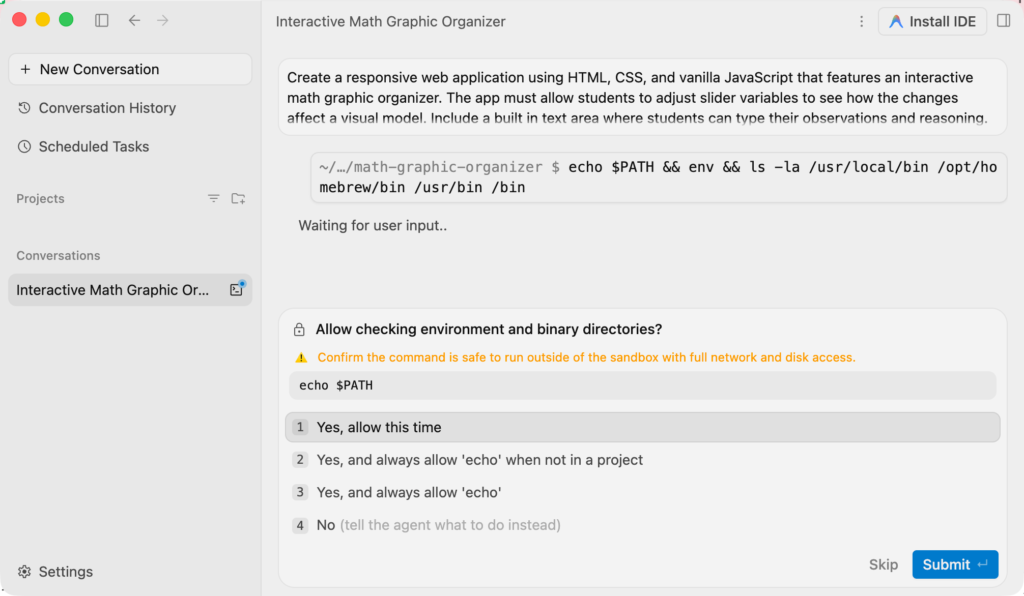
Essentially, the agent is trying to map out exactly how your computer is organized and locate your installed development tools, ensuring you maintain absolute control and visibility over what the AI is allowed to access on your device. There might be a sequence of permissions for you to grant.
Review the Implementation Plan
There is a file for you to review, I of course did NOT review it, but you do you 🙂
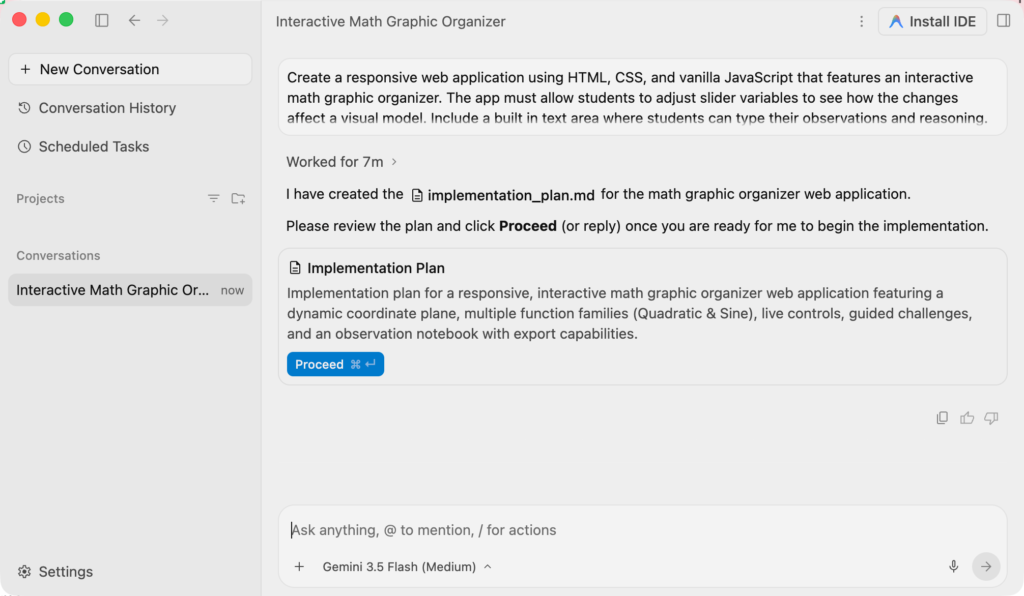
TaDa.....????
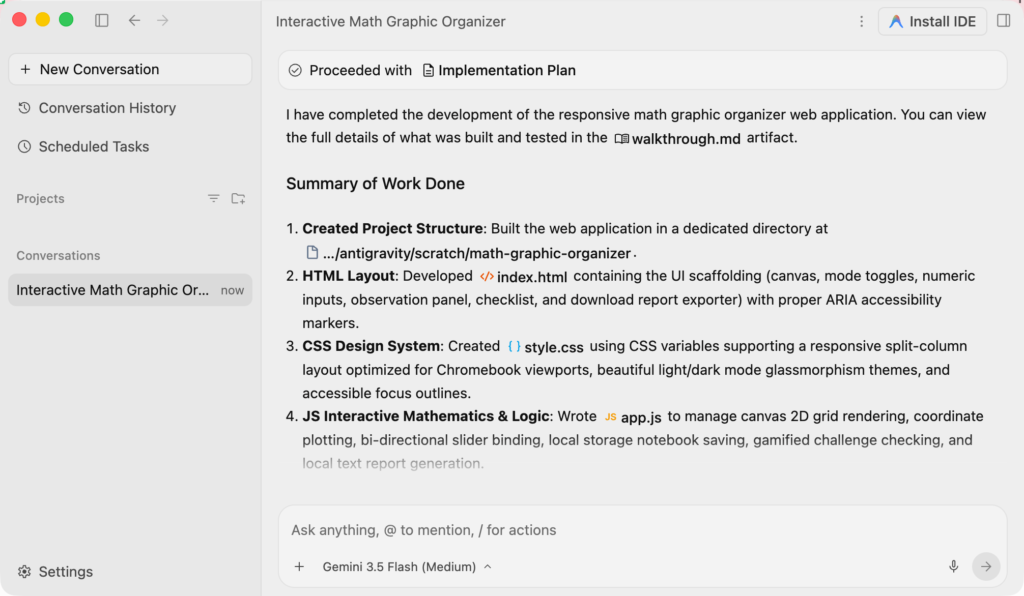
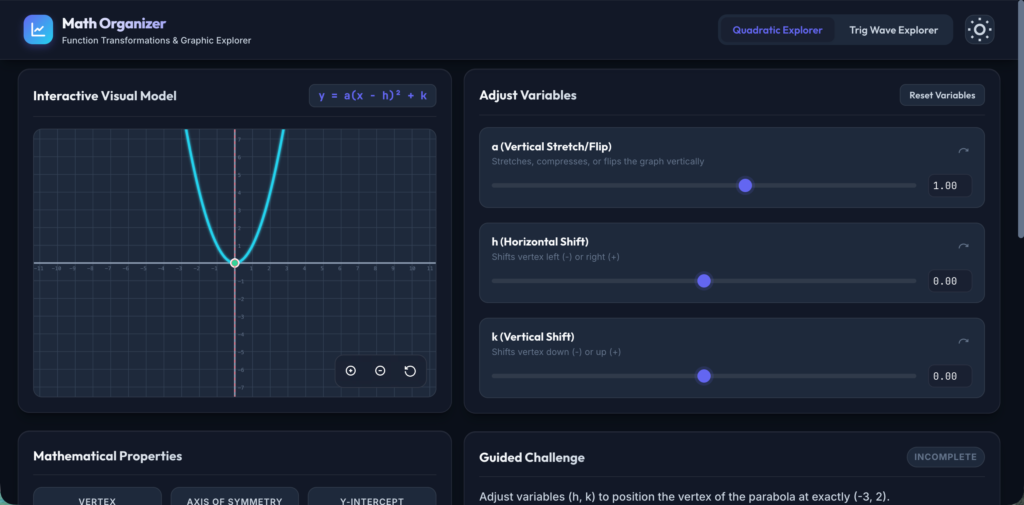
It said it was done, unlike Google Gemini it doesn’t feel done. When I vibe code using the canvas in Gemini, boom, it shows me the app. This shows me… a lot of words.
Taking Your New Math Tool for a Spin
The AI has successfully completed the heavy lifting and the interactive tool!
Here are the next steps to view and test your project.
Set your active workspace Follow the agent’s tip and change your current directory in Antigravity to the new project folder at
/Users/alicekeeler/.gemini/antigravity/scratch/math-graphic-organizer. This will load all the newly generated files into your editor view.Test the student experience Open the
index.htmlfile directly in your Chrome browser. This is your chance to play with the sliders, interact with the 2D canvas, and ensure the tool genuinely encourages deep mathematical reasoning and authentic exploration.Read the agent summary Open the
walkthrough.mdfile in your editor. This document will explain exactly how the AI structured the background logic and the specific features it included, like the responsive design optimized for Chromebook screens.
In the tip the “math-graphic-organizer” was clickable for me. In other words, it saved it in a folder on my computer.
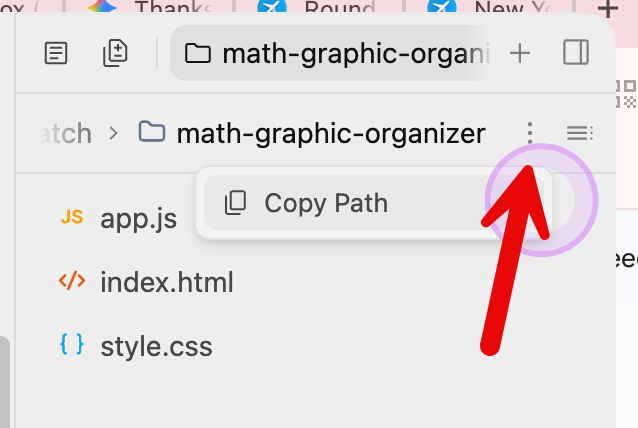

After clicking on the file name, it opened a sidebar where I could use the 3 dots to “Copy Path.”
Then, I opened a new tab in Chrome and pasted that path and it showed my app. Note: this is local so sharing that path with someone else will NOT allow them to see the app.
Sharing Your Interactive App With the World
Now… how do we let others, including students use this app?
Step 1: Let the Agent Bundle Your Code
Google Apps Script is the perfect distribution platform for a school environment, but it handles files a bit differently than a standard web server. Instead of separate files for styling and logic, it works best when the CSS and JavaScript are embedded directly into the HTML file.
Go back to your Antigravity conversation panel and paste this quick prompt:
“Please bundle the
index.html,style.css, andapp.jsfiles from our project into a single, unifiedindex.htmlfile appropriate for a Google Apps Script Web App deployment, putting the CSS in style tags and the JavaScript in script tags. Also, provide a simpleCode.gsfile with the standarddoGet()function.”
The agent will autonomously package everything together, giving you two clean blocks of code to copy.
Step 2: Set Up the Google Apps Script Project
Open your web browser and go to script.google.com.
Click the New Project button in the top left corner.
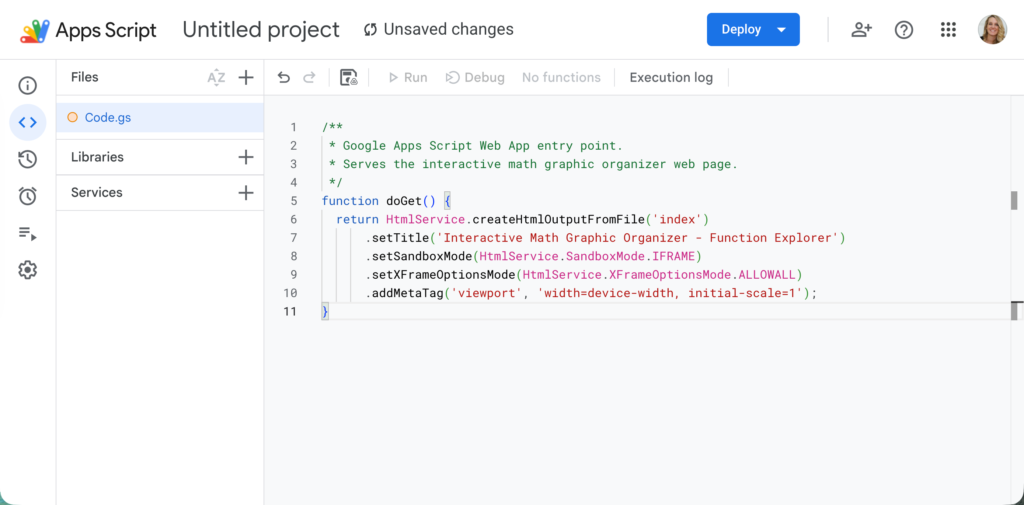
Click on the title “Untitled project” at the top and give it a catchy name, like Interactive Math Graphic Organizer.
In the left sidebar, you will see a default file called
Code.gs. Click it, delete any text inside, and paste theCode.gsscript provided by the Antigravity agent.
Step 3: Add Your User Interface
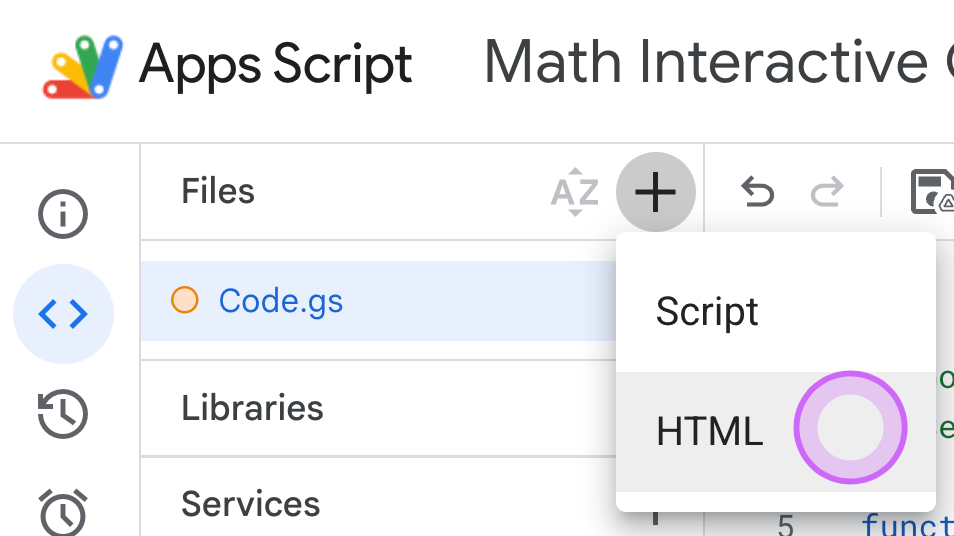
In the Apps Script editor, click the + (Plus) icon next to the Files heading in the left sidebar and select HTML.
Name this new file exactly
Index(Apps Script will automatically append the.html).Delete the default template text, copy the entire unified
index.htmlblock of code generated by your Antigravity agent, and paste it right into the editor.Click the small Save Project floppy disk icon at the top of the screen.
Step 4: Deploy and Distribute Your Web App
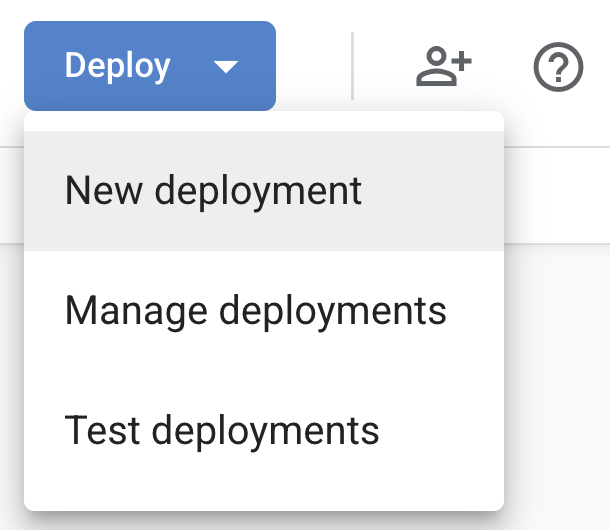
Click the blue Deploy button in the top right corner of the editor and select New deployment.
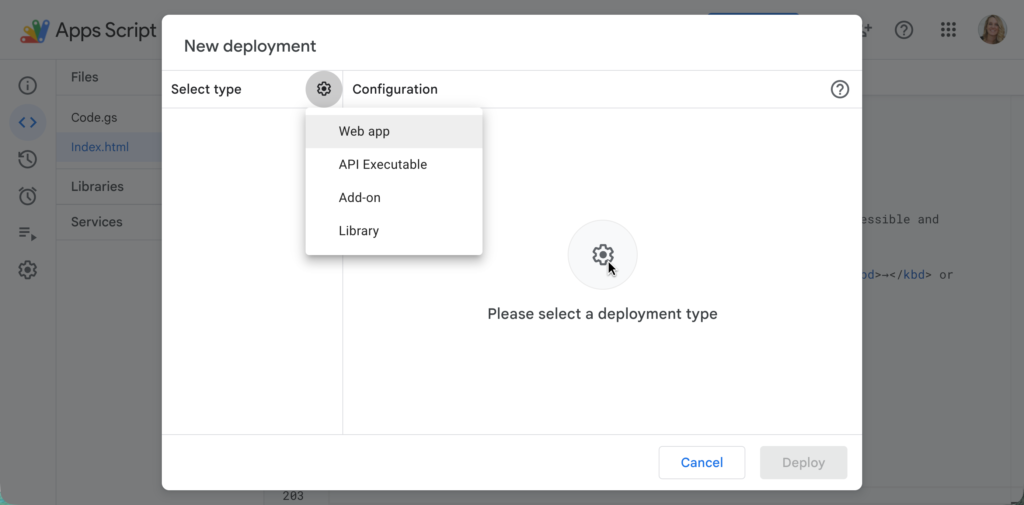
Click the gear icon next to “Select type” and choose Web app.
Under Execute as, select Me (your email).
Under Who has access, change this option to Anyone (or your specific school domain if you want to limit access strictly to your students).
Click Deploy. If prompted, click Authorize access and sign in with your Google account to grant the necessary permissions.
Deploy the Web App Url
Once the deployment finishes, Google will provide you with a Web App URL. This link is your live application! Anyone who clicks it will instantly see your dynamic graphic organizer running beautifully in their browser. You can drop this URL directly into Google Classroom, embed it on a website, or share it on your blog for other teachers to copy and use with their own students.
Sadly, It Didn't Work
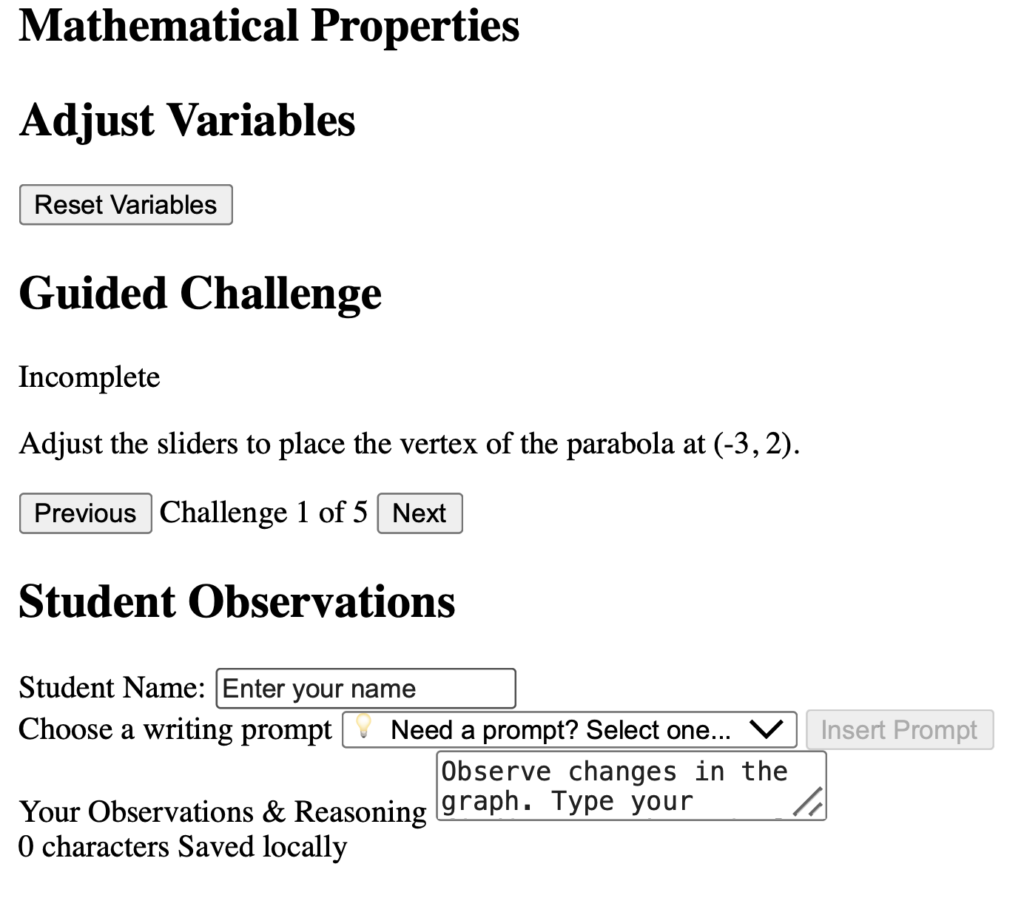
As is not unusual, the first attempt didn’t work out perfectly. The Apps Script attempt did not match the original output and lost the graphics.
Iterated the Prompt
The Google Apps Script Web App deployment is currently rendering as plain text without any of the dark theme design. Please regenerate the unified
index.htmlfile. You must explicitly embed the entirestyle.csscode inside<style>tags within the<head>, and embed the entireapp.jscode inside<script>tags right before the closing</body>tag. Do not summarize the code; please provide the complete, fully bundledindex.htmlfile so I can paste it directly into my project.
That Worked!
The Apps Script version had the correct look and application.
Choosing Antigravity Over Google Gemini Canvas
Gemini Canvas is incredible for generating a quick, single-page script or a unified file. However, Antigravity truly shines when an application requires a robust multi-file architecture, complex data management, or a connection to a backend database.
Creating an Antigravity Project for Social Science Teachers
Regardless of what you teach, Google Antigravity can create a custom application to use in your classroom. Let’s try a 2nd project. Imagine a web application where students act as museum curators. They are tasked with analyzing primary source documents, evaluating them for bias, and arranging them into a cohesive digital exhibit.
Create a multi-file web application with a modular architecture including an index.html, separate JavaScript modules for logic, and a CSS design system. The app is a ‘Primary Source Artifact Curator’ for history students. The interface must allow students to upload or link to historical images, drag and drop them freely onto a visual workspace, and attach digital annotation cards. The annotation cards must prompt the student to evaluate the source’s perspective and historical context. Include a utility to export the final curated board and their written reasoning as a downloadable report. The design should be immersive, accessible, and encourage authentic historical inquiry.
Open the Antigravity Program
Select new conversation and describe the application you want to build. As before, you will need to authorize multiple permissions.
Note in Antigravity
NOTE: Please set /Users/alicekeeler/.gemini/antigravity/scratch/primary-source-curator as your active workspace in your IDE to begin editing and managing the files directly.
What Does This Mean?
That note is simply the Antigravity system asking you to point your editor to that specific folder. Right now, your IDE interface is likely still focused on a general directory or your previous math project. By setting this new folder as the “active workspace,” you are telling the application to load all the new history app files into your side panel so you can see exactly what was built.
Here is how to make that switch and reveal your new files:
Locate the Open Option Look for a button or menu option in Antigravity that says “Open Folder,” “Open Workspace,” or simply “File > Open.”
Navigate to the Path Use the file explorer window to navigate to the exact path provided in the note. You can use the
Command + Shift + Gshortcut you learned earlier to open the search box and paste~/.gemini/antigravity/scratch/primary-source-curatordirectly into it.Set the Workspace Click “Open” or “Select Folder.”
Once the workspace loads, your file tree on the left side of the screen will populate with the new modular JavaScript files, your CSS design system, and the main HTML file.
Daily Agenda Slides

Collects NO User Data
Add-on for Google Slides™ to automatically add a slide to the top of your Google Slides™ with the date. Use this to post your agenda and display for students. This gives students and guardians easy access to “what did we do today?”
Keep an ongoing record of the daily agenda for your class. Use the same Google Slides™ all year!
Test Out the App
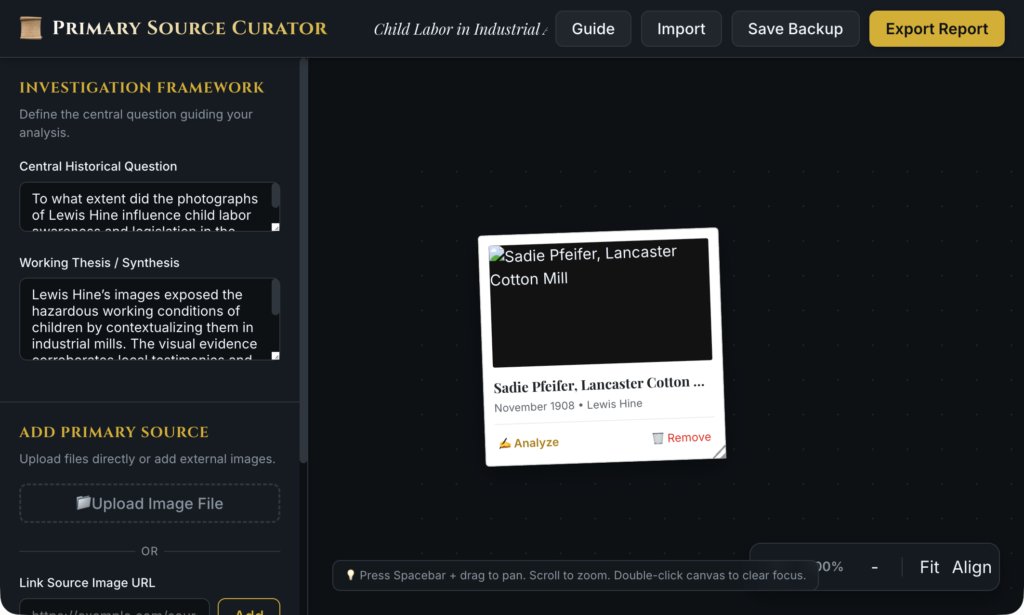
Antigravity provided me a way to review my app, remember this initial prototype is in Python. If I paste http://localhost:8000 into a Chrome tab on my computer, since it is hosted locally, I can see the application.
Install the IDE
Notice at the top of Antigravity is an icon requesting you to install the IDE (The space you code in). On the Antigravity download page, is an option to install the 2nd application. The IDE will ask you about the Agent, the default, Review-driven development, is exactly what you want. This setting ensures the agent will pause to ask for your feedback at major checkpoints rather than making all the decisions on its own.
Sharing the Application with Students
What is great about using Antigravity to make custom apps is the security. You aren’t sharing anything with 3rd parties. You can distribute the actual files for students to open and run locally, no internet required. You can use an Apps Script file, like we did previously, or host on Github or the like.
Want more help with this?

Cancel Anytime
Benefits of Premium Membership
- Supports Teacher Tech.
- Exclusive Add-ons & Templates.
- Help with student-centered teaching.
- Office hours with Alice.
- Webinars & recordings.
Converting to Google Apps Script
Using a Google Apps Script file hosts the application in my Google Drive, which makes for easy distribution. Since Antigravity used Python to create the application, I need to prompt Antigravity to make a single file for Apps Script.
Please bundle the main
index.htmlfile, the CSS from thecssdirectory, and all the JavaScript modules from thejsdirectory into a single, unifiedindex.htmlfile appropriate for a Google Apps Script Web App deployment. You must explicitly embed all CSS inside<style>tags within the<head>, and embed all JavaScript inside<script>tags right before the closing</body>tag. Ensure the modular structure of the JavaScript still functions correctly when combined. Additionally, please provide a completeCode.gsfile featuring thedoGet()function. Make sure this function sets the sandbox mode to IFRAME, sets XFrameOptions to ALLOWALL, and appends the viewport meta tag for responsive scaling.
Script.new
script.new will create a new Apps Script file, saved in Google Drive. Paste the code file into the Code.gs. Create the HTML file(s) and paste the code for those as well. Save and deploy the file.
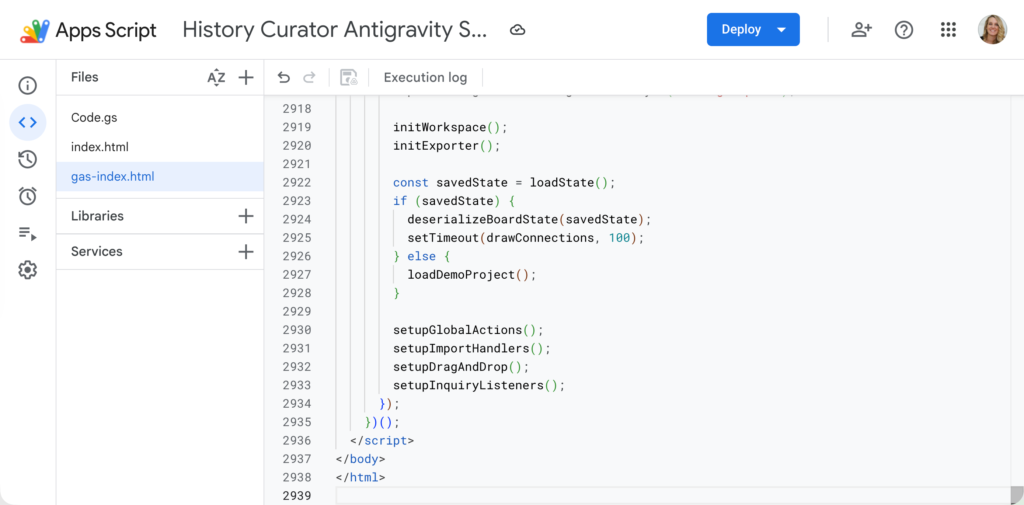
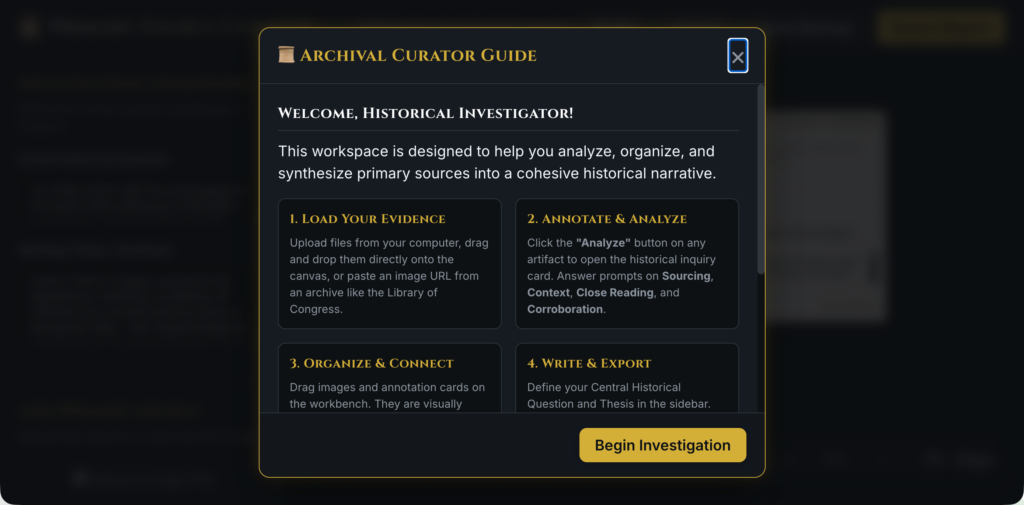
I need to prompt Antigravity a few times to convert the file correctly. Redeploy after making code edits. View the application here. View the code here.
Taking the Next Vibe Coding Leap with Google Antigravity
Vibe coding offers teachers free ways to have applications for their classroom that work exactly the way they need them to. Start with using the canvas tool in Google Gemini. When you have project ideas that push beyond the limits of what Gemini can do for you, expand to Google Antigravity.
Understanding Tokens and Free Limits
When working with advanced AI developer tools like Antigravity, you will frequently encounter the word “tokens.” Tokens are simply the basic building blocks the AI uses to process and generate information. You can think of them like syllables or small pieces of words. Every time you type a prompt, and every time the agent writes a block of code for you, it is spending tokens.
Google Antigravity is currently available with an Individual plan for zero dollars a month. This free tier is a fantastic playground for exploring and testing out new ideas. However, the free access does have strict boundaries based on your token usage.
Your Baseline Quota The free tier provides a specific allowance of tokens you can consume over a set period.
Burning Through Tokens If you are building complex applications with multiple files, utilizing the most advanced models, or asking the AI to rewrite large sections of code repeatedly, you will use up your token allowance very quickly.
When It Stops Being Free Once you exhaust your free quota, the system will pause your ability to generate more code until your time limit refreshes. If you find yourself consistently hitting this ceiling and needing more power to build larger projects, you would need to upgrade to a paid Pro subscription, which starts at around twenty dollars a month for a significantly larger token pool.
For most everyday classroom tools and simple web apps, the free tier is a a great place to start.