You hopefully are using Google Gemini for your AI tool. Chat with Gemini to create a lesson plan, respond to a parent, help you brainstorm activity ideas. Also, Gemini is FREE and on your school account your data is not used to train the models. Check out the different tools to take Gemini even further.
Adding the Canvas Tool
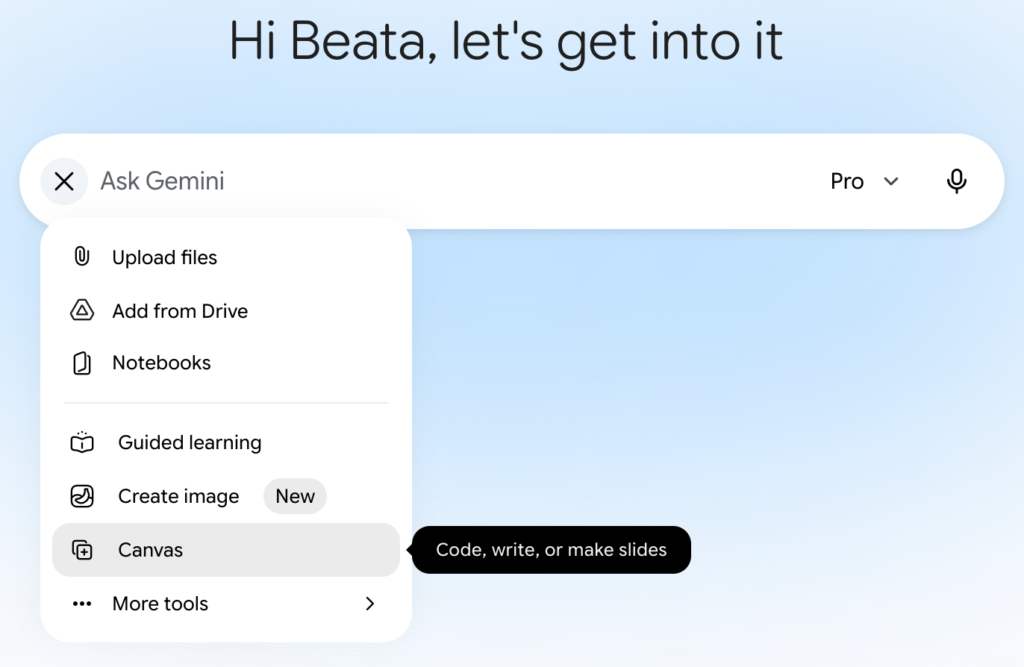
When starting a chat in Google Gemini, notice the plus icon to enable tools or upload resources. One of the tool options is “Canvas.” You might want to consider using this as your default experience.
Gemini Canvas for Collaborating
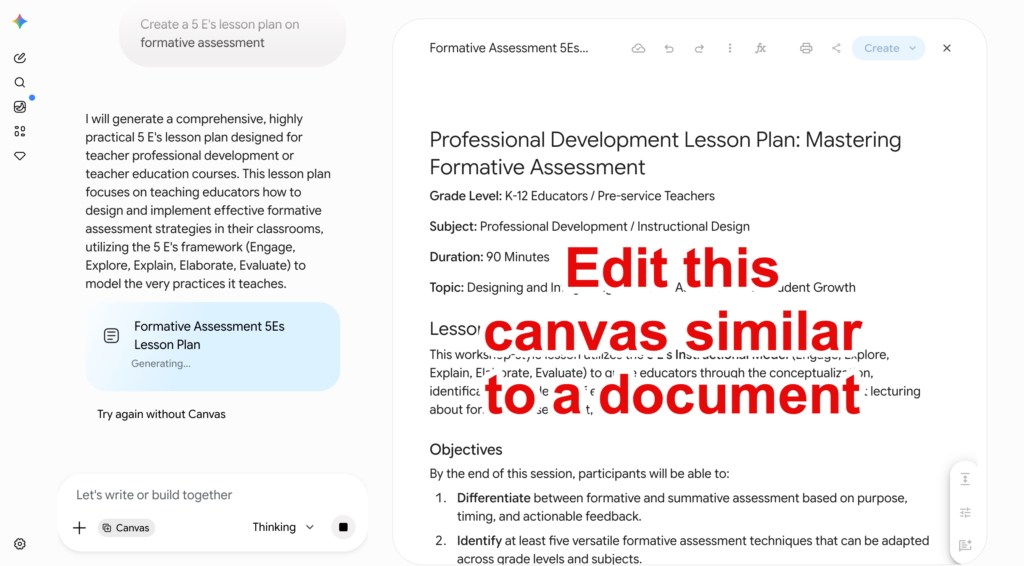
Choosing the Canvas tool it will push the chat in Gemini to the side and open an interactive canvas on the right. (Hence the tool being called Canvas.)
Delivering high-quality content, tools, and support for reading comprehension
ReadWorks is a free, research-based website designed to support educators in teaching reading comprehension across grades K–12. It provides a rich library of high-quality, standards-aligned instructional content.
You can do a variety of outputs in the Canvas. When I ask for a lesson plan, I get an interactive document. I can edit the text directly in the Canvas. I can highlight elements of the Canvas to provide feedback to request Gemini to update the Canvas.
Transform the Content
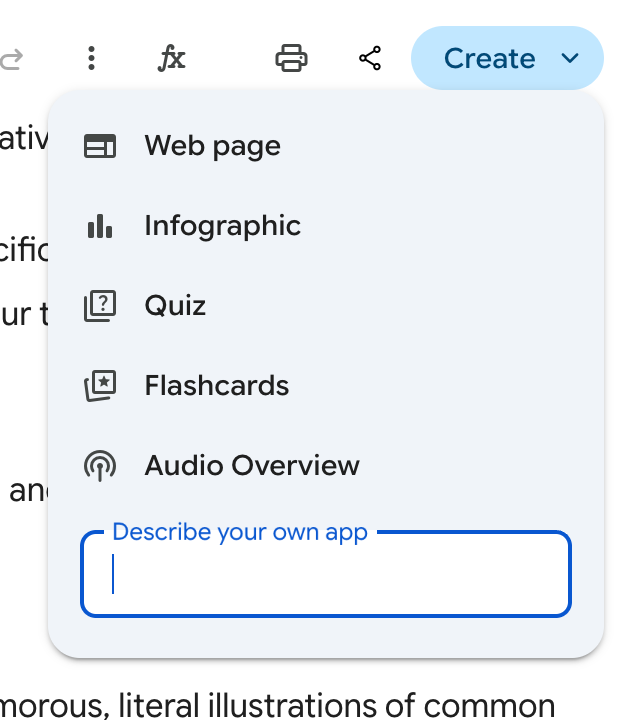
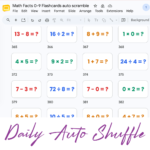
If your Canvas output is text, you will notice a “Create” button in the upper right. Use this to turn your content into a web page, infographic, quiz, flashcards, or a podcast (audio overview.)
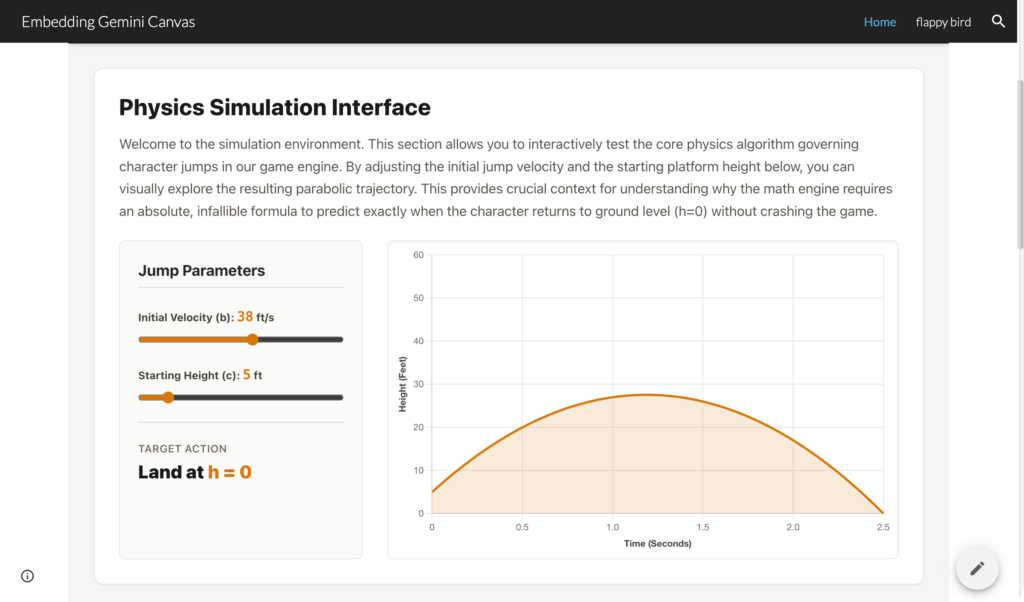
I chose “Web page” for my lesson plan and was honestly jaw dropped with what was created. I was expecting the lesson plan content, what I got was an interactive simulation.
Embedding the Web Page
I’m sure you’re thinking… okay great, where do I put this webpage?
Start with sites.new and double click on the page. This opens an insert wheel.
< > is the embed symbol.
Choose the embed option and paste the HTML code from the Gemini Canvas.
Using Gemini Canvas to Create Apps
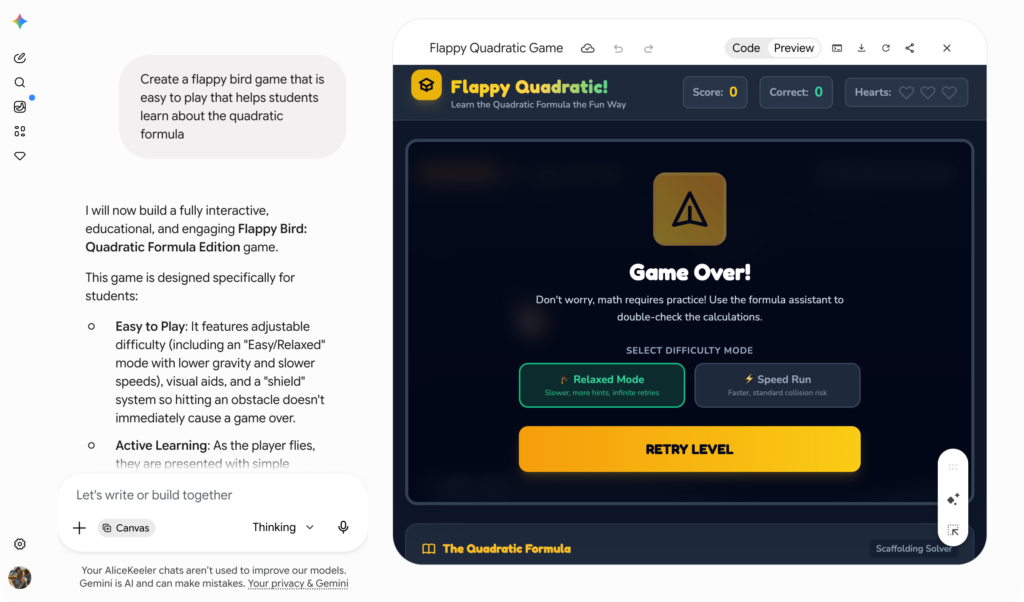
Gemini Canvas can create many things, including games, apps, and interactive quizzes. I asked for a flappy bird game that helps students to learn about the quadratic formula. It was pretty cool, although not exactly what I was thinking about. That was my fault, I didn’t give any details about what I wanted the quadratic part to look like. Always give as detailed prompt as possible for a better output.
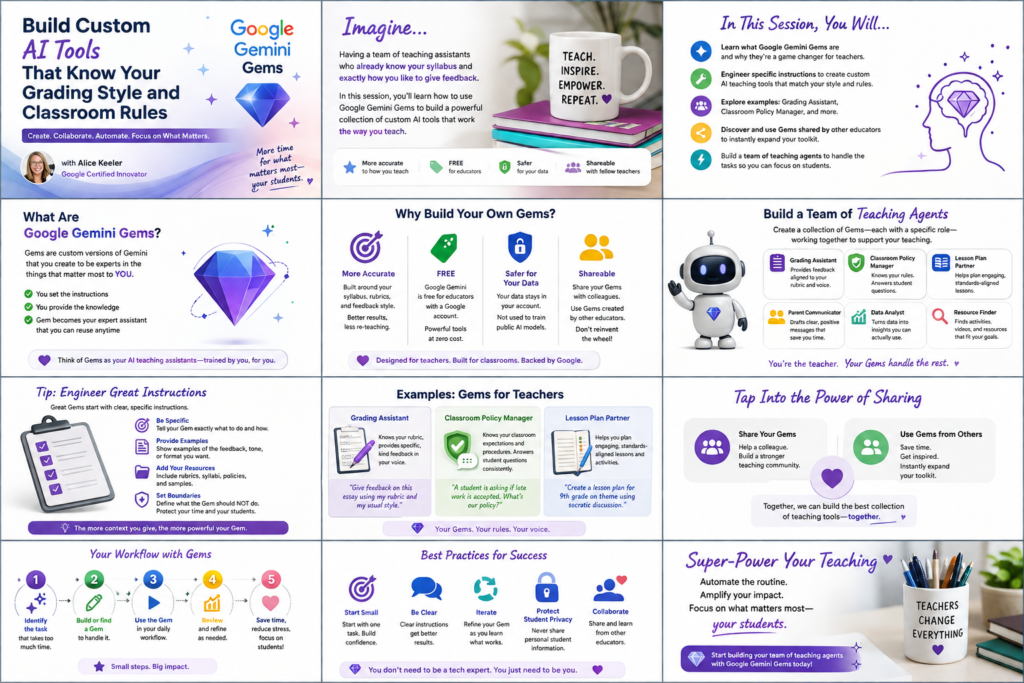
Join Alice Keeler for this session for teaching with AI
Imagine having a team of teaching assistants who already know your syllabus and exactly how you like to give feedback. Join Google Certified Innovator Alice Keeler to learn how to use Google Gems to build a powerful collection of custom AI tools. We will explore how to engineer specific instructions so you can create a Grading Assistant or a Classroom Policy Manager that works for you. You will also learn how to leverage Gems shared by other educators to instantly expand your toolkit. This session is about super-powering your teaching by automating the routine tasks so you can focus on the students.
Exit this pop up by pressing escape or clicking anywhere off the pop up.