Google has announced they are sunsetting Google Jamboard. Google has recommended you use FigJam instead!!
FigJam, like Google Jamboard, is a collaborative digital whiteboard. It has a pen feature, sticky notes, and draggable items. The main differences between Jamboard and FigJam is that Jamboard has a 20 page limit and with FigJam there are no pages. Use sections in FigJam instead. Advantages for FigJam is you can lock items, lasso multiple items at once, and add fun widgets.
How to Create a New FigJam
FigJam is not a Google product, it is a Google partner. This means you can not create FigJams from Google Drive and they are not saved in Google Drive.
FigJam is a product by Figma. Create a free educator account at figma.com/education. You can find all of your FigJam’s at figma.com. There is a button at figma.com to create a new FigJam.
I make new FigJam’s as figjam.new. It is a fast and easy way to start collaborating.
Name Your FigJam
Like Google apps, the default name of your file is “untitled.” This is located at the top center. Click on “Untitled” and type the name of your file. Also, click the tiny arrow next to the document title to “Move to project…” This allows you to organize “into a folder.”

Organize FigJam in Google Drive
Click on the Share button in the upper right to copy the link to the FigJam. Click on “copy link” in the bottom left of the share dialogue box. Start a new Google Doc: docs.new. Paste the link to the FigJam in the Google Doc. Now you can organize the Google Doc in your Google Drive lesson plan folders to easily find your FigJam files.

I use Google Jamboard a lot. I love the collaboration and interactive space. Here is a Google Jamboard I made using Open Middle. What I love about the Jam is that I want students to show their thinking and reasoning. This means they do an initial attempt and then on the next frame (page) they revise their attempt. I have a lot of Jams I have created for a variety of subjects. As a teacher I love that I can observe students thinking in real time. Premade Jams are great, however, what if you want to create a new Google Jamboard here is how you do it.
Convert Your Google Jamboard Jams to FigJam
Google is discontinuing Jamboard. GOOD NEWS! It is super EASY to convert your files into FigJam. Sign up for a FREE educator account at figma.com/education. Go to figma.com to import your Jamboards Jams. Check out my converted files at figma.com/@alicekeeler.
How to Create a New Google Jamboard
Google Jamboards live in Google Drive. Go to drive.google.com and you’ll need to select “More” in order to locate “Google Jamboard.” This will open a blank Google Jamboard in a new tab. Like other Google docs, Jams automatically save in Google Drive.

New Google Jamboard
My favorite way to create a Google Jamboard is to open a new tab and type jam.new. This Jam is automatically in your Google Drive. Although, unorganized in a folder.
No Folder Icon
At the current time there is no folder icon when inside of a Google Jamboard. This means that you have to go to Google Drive in order to organize your Jam into a folder. Click on “Recent” on the left side of Drive to locate your recently created Jam. Move the Jam into the desired folder.
-
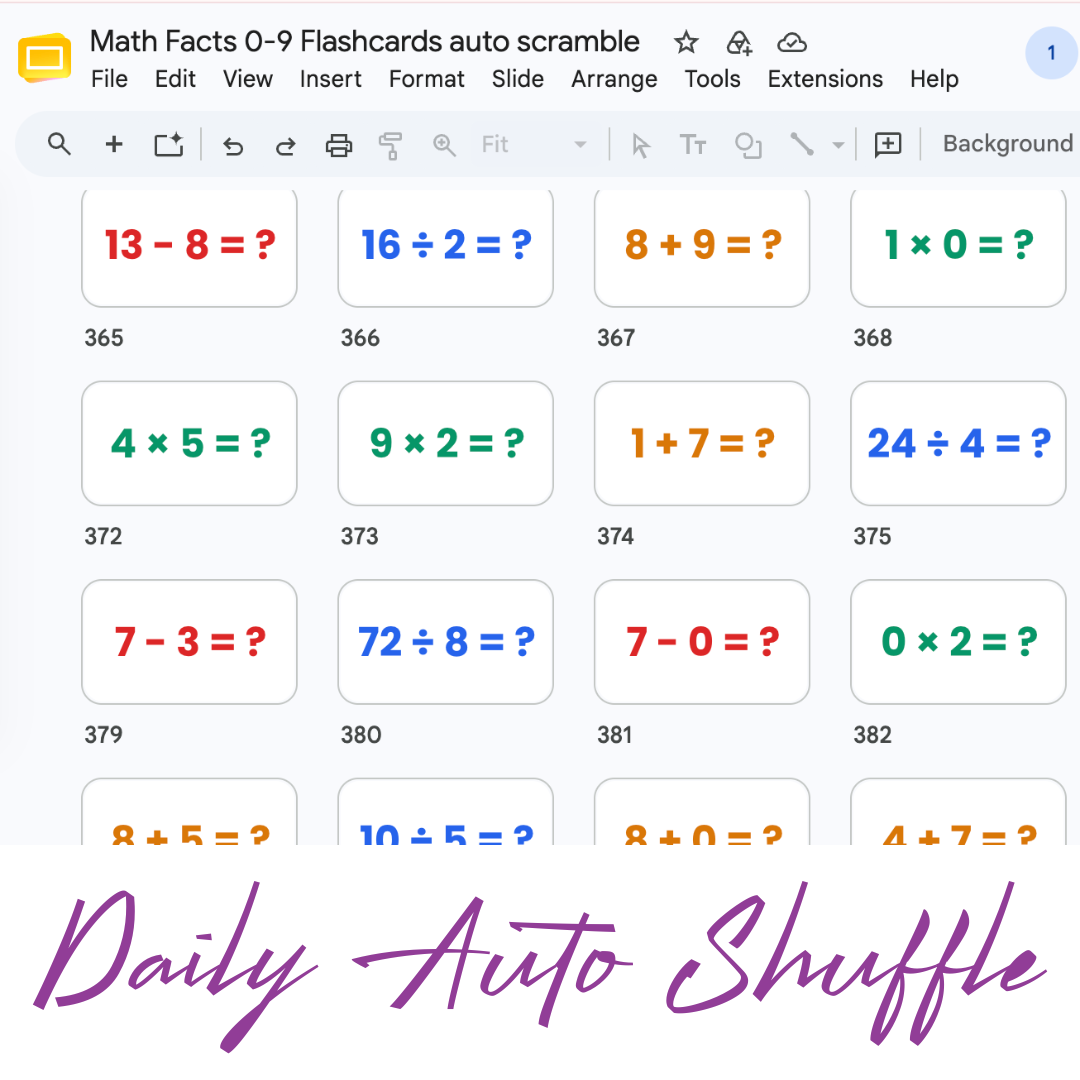
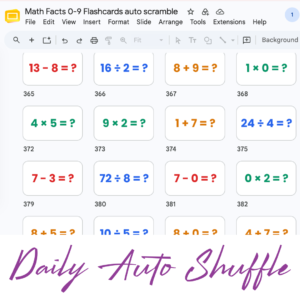
Math Facts Practice – Slides
Google Slides with all the math facts to practice.
-
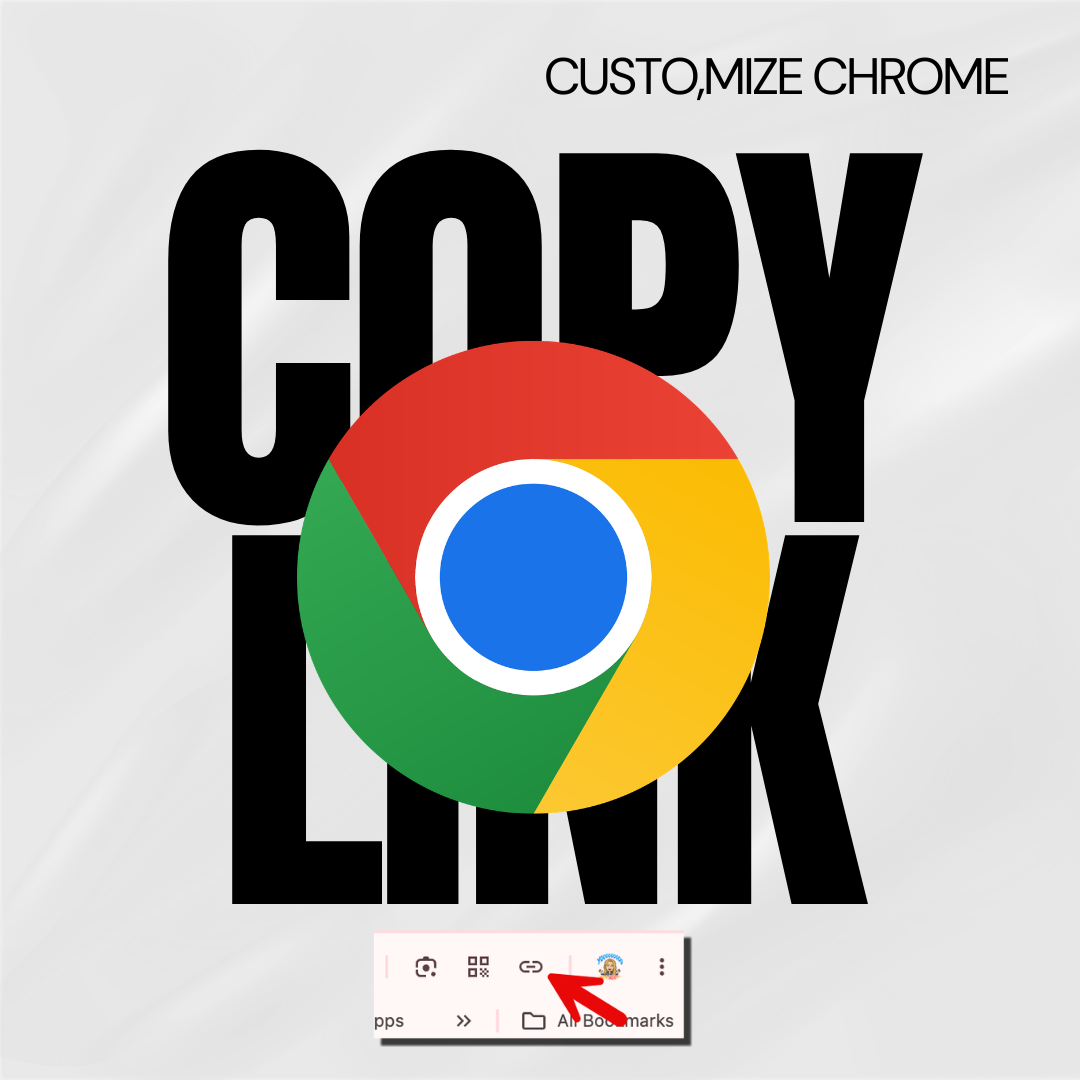
Copy the Link in Chrome
Hate copying the URL from a website? Chrome makes it fast.
-
Setting Up Your Google Classroom and Using AI
One of the first steps in starting a new school year is setting up your Google Classroom.