






One of the new Padlet features I’m particularly excited about is the ability to create a slideshow from student posts. If you are not familiar with Padlet, it is an amazing EdTech tool to give students a voice. It is a tool I have successfully used to engage students through sharing their ideas and thoughts.
What is Padlet
Padlet is an online interactive board that functions like a digital corkboard where users can post, share, and collaborate in real-time. Teachers can use it for a variety of purposes such as brainstorming sessions, sharing resources, or as a tool for interactive learning. Its versatility and intuitive design make it a valuable addition to any classroom.

Padlet can be used for a wide array of educational applications:
- Discussion Boards: Teachers can post questions or topics, and students can respond.
- Collaborative Projects: Students can collaborate in real-time, uploading their contributions to a shared board.
- Resource Sharing: Teachers and students can share articles, links, and multimedia elements relevant to their study topic.
- Feedback Mechanism: Students can post their work for peer review or for teacher feedback.
- Formative Assessments: Teachers can use it for quick polls or quizzes.
- and more…
After the Posts
After you have given students time to add to the Padlet board, how do you share out their contributions? You want to have students discuss and “critique the reasoning of others” the Padlet posts.
Slideshow in Padlet Option
On the right side of the Padlet board is an option for “Open slideshow.” The slideshow option automatically create a presentation of the student posts.

Reviewing Student Posts
Each student post is shown as a slide in a presentation.

Share the Presentation
While viewing the Padlet presentation, notice the share swoop arrow in the bottom right. This allows you to share the slideshow, separate from the Padlet wall. Link to the particular slide or embed it on your website. You can also download the slides or presentation.

Randomize Posts
To have the presentation show student responses in a random order start by going to the settings cog.

Scroll down in the settings to find Layout options.

Sort Options
Click on “Sort” to change how the posts are sorted on the Padlet wall. The way they are sorted on the wall is how they will be sorted in the Slideshow. Choose to sort posts randomly in the sort options.
![Screenshot of sort options. Randomly is on the bottom.
<
Manual
Sort
[+]
New posts added first
New posts added last
Date published
Newest to oldest
Oldest to newest
Post subject
Alphabetical order
Reverse alpha cal order
Random
Posts appear randomly](https://alicekeeler.com/wp-content/uploads/2023/09/randomly-sort-posts-in-padlet-610x1024.png)
Give Every Student a Voice
By using Padlet you can move past having students raise their hand to share their thoughts on a topic to hearing from everyone. Use the slideshow feature to engage students in class discussion around everyone’s ideas rather than just the 1 or 2 who raised their hand.
-
Ask for Resources in Gemini Notebook
Gemini Notebook (formerly NotebookLM) makes it easy to create resources. Just ask.
-
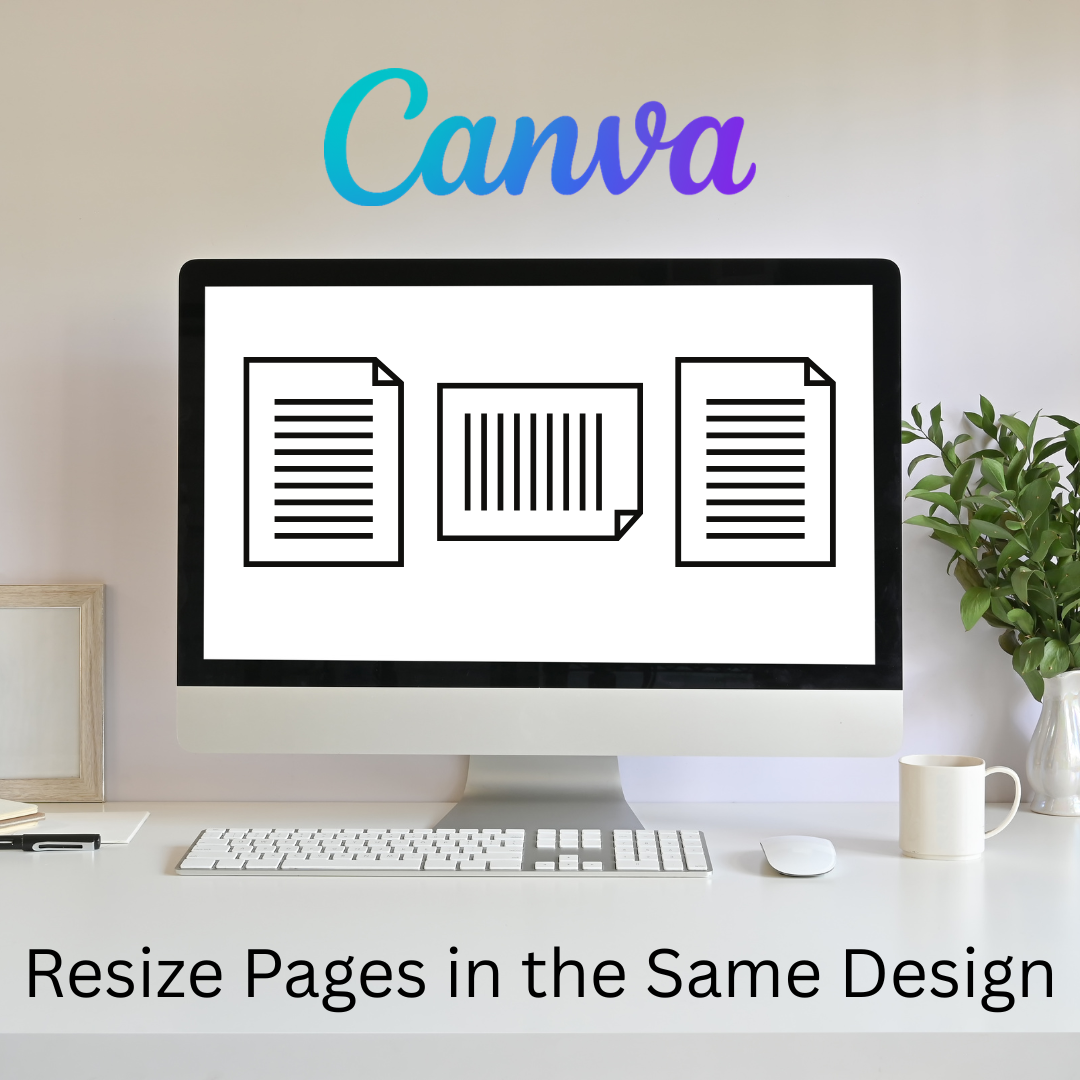
Flex Page Size in Canva
Sometimes I need part of my design project to be landscape, but others to be portrait. You can do that all in the same Canva project.
-

Book Creator joins forces with Kami
A short story about how Book Creator is still available through Kami, and how the two complement each other in a learning cycle to enhance your lessons. PLUS why Kami is more than just a PDF annotation tool.
-
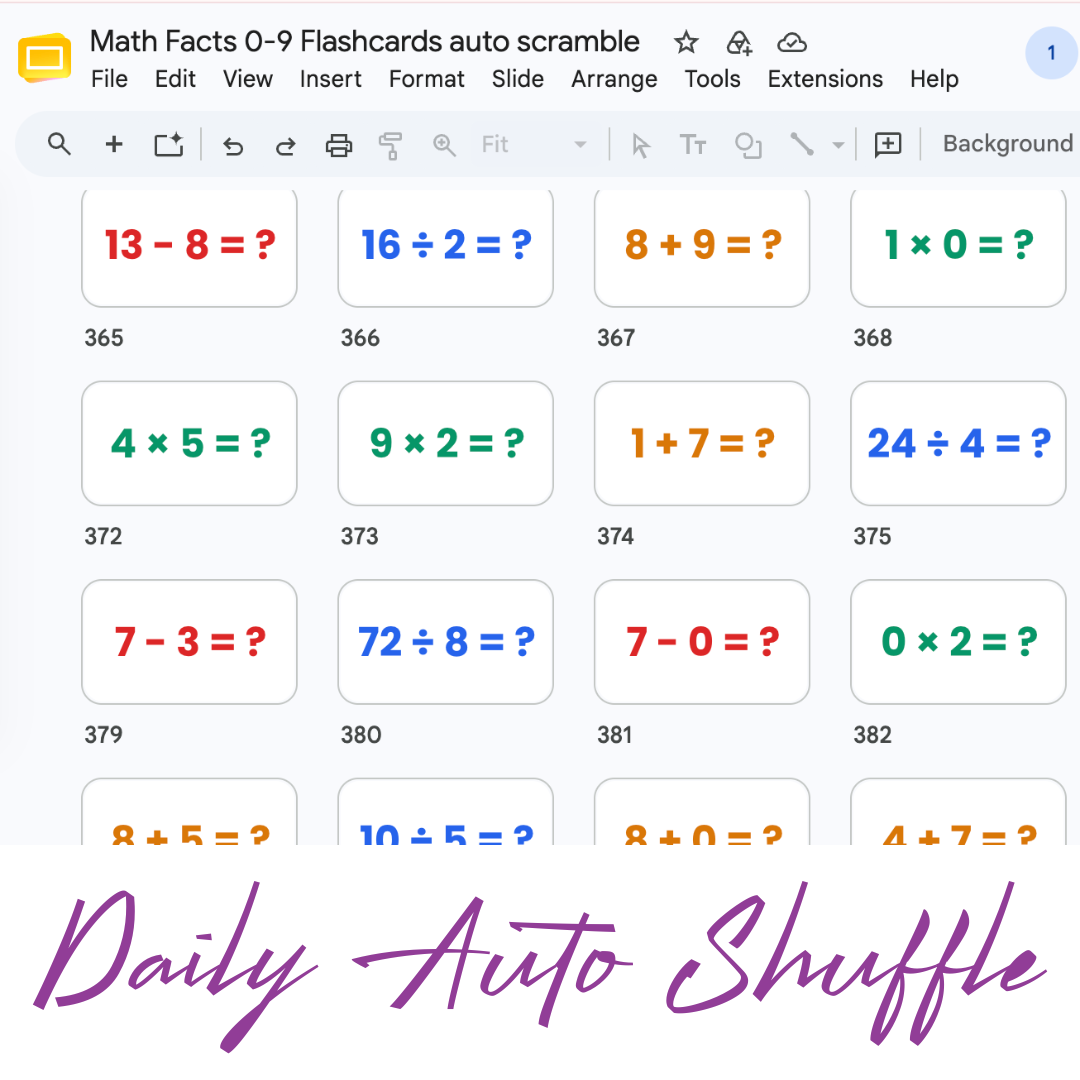
Math Facts Practice – Slides
Google Slides with all the math facts to practice.
-
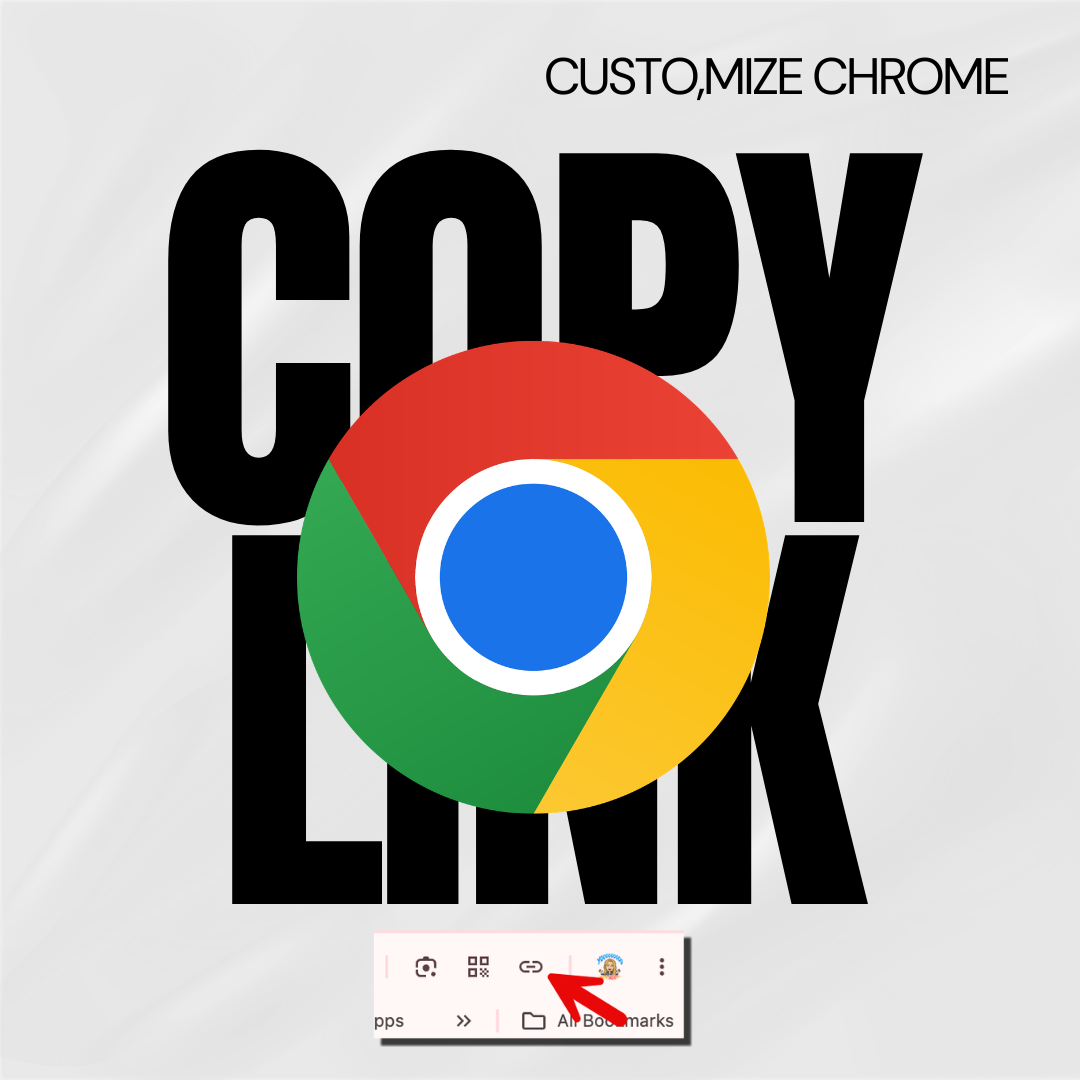
Copy the Link in Chrome
Hate copying the URL from a website? Chrome makes it fast.
-
Setting Up Your Google Classroom and Using AI
One of the first steps in starting a new school year is setting up your Google Classroom.





