I find often that I want to get someone’s email who has emailed me. I want JUST the email and not <their name>. Gmail has a hidden feature to make this much easier than the clunky way of highlighting to copy and paste. If you want to know how to copy email from sender in Gmail or from an email you sent previously, here is how:
Hover Over The Name
Where you find the person in Gmail, you want to hover over their name to get the contact card to pop up. Notice in the contact card it shows their email address.

Hover Over the Email
On the contact card, hover over the email address.
Hovering over the email reveals a copy icon.

Instead of manually highlighting the email, which I did for many years, if you hover over the email a copy icon will appear. Simply click on this copy icon to copy it to your clipboard.
From a Sent Email
Perhaps I have emailed someone previously and want to get their email address. After locating the email and opening it I can see the name of who the sender was. However, this does not show the email. There is a small drop down arrow to expand to see the details of the recipient(s). Click on this.

Hover Over Email & Contact Card
Looking at the sent email and using the drop down to reveal details about that email you can hover over the email which will show the contact card for that email. Again, hover over the email in the contact card and this will reveal

From a New Message
Sometimes I have pasted a whole bunch of emails into a new message but want to copy the email address of one person from the message. The hover trick still works. The key is to make that copy icon show up next to the email address so you can simply click to copy it to your clipboard.

How to Copy Email from Sender in Gmail
- Locate an email in Gmail
- Hover over the email
- Wait for the contact card to appear
- Hover over the email on the contact card
- Click on copy icon that will appear
-
Book Creator joins forces with Kami
A short story about how Book Creator is still available through Kami, and how the two complement each other in a learning cycle to enhance your lessons. PLUS why Kami is more than just a PDF annotation tool.
-
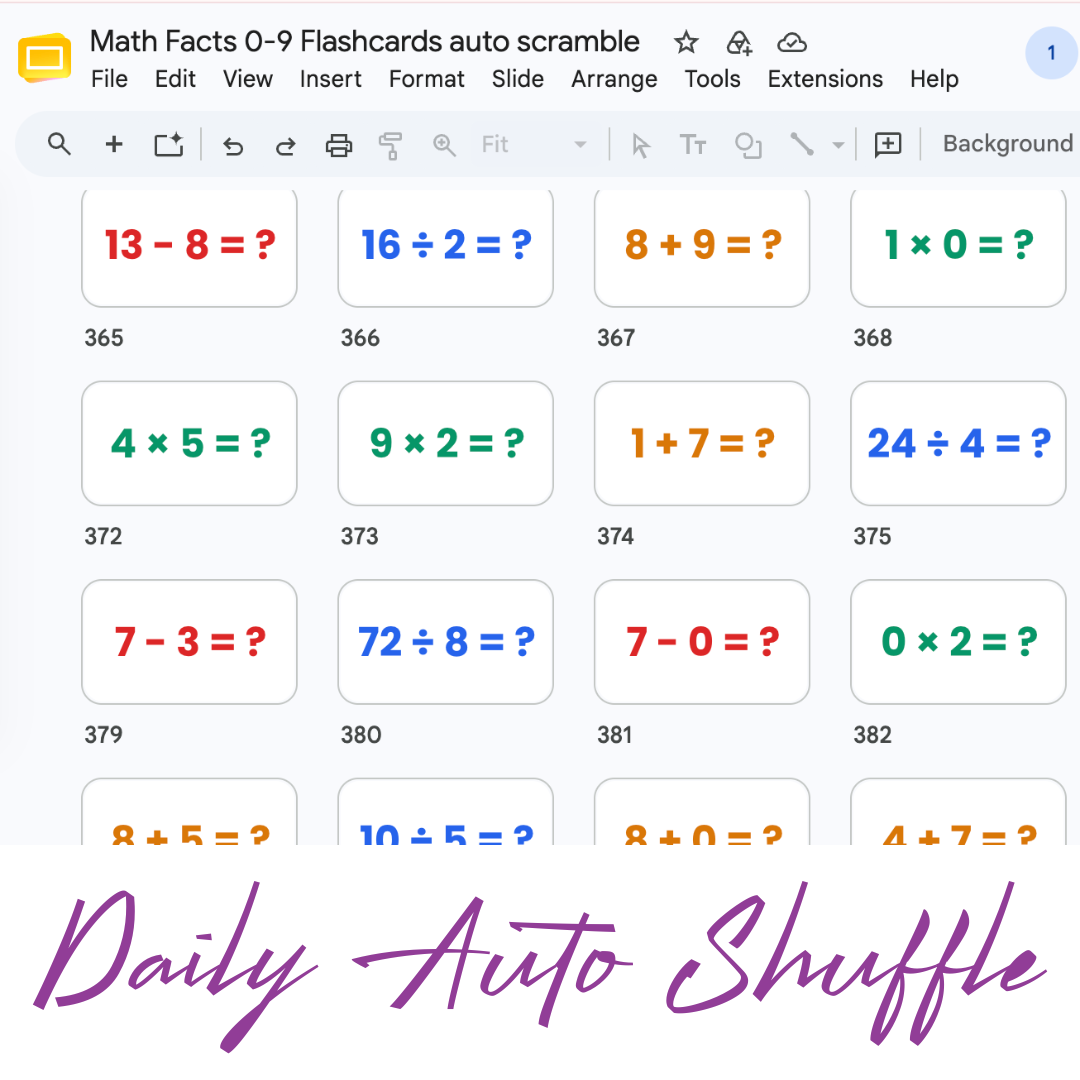
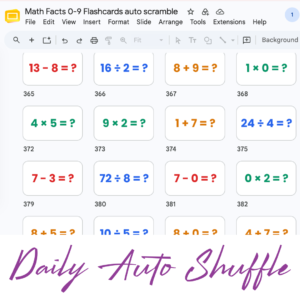
Math Facts Practice – Slides
Google Slides with all the math facts to practice.
-
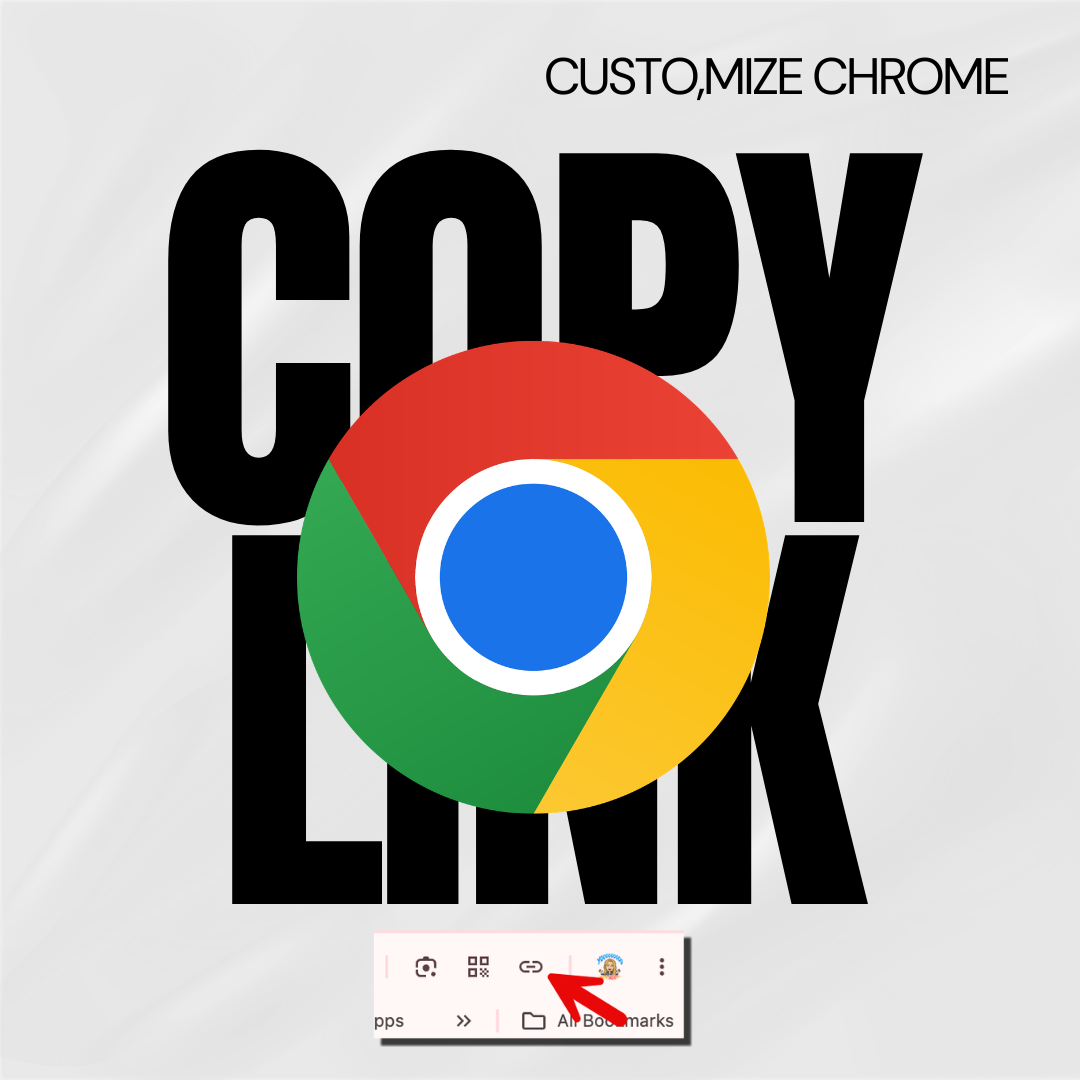
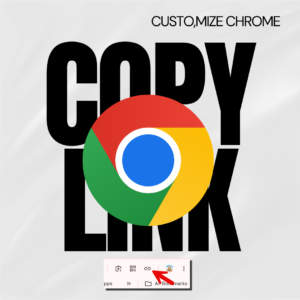
Copy the Link in Chrome
Hate copying the URL from a website? Chrome makes it fast.
-
Setting Up Your Google Classroom and Using AI
One of the first steps in starting a new school year is setting up your Google Classroom.
-
Google Gemini for Teachers Quick Start Guide
Quick Start Guide for Google Gemini
-

Getting Started with Vibe Coding Using Antigravity
Get started with Vibe Coding using Gemini Canvas and then upgrade with Google Antigravity.