In Google Slides when you put text over an image it can be challenging to read the text. My solution for this is to fill in the textbox white… however, that covers up the image. Change the transparency slider on the text fill to create that perfect balance.
Hard to Read Text
To make a presentation really pop you want to have a really great graphic. The challenge then comes when you put text over the graphic. It can be hard to read.

Google Slides Text Boxes
For this tutorial I am using Google Slides. The textboxes are the regular textboxes you add to Slides. As you can see in the image above, this doesn’t always look great.
Paint Can
After adding text to the slide, click on the paint can icon in the toolbar. I usually select a white color, but there are of course many great reasons to select other colors.

Custom Colors
The plus icon under “CUSTOM” allows you to go outside of the “box of crayons” colors provided by default. This is where you can customize the transparency.

Solid Covers the Image
The solid white text covers the image. Sometimes that is fine, but usually I want my viewer to see the whole graphic. Making the white background of the textbox less opaque will allow you to have readable text AND see the graphic.
Transparency Slider
It is not labeled but below the rainbow color selector is the transparency slider. Move it to the LEFT some. All the way left will make it completely clear. That will be too much. All the way right is completely opaque. Somewhere left of center is just about right.

Adjust Text Box
If your text expands outside the boundaries of the textbox you will want to adjust the size of the textbox so that all the text is captures with the semi transparent white background.

-
Book Creator joins forces with Kami
A short story about how Book Creator is still available through Kami, and how the two complement each other in a learning cycle to enhance your lessons. PLUS why Kami is more than just a PDF annotation tool.
-
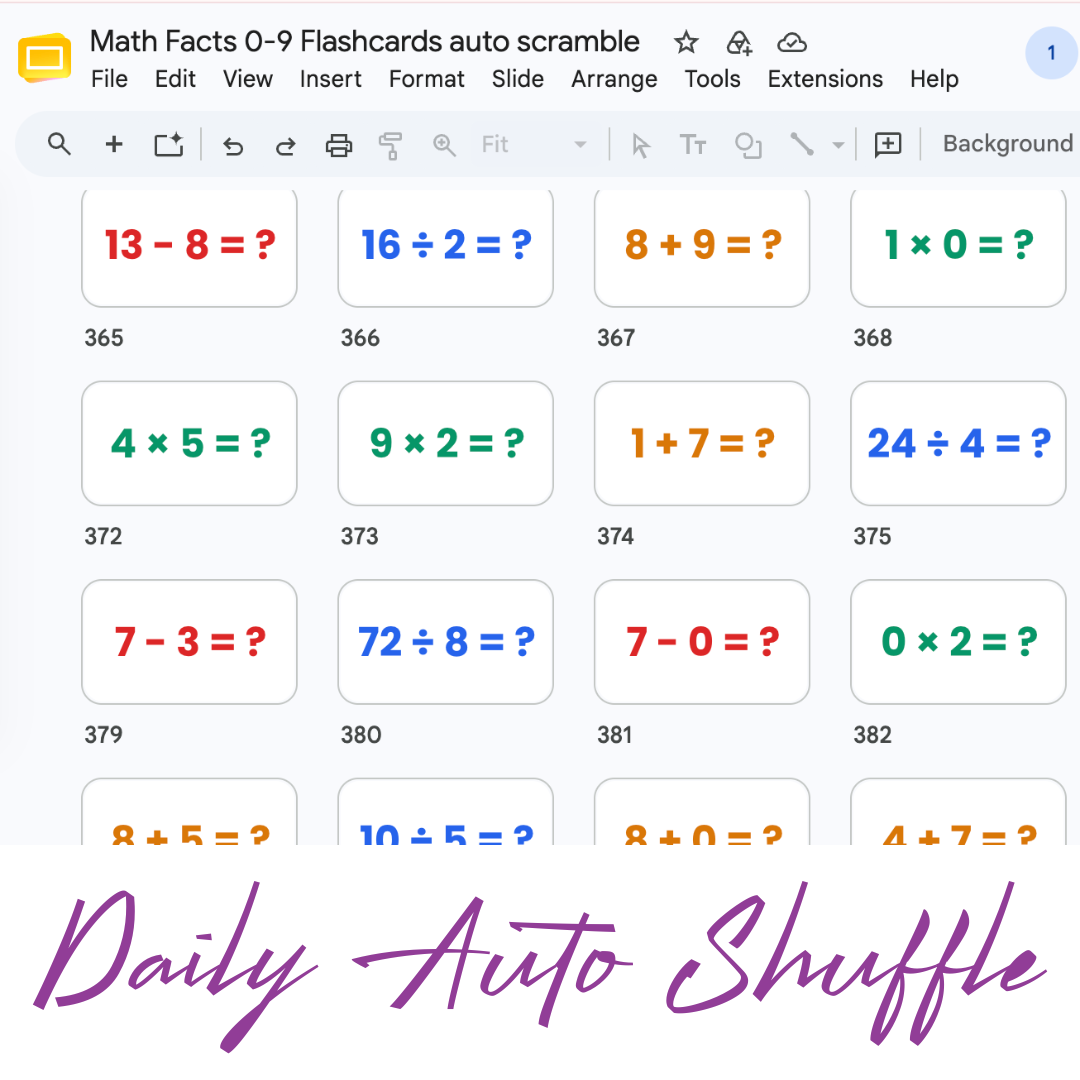
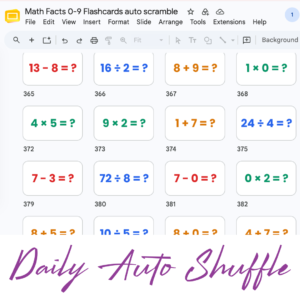
Math Facts Practice – Slides
Google Slides with all the math facts to practice.
-
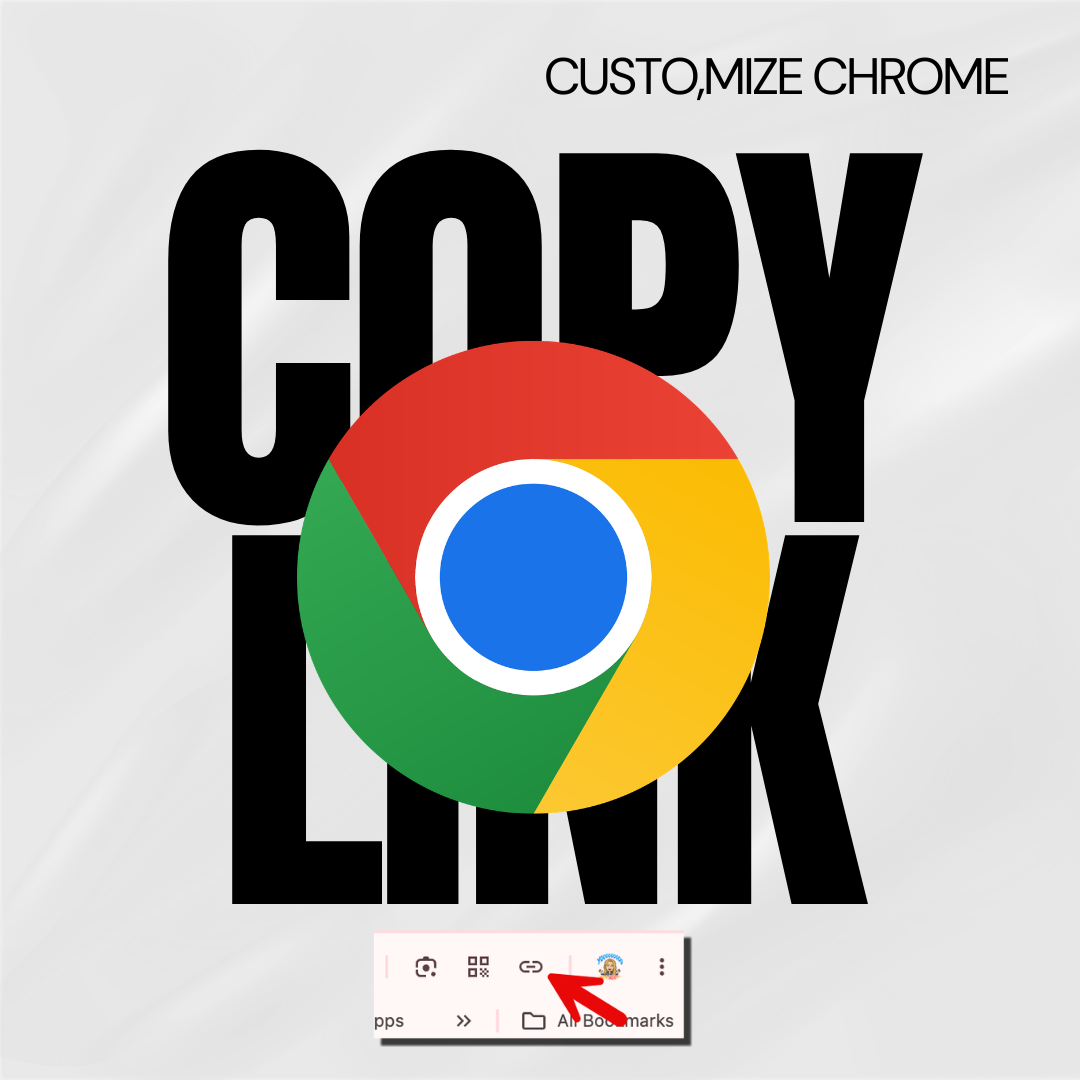
Copy the Link in Chrome
Hate copying the URL from a website? Chrome makes it fast.
-
Setting Up Your Google Classroom and Using AI
One of the first steps in starting a new school year is setting up your Google Classroom.
-
Google Gemini for Teachers Quick Start Guide
Quick Start Guide for Google Gemini
-

Getting Started with Vibe Coding Using Antigravity
Get started with Vibe Coding using Gemini Canvas and then upgrade with Google Antigravity.