

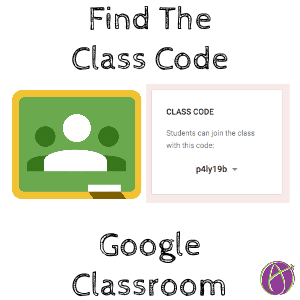




NOTE: This blog post is OLD! The class code is no longer available on the Students Tab, which is now called “People.”
Google Classroom Class Code
Google Classroom had a few updates recently. One of the changes is the adding of topics to posts to the Stream. The topics are listed in the sidebar of the Stream where the class code used to be located.
Student Tab
The class code can now be located on the Students tab. Click on “STUDENTS” next to “STREAM” along the top. On the left-hand side in the sidebar is a box with the class code. Use this to have students join the class. 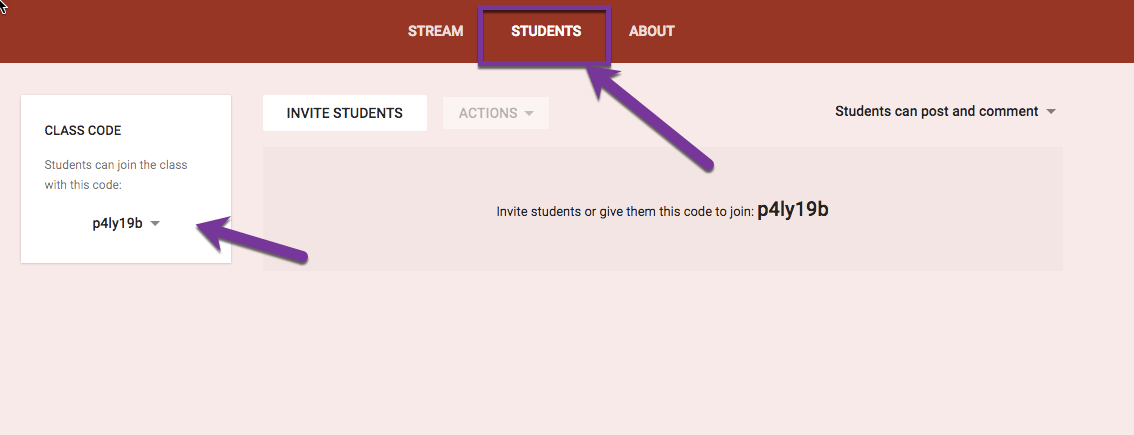
Reset the Class Code
Next to the class code in the sidebar is an arrow to allow you to reset the class code.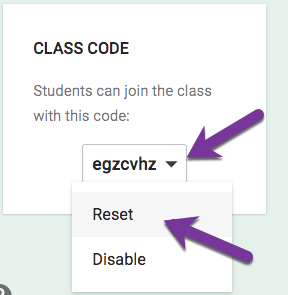
I usually reset the code maybe 30 times until I get a code that “speaks” to me. I do not want L’s, O’s, 0’s, i’s, Z’s or 1’s. Even if none of those characters are present, I want to to be something easy for me to remember. Not that I need to remember it. Entering the class code is a one-time thing. Students only need to enter the code and they are in the class. No need to use the code ever again.






2 thoughts on “Google Classroom: Find the Class Code (It Moved)”
How do i find the code as a student?
Your teacher has to give it to you