





Google Classroom lists out the assignments for teachers and students. This makes it easier for teachers to provide feedback to students and for students to make sure they are getting their work completed.
Menu Icon
In the upper left hand corner is the menu icon, signified by 3 lines. Clicking on this lists all of the courses you are teaching and are enrolled in.

Under the menu icon the first option is “Assignments.”

Link Directly
Notice the URL at the top of the assignments page. This will take you directly to the assignments page. Bookmark this page or set it as the URL in the settings in the Gradebook Split Chrome extension.
Review Assignments
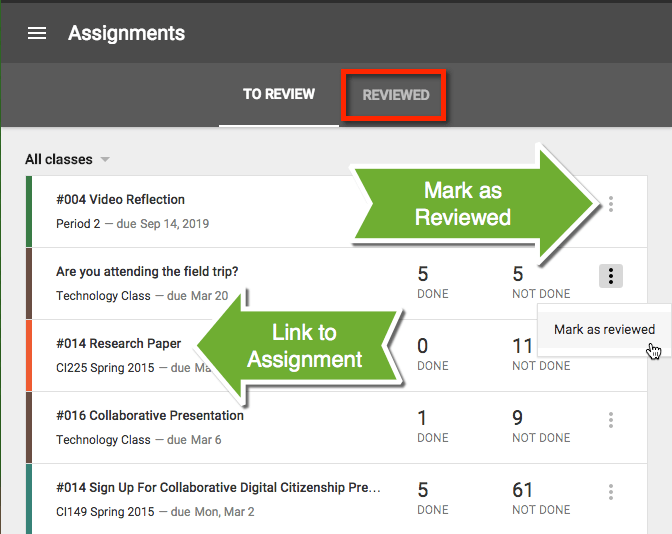
The assignments list shows all of the assignments from all classes. You can filter down to a single class if you prefer. Click on the assignment title to open the assignment grading page. Click on the number of students done to see a list of those students and their assignment. Click on the number of students not done to see a list of the students who have not submitted their assignment. The 3 dots on the right hand side does not let you edit the assignment like you can in the stream. Instead this allows you to mark the assignment as reviewed. Those assignments are then visible on the “REVIEWED” tab.
Student View
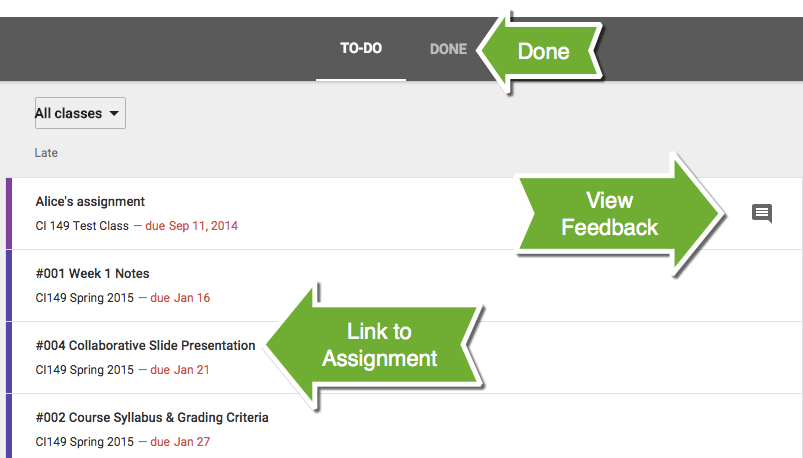
Students find the assignment list also by choosing “Assignments” from the menu icon. If you have left the student feedback in Google Classroom an icon appears on the right hand side of the assignment listing. Clicking on the icon shows the student their feedback. As students mark their assignments as done or turn in assignments they will be listed in the “DONE” tab.






2 thoughts on “Google Classroom: Assignment List”
Is this still an option on Google classroom?
No