




Google Gemini is my AI choice. It is not only actually better, it’s integrated into all my Google things, but it’s also safer. My data is my data when I use Google Gemini on my school account. My lesson plans, my student feedback… all in my Google Workspace. Who has my data? It’s me. Gems make using Google Gemini even easier.

Gems Are Gemini
What is a Gem?
What is a Gem? It feels confusing but really it is just you using regular Gemini and the prompt is already saved for you. (See below)
What is a Prompt?
When you go to gemini.google.com there is a chat box. Whatever you put in that box… that is your prompt. It is the directions you give AI for what you want it to do.
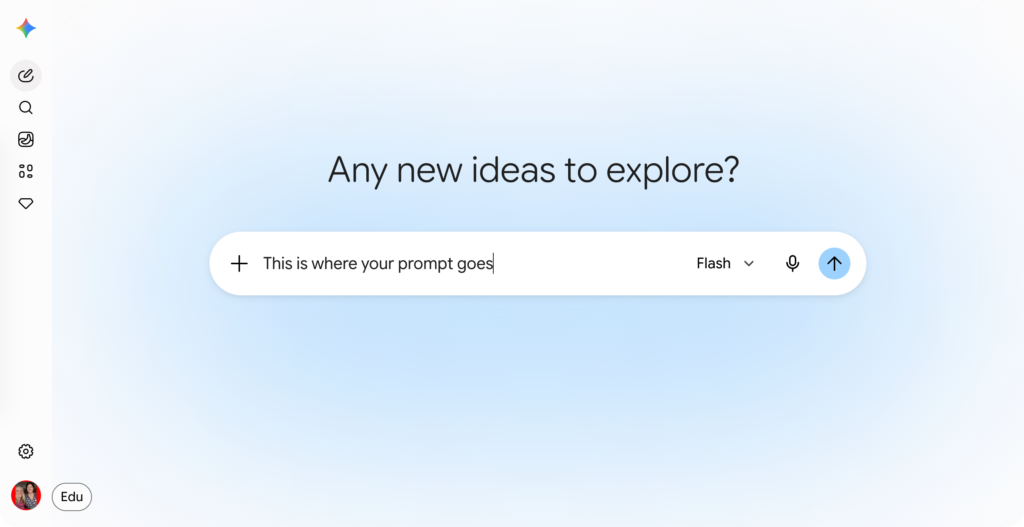
Bad Prompt
Cell Cycle
Why it is Bad
Prompting Gemini with “Cell Cycle” is giving it a topic, but not prompting (telling) it what to do with it. Do you want a lesson plan? Do you want a quiz? Do you want a song about it in the style of Taylor Swift?
More Detail = Better Prompt
Add Sources to Your Prompt
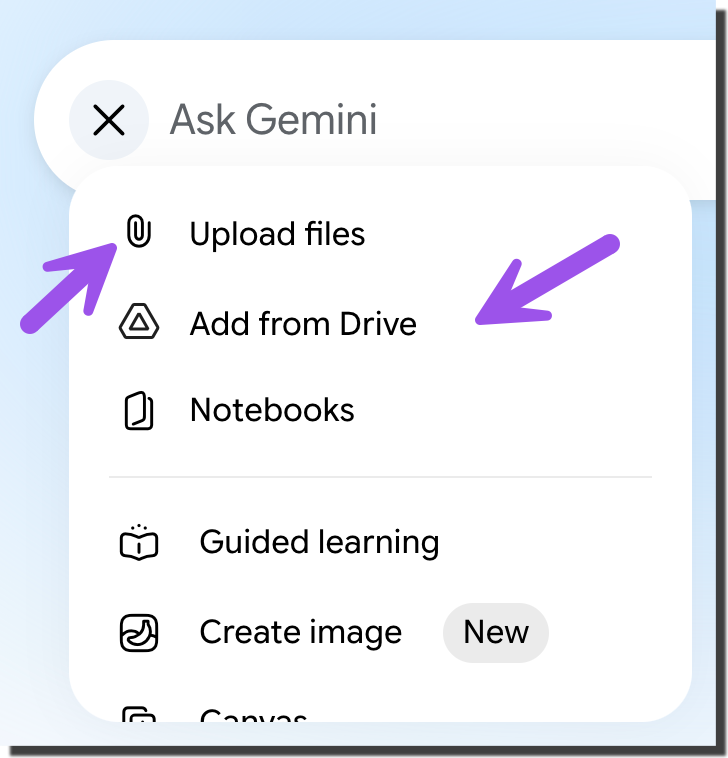
In addition to telling Gemini “Make me a lesson plan” you can add your lesson plan template, notes on the topic, trusted content sources, etc…
Click plus icon to add sources to your prompt.
Better Prompt
Create a lesson plan on the cell cycle.
Why This Prompt is Better
The prompt is more specific, it asks for a lesson plan.
The Prompt is Still Not Good
While better… it is still not good. It says nothing about how YOU teach.
Better Prompt
Create a lesson plan in the style of the 5 E’s.
Better, Not Great
I provided even more detail in my prompt. Is this enough information to create a great lesson plan? NO, but better.
Educator AI Assistant

Collects NO User Data
Use AI to create lesson plans, rubrics, newsletters, anything you want.
Educator AI Assistant is different by collecting ZERO data. Shows you the prompt and allows you to edit and share.
Runs locally in your own Google Sheets™.
Fully transparent and customizable.
Created by AliceKeeler
Sample Prompt for a Lesson Plan
For the given topic
Act as a instructional designer.
Using the 5 E’s lesson plan model create a lesson plan for 5th graders.
The lesson should be 35 minutes.
Include opportunities for Collaboration, Communication, Critical Thinking, and Creative Thinking.
The lesson should be DOK 2 and DOK 3
The ‘Engage’ phase should hook students with a real-world phenomenon
Do not suggest worksheets, instead provide opportunties for students to enage authentically with the content.
Have students utilize Google Vids to make a video as part of their assignment.
Allow students to make choices and decisions during the lesson and not just follow directions like robots.
design activities that require students to work together, such as peer review sessions or group problem-solving tasks
Incorporate Feedback Loops. Include specific points in the lesson for teacher and peer feedback, moving beyond a simple grade at the end.
Who Wants to Type All That In Every Time?
The more details in your prompt, the better the output. That is great, but as a teacher… I don’t have time for that.
This is where Google Gemini Gems comes into play.
Audience Participator
Collects NO User Data
Make your Google Slides™ more interactive. This Add-on for Google Slides™ will generate a Google Form™ connected to your presentation. When students fill out the form, their responses are sent as slides to the presentation.
Write Generic Prompts
Notice in my sample prompt above it gives all the elements of a lesson plan that I want, but it does not say what the lesson plan is about. That is intentional. I want to save all the directions that I can reuse over and over.
By SAVING my prompt (in a Gem) I can use the prompt “Cell Cycle” and it is actually a great prompt, because all the directions are in the background.
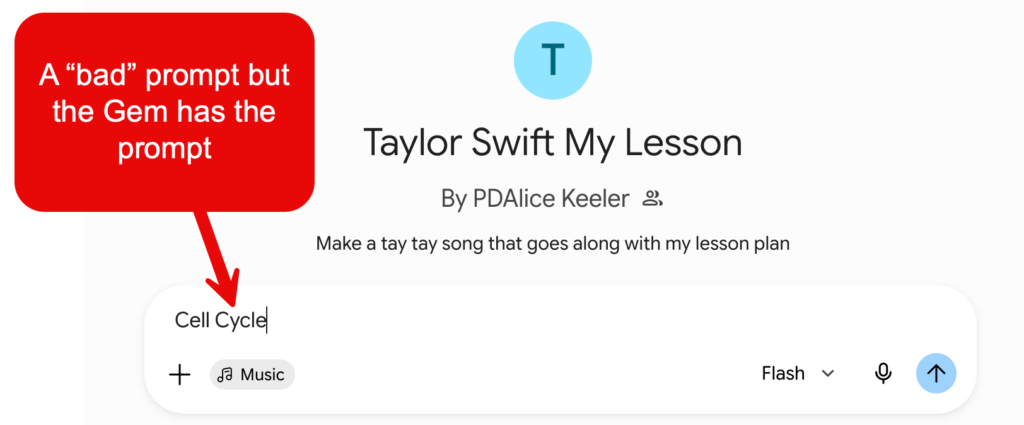
In the “Taylor Swift My Lesson” Gem, you will ONLY put your topic and press enter. Boom, the Gem prompt knows that you want to turn the topic into a song inspired by the great Taylor Swift.
View the Gem Prompt
Notice in the Gem prompt instructions how detailed the prompt is. You do NOT want to rewrite this, and this is why we use GEMS!!
How to Create a Gem
Start with writing generic directions for your prompt. The more detailed the better.
1) Craft Your Generic Prompt
Using the PARTS Method
Honest, there are no rules. The PARTS method is simply a structure to help you to USE MORE DETAILS.
I created a Gem to help you write Gems. Describe what you are trying to build (lesson planer, quiz maker, parent responder, etc…) and let my Gem write the instructions for you.
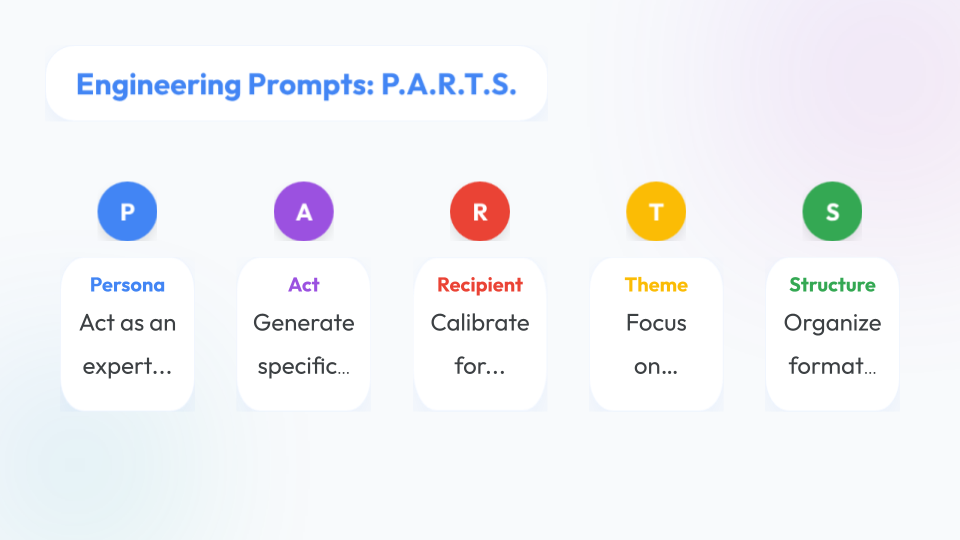
Crafting Powerful AI Instructions with PARTS
The P.A.R.T.S. framework is a brilliant way to design custom instructions for a Google Gemini “Gem” (or any customized AI profile). Instead of getting generic responses, using this acronym ensures your Gem has the exact context, tone, and pedagogical alignment you want every single time you interact with it.
Here is how you can use each component to build a stellar set of instructions for your custom Gem.
1. Persona (P)
What it means: Define who the AI is pretending to be.
How to apply it: Start your instructions by clearly stating the AI’s identity, expertise, and core philosophy. This sets the foundation for how it processes everything else.
Example: “Act as an expert instructional designer and a supportive, non-judgmental peer coach who champions student-centered learning and the 4 Cs (collaboration, communication, critical thinking, and creative thinking).”
2. Act (A)
What it means: Specify the exact action or task the AI should perform.
How to apply it: Tell the Gem exactly what its job is when you give it input. Are you looking for it to brainstorm, give feedback, design an experience, or simplify a concept?
Example: “Generate specific, creative learning experiences based on the 5 Es instructional model (Engage, Explore, Explain, Elaborate, Evaluate). Focus on authentic assessment and performance-based tasks rather than traditional, compliance-based worksheets.”
3. Recipient (R)
What it means: Calibrate the output for the target audience.
How to apply it: Tell the Gem who will ultimately benefit from or read the output. For a teacher Gem, the recipient might be you (the educator) or your students. Be specific about the mindset and environment.
Example: “Calibrate your responses for an innovative classroom teacher looking to maximize student voice, choice, and ownership. Ensure the tone is practical, encouraging, and collaborative.”
4. Theme (T)
What it means: Focus on the core values, constraints, or philosophical guardrails.
How to apply it: This is where you inject your non-negotiables. What should the AI absolutely emphasize, and what should it avoid? This keeps the AI aligned with your specific educational values.
Example: “Focus heavily on leveraging digital tools, like Google Workspace, to create dynamic, collaborative, and personalized learning experiences. Reject invalid scoring systems or compliance-driven tech use, and emphasize growth and success over penalization.”
5. Structure (S)
What it means: Organize the formatting of the final output.
How to apply it: Tell the Gem exactly how to present its ideas so they are clean, readable, and ready to use. You can ask for headings, lists, tables, or specific sections.
Example: “Organize your response using clear markdown formatting. Use concise headings, bullet points for readability, and horizontal rules to separate distinct ideas. Keep the text highly scannable and avoid dense blocks of text.”
Putting It All Together
When you open the Gem creation window in Gemini, you can paste these components together into a single, cohesive paragraph in the Instructions box.
Master Gem Instruction Template:
“Act as an expert instructional designer and a supportive, non-judgmental peer coach who champions student-centered learning. Generate specific, creative learning experiences based on the 5 Es instructional model, focusing on authentic assessment and student agency. Calibrate your responses for an innovative classroom teacher looking to maximize student voice and choice. Focus heavily on leveraging digital tools for collaboration and growth, while rejecting compliance-based worksheets. Organize your response using clear markdown formatting, short paragraphs, and scannable bullet points.”
Once saved, your custom Gem will automatically apply this entire framework to every prompt you type, saving you time and giving you perfectly tailored results.

Delivering high-quality content, tools, and support for reading comprehension
ReadWorks is a free, research-based website designed to support educators in teaching reading comprehension across grades K–12. It provides a rich library of high-quality, standards-aligned instructional content.
Article-A-Day, helps students build knowledge and vocabulary in just 10-minutes a day.
2) Go to the Gems Page
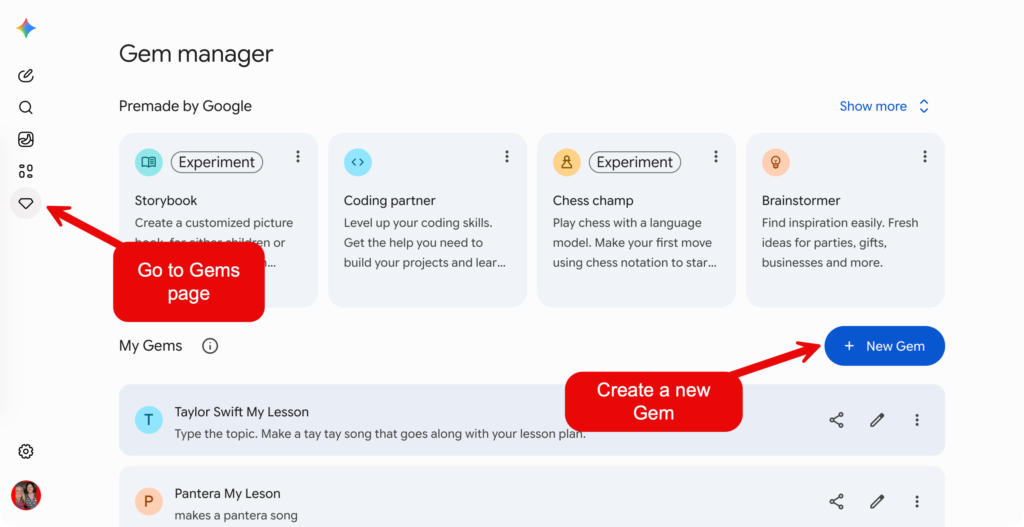
When you go to Google Gemini your first move is… click on the Gem icon on the left hand side.
3) Click New Gem
Click on the “New Gem” button.
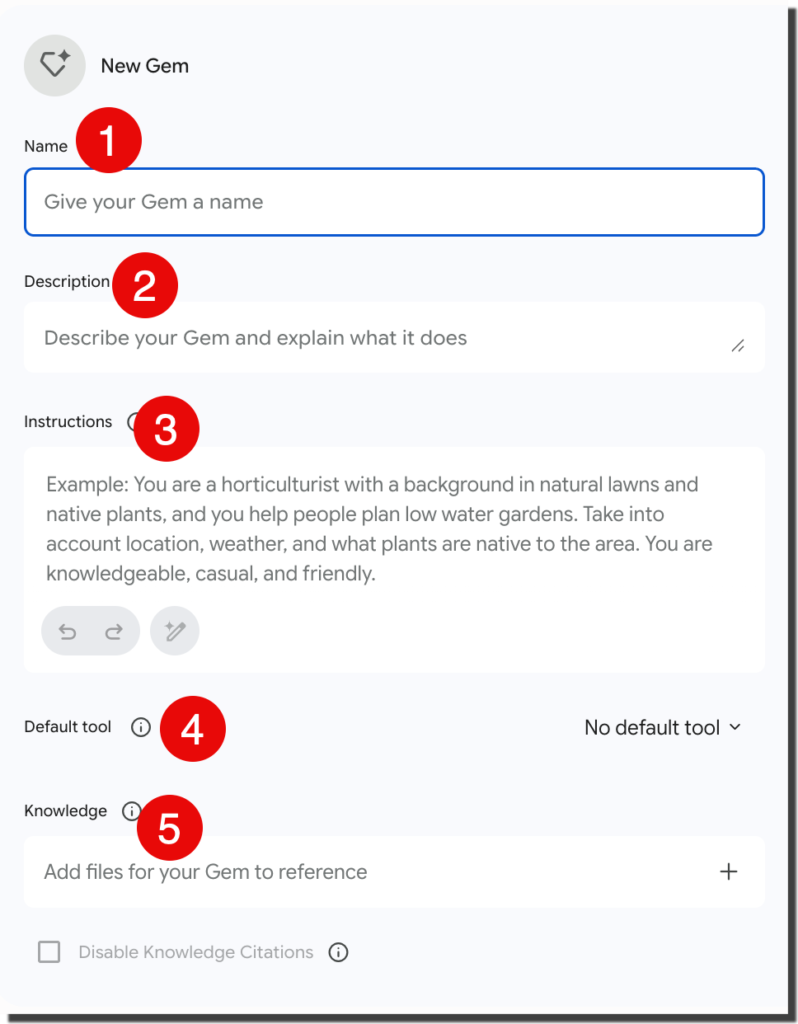
1) Gem Title
Create a meaningful title for your Gem. Such as “Lesson Plan Designer” or “Choice Board Creator.”
2) Description
This is NOT read by the Gem, this is for you to remember what the Gem does. Provide yourself the inputs the gem is expecting. For example “lesson plan topic” vs “number of quiz questions.”
3) Instructions
This is where the generic directions for the Gem goes. If you used my make a gem gem, this is where you paste those directions.
4) Default Tool
If you are expecting a text response, then you don’t need a default tool. My “Taylor Swift Your Lesson” gem uses the Music tool to output a song. I highly recommend that you use the “CANVAS” tool to allow for a more interactive experience.
5) Knowledge – Add Files
You can add documents, NotebookLM (do this), or other sources that the Gem will use when responding to your prompt. I add my standards document to my Gems to ensure the responses follow the 8 mathematical practices since I teach math.
Ideas For Your GEMS
I asked Google Gemini to make a spreadsheet of suggested GEMS you might make. The PARTS description is weak, you want a lot more detail than that. I added a column for you to copy and paste into my “Make a Gem” gem.
4) Start With Gems
After creating your Gem, “always” go to the Gem page in Gemini and click on your Gem. It shows your prompt box, but your instructions are saved in the background. You can simply type “Cell cycle” and your gem includes the rest of the prompt for you!
A Gem is just a SAVED prompt. You are still using Google Gemini.
Please Sign Up for My Newsletter
Pretty please support my work by signing up for my free newsletter! I would really appreciate it.





