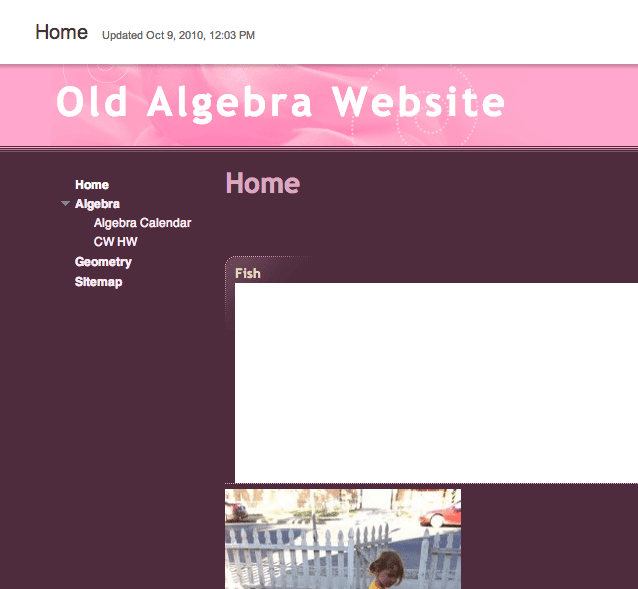
If you have ever created a Google Site (http://sites.google.com) for your classroom website or as a demonstration site but are no longer using the site, you may have wondered how to delete the website. You can only delete a website you are the owner of. Be careful because if you delete the website, you delete it for EVERYONE the website is shared with.
Go to the Website
First you will need to go to the site. You can find the site at (http://sites.google.com) once you’re logged into your Google account.
Blue Share Button
Quick and dirty way to get into the admin panel of a Google website is to click on the blue share button.

General Options
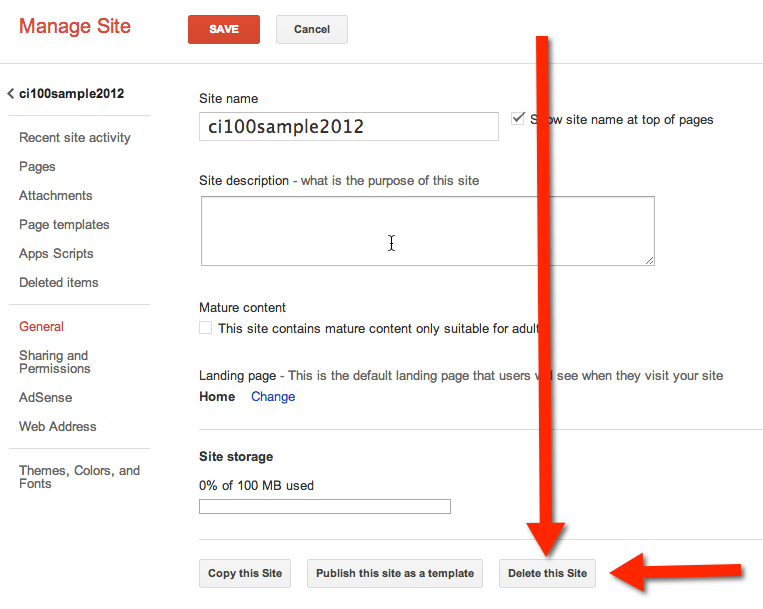
By clicking on the blue share button you are taken to the sharing settings in the admin panel. On the left hand side you want to click on “General.”

Scroll Down
Scroll down a little on the General settings page and there is an option to delete the website.
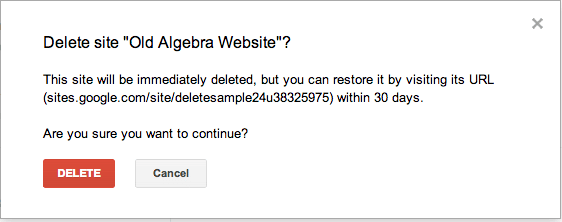
 There will be a confirmation screen to make sure you really want to delete the site. Click the orange delete button and the site is gone forever.