

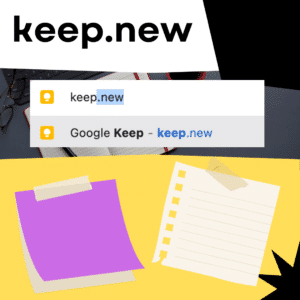




I love Google Keep! It’s like Post It™ Notes but better! It’s tied to your Google account so you can access anywhere on any device. Install the Google Keep app on your phone and back on your computer go to keep.google.com and without effort your notes are there.

Keep.new
I use docs.new and sheets.new and slides.new all the time. This is my favorite way to create new Google Apps documents. Google Keep enjoys this shortcut.

Control T to make a new tab. Keep.new and press enter. Actually, after doing this a few times Chrome remembers that you like keep.new and after typing K it autosuggests the keep. new so it’s even FASTER!
-

ReadWorks and the Power of the Daily Article Routine
ReadWorks is a free, research based, tool to aid in reading comprehension. Try the Article-A-Day to save time and provide differentiated options for readers.
-

DOK = Critical Thinking
DOK is the measurement of critical thinking on a task. Better understanding Depth of Knowledge helps you to better incorporate critical thinking into lessons.
-

3 Google Sheets Shortcuts You’ll Actually Use
The answer is always a spreadsheet, but sometimes the tips are hard to remember to implement. Practice these 3 Google Sheets shortcuts to really help
-

Transforming the Reading Log
Reading logs can lean into compliance over developing a love for reading. Try ReadWorks to help support building knowledge and a love of reading.
-

10 YouTube Hacks for Teaching
YouTube is a powerful tool in the classroom. Here are 10 hacks to help you get more out of YouTube.
-

Amplify Student Voice and Redefine Classroom Possibilities
Technology should serve as a bridge that connects students rather than a wall that isolates them. Curipod™ helps fulfill the true promise of educational technology by shifting the focus from passive clicking to active student voice.
Create a new Google Keep Note
Google Keep is a versatile note-taking app that can be used on a variety of devices including smartphones, tablets, and desktops. It allows users to quickly jot down ideas, create checklists, and even record voice memos. If you’re new to Google Keep or just need a refresher on how to create a new note, this guide is for you.
Step-by-Step Guide to Creating a New Note:
1. Access Google Keep:
– Desktop/Laptop: Visit [Google Keep’s official website](https://keep.google.com/) and sign in with your Google account.
– Mobile/Tablet: Download and install the Google Keep app from the Google Play Store (for Android devices) or the Apple App Store (for iOS devices). Once installed, open the app and sign in.
2. Start a New Note:
– Desktop/Laptop: Click on the ‘Take a note…’ bar at the top of the page.
– Mobile/Tablet: Tap on the ‘+’ icon located at the bottom right corner of the screen.
3. Add Content:
– Text Note: Simply start typing your note. You can format the text with basic formatting options like lists, bold, and italic.
– Checklist: Click or tap on the checklist icon (it looks like a box with a checkmark). This will allow you to create a list where each item has a checkbox next to it.
– Image: Click or tap on the camera icon to either take a new photo or select an existing one from your device.
– Voice Memo: On mobile devices, tap on the microphone icon to start recording a voice note.
4. Add a Title:
Above the note content, you can type in a title to help you identify your note more easily.
5. Color-Coding:
You can categorize your notes by color. Click or tap on the palette icon and choose a color for your note.
6. Add Labels:
Organize your notes with labels. Click or tap on the label icon (it looks like a tag) and either choose from existing labels or create a new one.
7. Set a Reminder:
If you want to be reminded about this note, click or tap on the finger-shaped reminder icon. Choose a date and time, or set a location-based reminder.
8. Collaborate:
If you’d like to share your note with someone else and collaborate in real-time, click or tap on the collaborator icon (it looks like a person with a plus sign). Enter their email address to invite them.
9. Archive or Delete:
If you want to remove the note from your main view but not delete it, you can archive it. To permanently delete it, click or tap on the trash bin icon.
10. Save and Exit:
On desktop, Google Keep auto-saves your notes as you type. On mobile, you might need to tap on the back arrow to save and go back to the main list.
Tips:
– Google Keep allows you to search for notes using the search bar at the top. This comes in handy when you have a lot of notes.
– You can drag and reorder notes in Google Keep based on priority.
– Use the pin icon to pin important notes to the top of your list.
Google Keep is a simple yet powerful note-taking tool that integrates seamlessly with other Google services. Whether you’re using it for personal reminders, work tasks, or collaborative projects, creating a new note is quick and intuitive. So, the next time an idea pops into your head, you’ll know just where to jot it down.



