
In Google Slides, Add a Feedback Slide
“Do not use Google Docs”
This is my tongue in cheek thing I like to say. Of course I use Google Docs, but I try not to assign my students to use a Google Doc. Fill out this Google Doc. This is my cheeky example, it’ s not fun to scroll through student Google Docs. If they are filling out a Google Doc it probably could have been a Google Form. (Use alicekeeler.com/form to put your questions onto a spreadsheet and it turns it into a Google Form fast.)
Use Google Slides, It is Multi-Media
Anything you can assign in a Google Doc can instead be assigned in Google Slides. The advantage to Slides is the ability to add multi-media elements. The open canvas allows for more creativity of student responses. Typically student work is less boring, [tweet]Google Slides make you feel like you should be creative.[/tweet]
Each slide in Google Slides has a unique URL
If you are slide 5 and use Control L to highlight the URL at the top of the slide and Control C to copy. That link takes you to slide 5. On the link below, click on it and notice it opens up the Google Slides to slide 5.
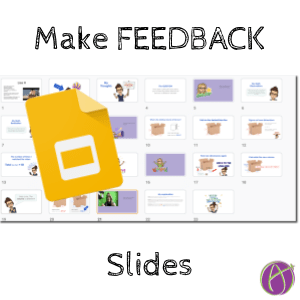
Feedback Slides
With Google Slides I am not restricted to the comments on the side of the document. Instead (actually in addition to), I add my own slide to student slides and take as much room as I want for feedback. I can also add VIDEO feedback to student work. I use the Screencastify Chrome extension to record a short feedback video. It automatically saves to Google Drive. Use the Insert menu, choose Video. Use the Google Drive option to add your Screencastify video. Note: one time only you will need to change the sharing settings on the Screencastify folder in Google Drive to anyone with the link can view. Otherwise your videos are private.

Feedback Template
Make a copy of my Google Slides with feedback template (alicekeeler.com/slidesfeedback). If you click on the tiny arrow next to the plus icon in the toolbar you will see all the layouts. Notice the last layout is purple. This is my feedback slide layout.

Link to Feedback Slide
If I add a feedback slide I am likely to tell the student about it. Control L to highlight the URL at the top of Google Slides (or you can just click up there and select the URL) and Control C to copy. In the Private Comments of Google Classroom I paste (Control V) the link to the slide. This directs the student to my feedback, NO SCROLLING!