





Magically Get Data
This is really cool, you can set your data type in Microsoft Excel to be Geography and then it will tell you all kinds of data about it. No one loves data more than me! Having students find data about different locations and using them in a spreadsheet is my dream 🙂
Type in Geography Data
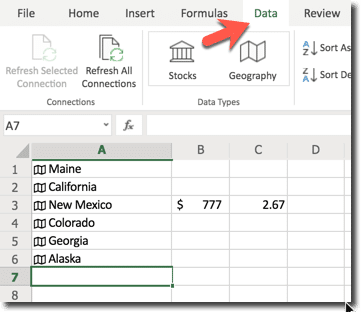
In the cells type in Geography information such as state names. On the Data tab click on “Geography” to set them as a Geography data type.
Geography Icon
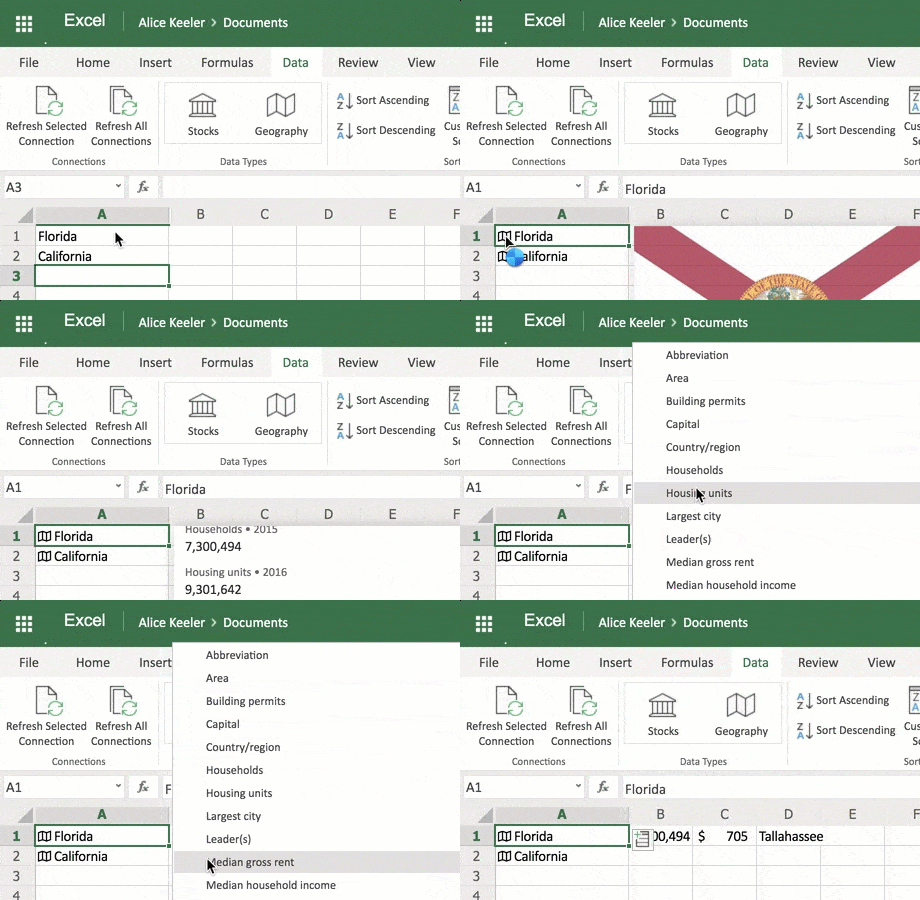
Notice an icon is added to the cell. Click on this to open a window of Wikipedia information.
Add Data Icon
Hovering over the cell with geography information notice an icon appears to add data about that location to the sheet. A drop down list will appear. Choose the information such as state capital, median income, and a lot more! The next available cell to drop that information into will appear with the data.
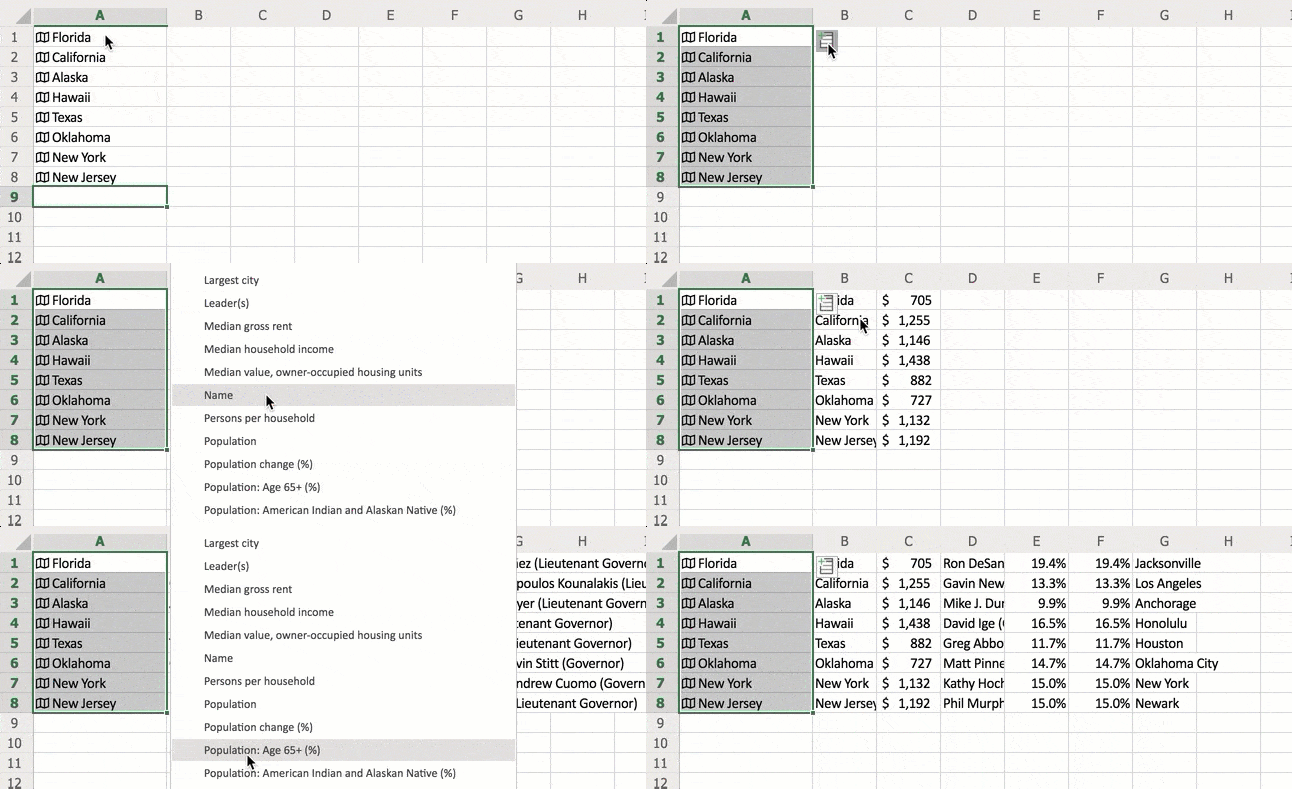
Highlight multiple cells at once and then click on the data icon to find the same type of information about each location. If you wanted the information about multiple states it would be super tedious to record that one state at a time on a spreadsheet. No longer!
What Do You Notice?
Pattern finding! Ask students what they notice about the data they find about different locations. They can add their observations and questions to the spreadsheet.





