





Google Sheets: Select a Range
Using a trackpad in Google Sheets to select a range of cells can sometimes be tricky. Here are a few tricks to select a range of cells.
Range
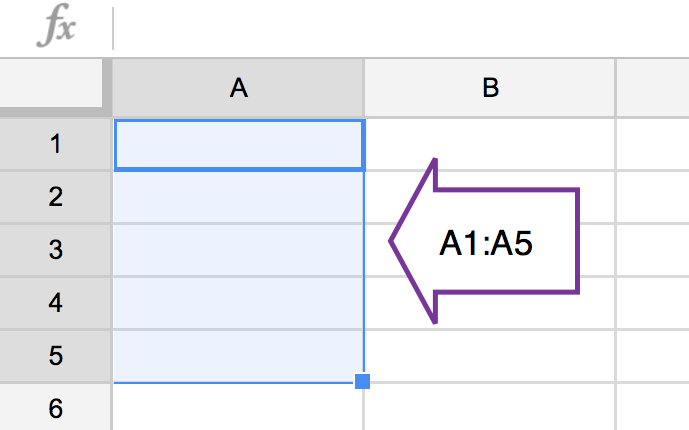
Each cell has an address such as A1 which is the first column, first row. B10 is the 2nd column, 10th row. A range of cells would describe more than one cell. A1:A5 describes the first 5 cells in the first column. Notice the range of cells is identified by the first cell, a colon, and the last cell.
Range B2:D5 identifies B2 as the upper left cell in the range and D5 as the bottom right cell in the range. The range includes all of the cells within the 3 by 4 array. 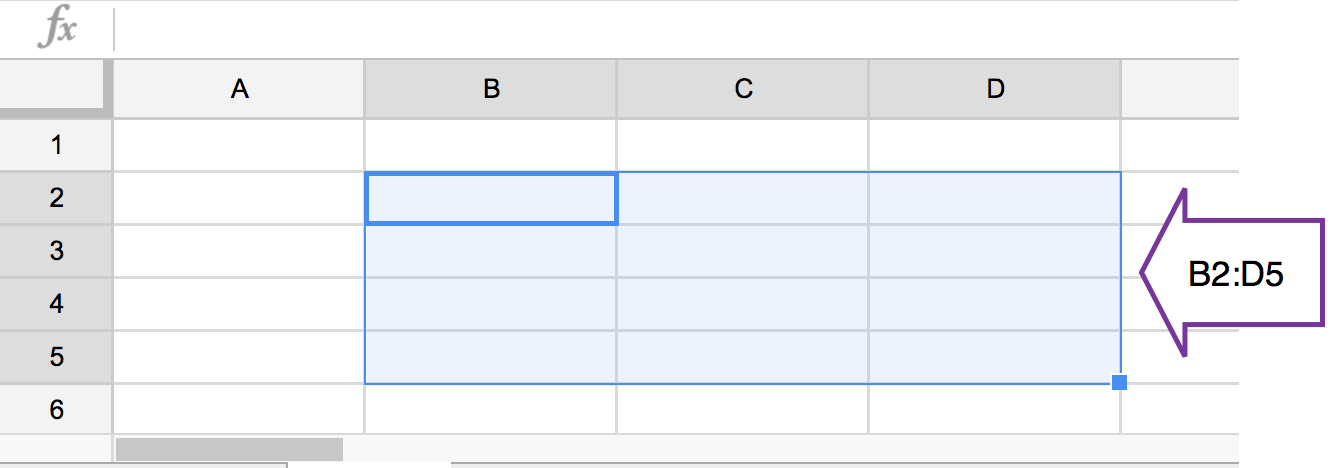
Select a Range
To highlight a range, click and hold down on a cell and drag the mouse or trackpad to select the desired range and release the mouse.
Shift Arrow
Instead of using the mouse, click on the first cell in the range and hold down the Shift key. Use the arrow keys to select additional cells in the range, while holding down Shift.
Click Shift Click
Another trick is to click one time on the cell in the upper left of the range. Hold down the Shift key and click on the cell in the bottom right of the range. The entire range will be selected.





