

Add Google Drawing to Google Slides

Insert Google Drawings into Google Slides

Create in Google Drawing and Insert into Google Slides

If you have created an infographic or other image in Google Drawing, you can insert it into your Google Slides presentation. I should note that the drawing engine in Google Drawing is the same as Google Slides so you may just want to make it in Google Slides to begin with. You can also use Control A to select all, Control C to copy and then Control V paste it into Google Slides.

Publish to the Web

In Google Drawing, use the File menu and choose “Publish to the web.”
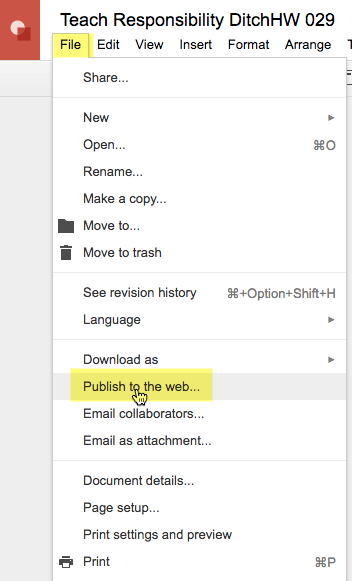
File menu Publish to the web

Choose Publish

Click the blue Publish button.
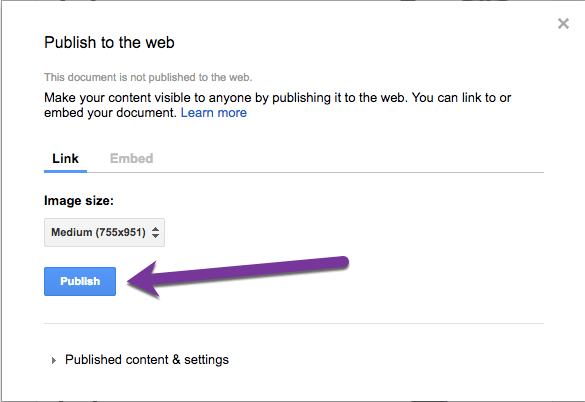
Publish button

Copy the Link

The published link is different than the link to the document. It is important that you get the link from the File menu and Publish to the web.
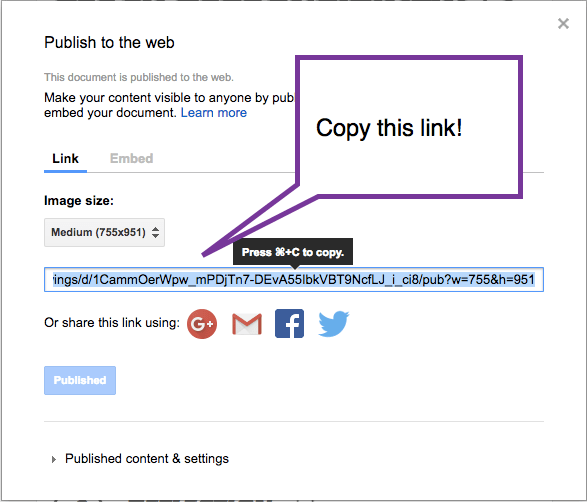
copy link to published google drawing

Insert in Google Slides

In Google Slides use the Insert menu and choose “Image.” Along the top, the 3rd option is “By URL.” Paste the published link into the box that says “Paste an image URL here:.”
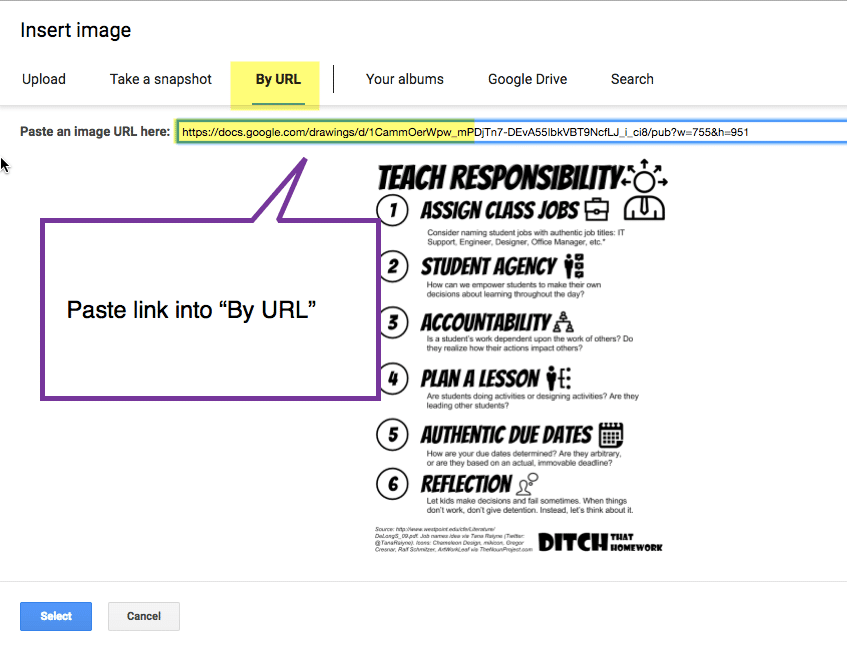
Paste the link into the By URL


Leave a Comment

© 2026 All Rights Reserved.

Get effective EdTech strategies from Alice Keeler to build a more student centered classroom. Includes unique resources and templates.

Recent Teacher Tech Blog Posts

💥 FREE OTIS WORKSHOP

Join Alice Keeler, Thursday April 28th or register to gain access to the recording.
Create a free OTIS account.

Join Alice Keeler for this session for teaching with AI

Imagine having a team of teaching assistants who already know your syllabus and exactly how you like to give feedback. Join Google Certified Innovator Alice Keeler to learn how to use Google Gems to build a powerful collection of custom AI tools. We will explore how to engineer specific instructions so you can create a Grading Assistant or a Classroom Policy Manager that works for you. You will also learn how to leverage Gems shared by other educators to instantly expand your toolkit. This session is about super-powering your teaching by automating the routine tasks so you can focus on the students.

Exit this pop up by pressing escape or clicking anywhere off the pop up.