

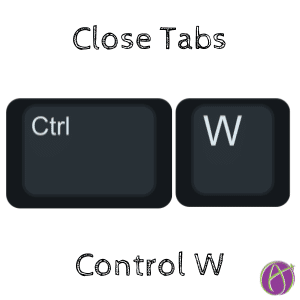




Use Control W to Close Tabs
Now that we are doing more digital grading that is a lot of mouse clicks. Increase your efficiency in going through student work by using Control W (Command W on a Mac).
Stop making the long trek to the top of the computer screen.
I am solidly in the habit of using the keyboard shortcut, Control W, to close my tabs. Open student work, comment on it, Control W close it. Repeat.
Open Side by Side
Try the Open Side by Side Chrome extension. This allows you to right click on the link to student work (or any link) and have the destination open side by side.
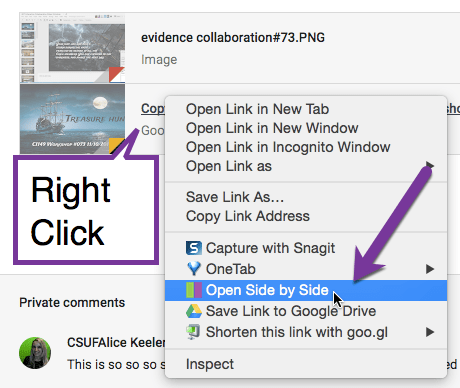
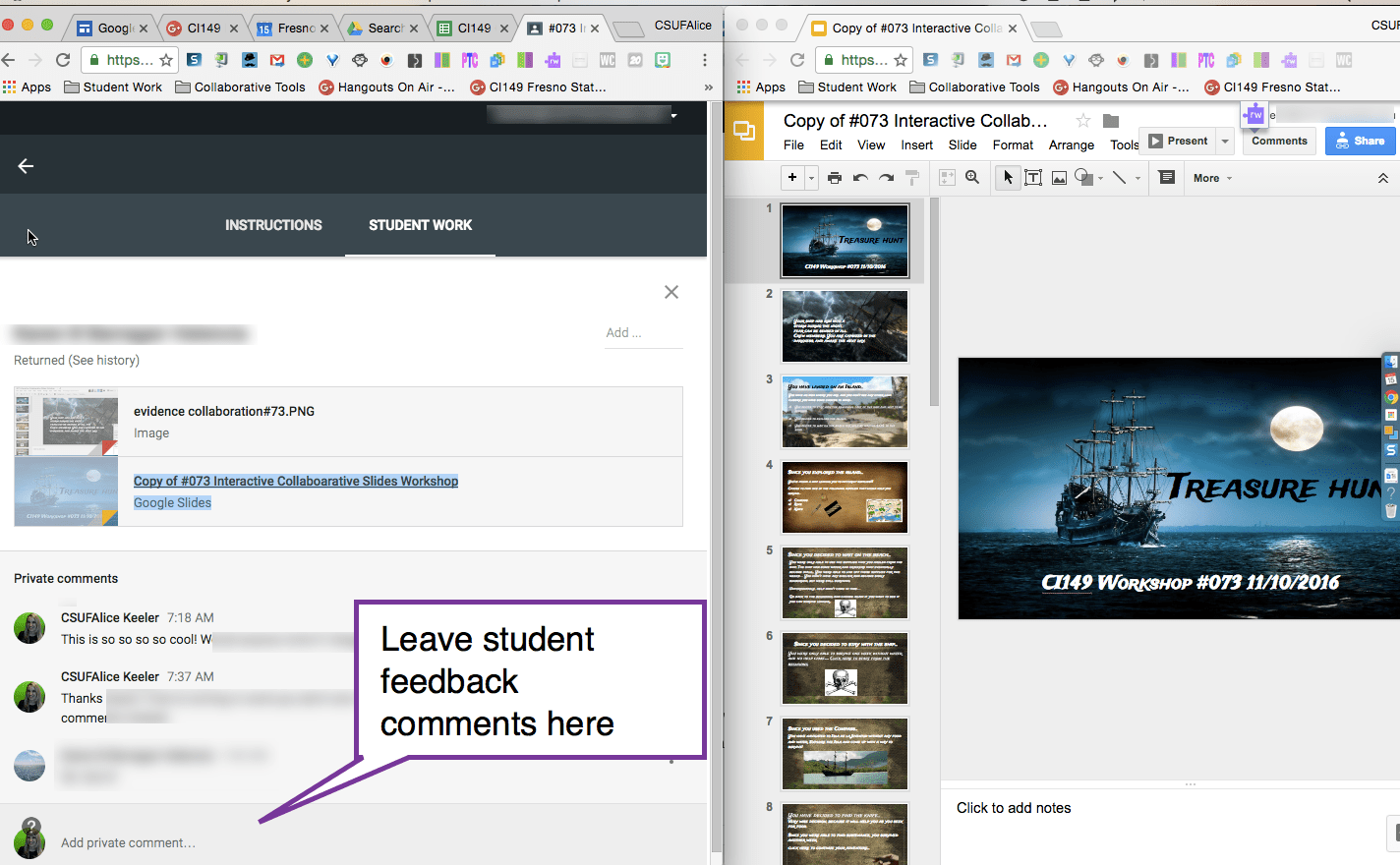
When using Google Classroom, right click on the attachment title and choose “Open Side by Side.” This allows you to view student work on the right side of the screen and enter private comments on the left side. Use Control W to close the student work and go to the next student.
Drive20
The Drive20 Chrome extension opens up 20 student documents at once. I recommend you right click on the icon and go to settings and change the default from 20 to 10, the more tabs you have open the more your computer will cry.
I use Google Classroom so for each assignment all of my student work is neatly organized into a single folder in Google Drive. The Drive20 extension helps me to open a lot of student work at once. Go to the last tab opened and use Control W to close one student’s document and go to the next student.








2 thoughts on “Control W – Stop Making The Long Trek to the Top”
These extensions look awesome! I frequently have trouble with all my tabs going “away snap” if I have more than 5 open. Do you have dxperience with this?
I’m guessing you’re accidentally hitting a keyboard shortcut to close all other tabs.