



Control K: Create a Hyperlink

control K

Control K on a PC or Command K on a Mac is sometimes the shortcut for creating a hyperlink. This works in Google Docs and also in WordPress.

Type Words

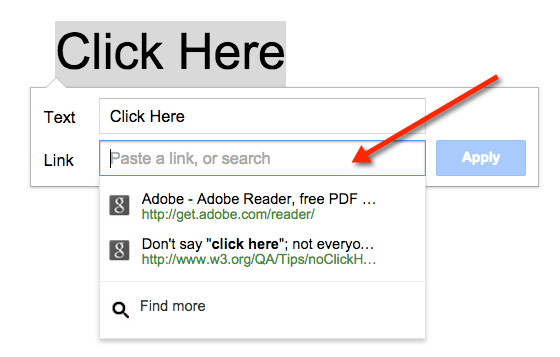
Oftentimes the URL you want your students to link to is rather long and ugly. Instead you would rather have something such as “Click Here” for them to click on. Decide on the words that you want to make a live hyperlink and then type them into your document.

Highlight

Highlight the words you want to turn into a hyperlink.
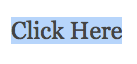
highlight click here

Control K

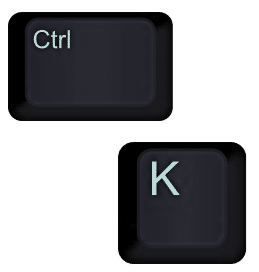
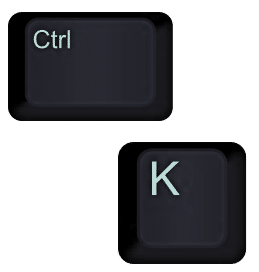
The toolbar probably has an icon that resembles a chain link that allows you to create a hyperlink. Some programs have a picture of a globe or the word “link.” Instead of clicking on the icon in the toolbar, instead hold down the Control key and strike the letter K. This will open a dialogue box to allow you to paste (Control V) the URL you wish to link to.
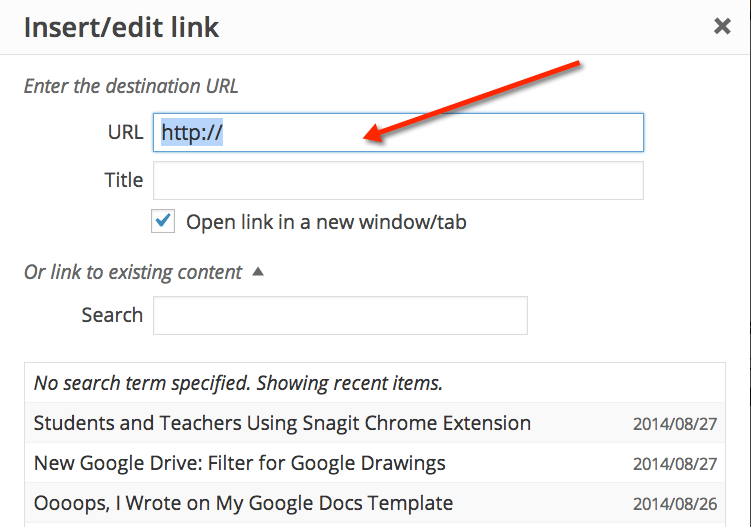
Control K on WordPress

Control K on Google Doc


Leave a Comment

© 2026 All Rights Reserved.

💥 FREE OTIS WORKSHOP

Join Alice Keeler, Thursday April 15th or register to gain access to the recording.
Create a free OTIS account.

Join Alice Keeler for this session for teaching with AI

Unlock a smarter way to manage your curriculum by turning your own teaching materials into a personalized AI assistant with NotebookLM. This session explores how to transform static documents into interactive study guides and audio overviews that are tailored strictly to your specific content. You will discover how this versatile note-taking tool can streamline your prep time and help you organize complex resources with ease. Join us to see how NotebookLM can act as a powerful, free partner in your K-12 classroom.

Exit this pop up by pressing escape or clicking anywhere off the pop up.