





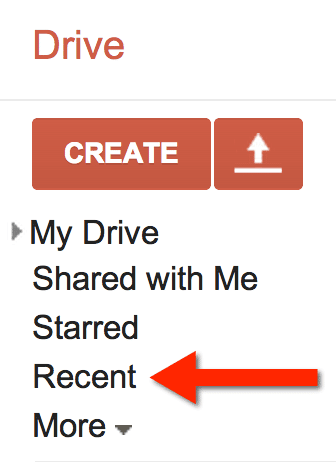
Recent
When going to your Google Drive you may want to start by looking on the left hand side for “Recent.” This is where you will find the files you were recently working on. If you have placed a document into a folder it does not appear in your main document stream when you first log in. Choosing “Recent” on the left hand side can help you get back on track quickly.
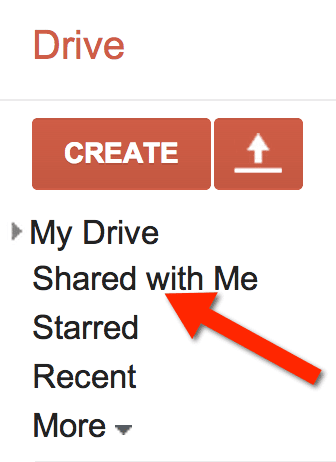
Shared with Me
You may also want to look under “Shared with Me” for documents that you did not create, but were shared with you. If the shared file is something you want frequent access to, you will want to drag the file (Google Chrome) into “My Drive” or into one of your other folders.
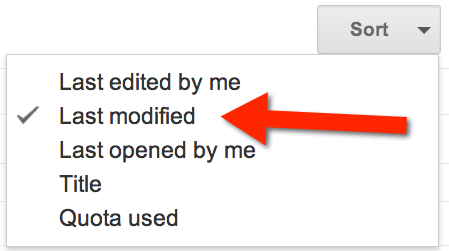
Sorting
In the main document stream in “My Drive,” I like to have my files sorted by when they were last modified. By default the files are sorted by title, which can be challenging if you have a lot of files in your Google Drive. By choosing “Last modified” you can more easily locate documents that you or collaborators have worked on.






1 thought on “View Recent Items in Google Drive”
I can’t believe I left so much detail out of that question. If I delete files from the RECENT folder in Google Drive online they disappear from My Drive online and on the local computer also. So I’m wondering do the files in Recent count against the total storage a person is using? I hope I said that better. smh