

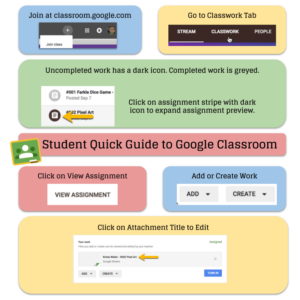




Student Quick Guide to Google Classroom
To get students quickly into Google Classroom
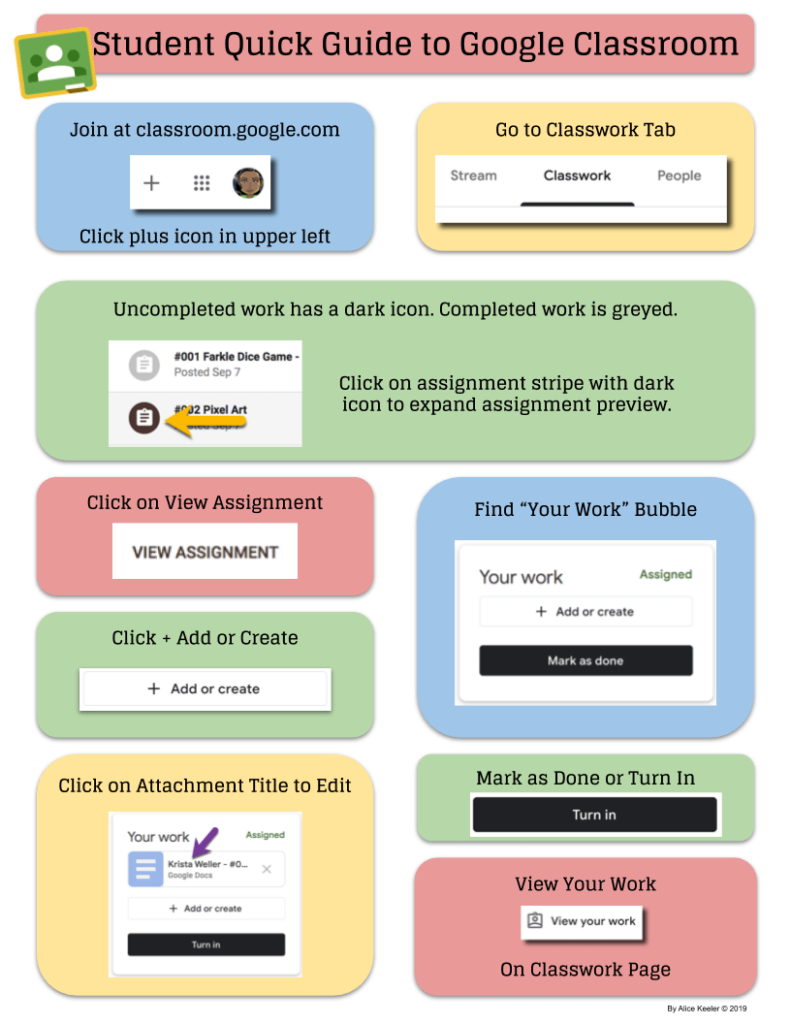
- Have them go to http://classroom.google.com
- You click on the settings cog at the top right to find the class code. Click on the tiny triangle next to the code to “Display.”
- Students click the plus icon in the upper right hand corner and enter the join code. They are in.
- Students click on the Classwork tab and look for assignments that have a dark icon. Those are not done.
- Students click on the assignment stripe to expand out a preview of the assignment.
- Students should be in the habit of clicking on “View Assignment” to see any work that is attached or to add work to the assignment.
- Students click the blue button to submit. The blue button will either say “Mark as Done” or “Turn In.”
- Get students in the habit of clicking the “View Your Work” link at the top of the Classwork page to see the status of their assignments and what they need to complete.






2 thoughts on “Student Quick Guide to Google Classroom”
Thank you! I’ve been looking for something like this!!
This is a wonderful resources to share with students! Is the “View Your Work” available on the iPad? I’ve only been able to find it on a laptop.