





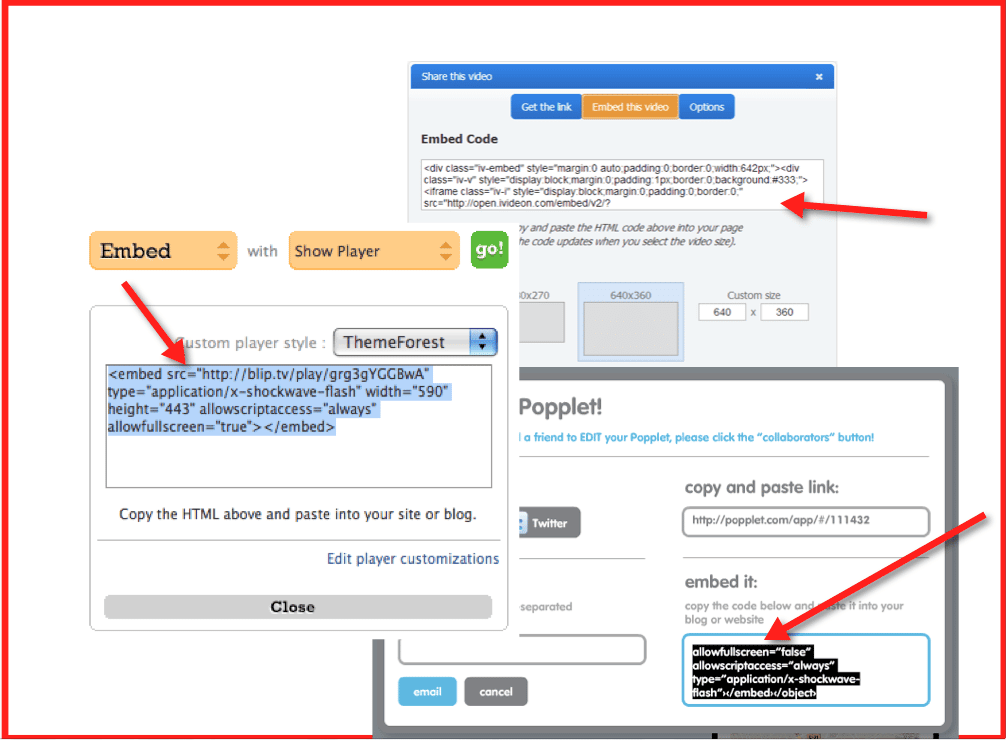
If you use Web 2.0 tools there is a possibility that what you create can be embedded in a Google Site.
Step 1:
In your Web 2.0 tool find where you can publish and obtain the embed code. This procedure will vary from tool to tool. Copy the embed code (control C)
Step 2:
Go to your Google Site and find the page you want to insert the content on.
Step 3:
While editing the page type in **INSERT CODE HERE** where essentially you are yelling at yourself for where you want the video to be located.
Step 4:
In the toolbar is an option for <HTML>, click on this option to toggle to HTML view.

Step 5:
Locate the **INSERT CODE HERE** within the code. Highlight this phrase and replace it (control V – paste) with the embed code. Click the update button. What you embedded will likely not be visible until you click on the save button for the page.






4 thoughts on “Adding an Embed Code to a Google Site”
This was very helpful. But when I embed the twitter widget it only shows a link. Any idea on how to embed the twitter widget?
Unfortunately the Twitter widget embed does not work. Some embed codes work in Google Sites, others do not.
I’ve tried this, but all I get is a blank white space where the timeline js should be…
Not all embeds will work. For example, the twitter widget embed does not work.