





Resize a Google Drawing
The default size of a Google drawing is 960 x 720 pixels (10″ by 7.5″). There are many reasons to need a different sized canvas. For example, when creating an image for Twitter the image needs to be 400 x 200 pixels. When I want to create badges I will use 500 x 500 pixels. (FYI: A pixel is a unit of measurement for the computer. It’s one little dot on your screen.)
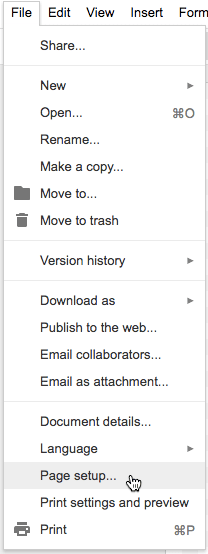
File Menu
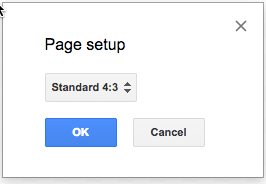
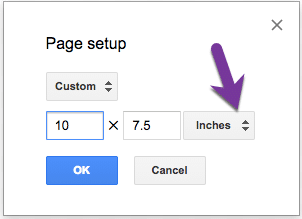
To resize the drawing canvas use the File menu and choose “Page setup.”
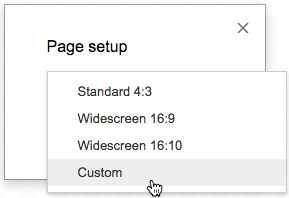
Custom
Change from the default of Standard 4:3 to “Custom.”
Pixels
You do not have to use the units of Pixels, but I like to.
Trick to Resize
If you resize the canvas after you already have items on the canvas they elements will get stretched to the new ratio. No bueno. The trick is to use Control A (select all) and Control X (Cut). This will copy the elements to your clipboard. Then use the File menu and choose “Page setup.” After resizing, use Control V to paste the elements back.






3 thoughts on “Google Drawing: Resize”
Really appreciate the blog. I use your tips and strategies every day. I am having a problem with command bar in presenting Google slides. There was a way to turn it off using preview but it no longer works. Help please.
I am not sure what you mean by command bar
Whoa! Thank you so much. Google is the 3rd program I have tried to create a flowchart and ran out of room! Without your select, cut and paste tip I would have no hair left!