





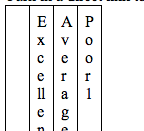
Copying and pasting from one location to another does not always work out. The screenshot above is a copy and paste from a table in Moodle into a Google Doc.
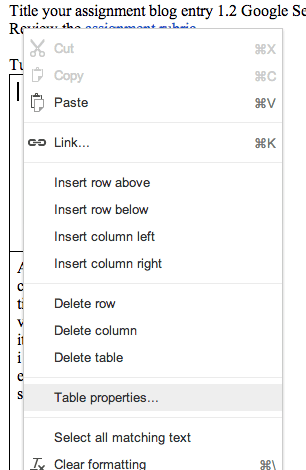
To fix this you will want to right click on the table and choose table properties.
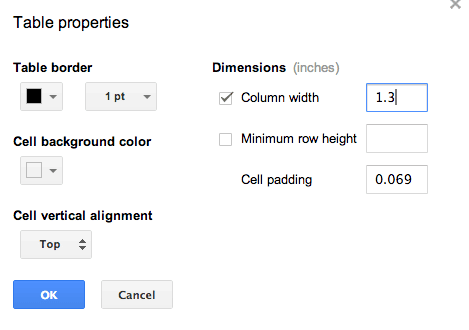
Under table properties you are able to change the border color, border width, cell background color, vertical alignment and column width and height.
Change the column width to something not so skinny, in my case I chose 1.3 inches.
One thing I am waiting for with Google Docs is a 2 column layout. This is particularly handy when making worksheets. One trick is to create a 2 column, 1 row table. Right click on the table and change the table border to clear.
Hint, before you insert the table hit enter a couple of times so that you retain your document formatting. I try to always hit enter several times before I insert anything (pictures, copy paste, etc…) because sometimes the formatting can get funky and it is challenging to get it back otherwise.






1 thought on “Table Properties in a Google Doc”
Thank you! I love using tables in my docs. This helps!