





Google Classroom Assignment
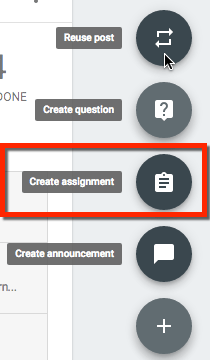
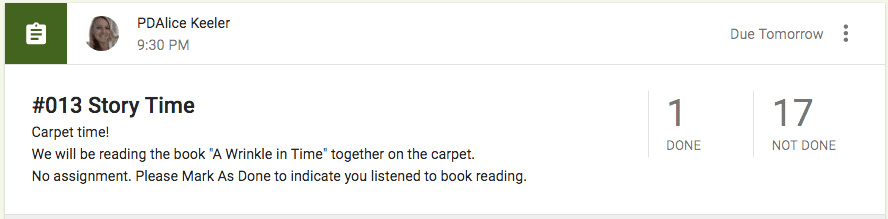
I pretty much NEVER use the “Announcement” feature in Google Classroom. I use “Assignment” for everything.
Private Comment
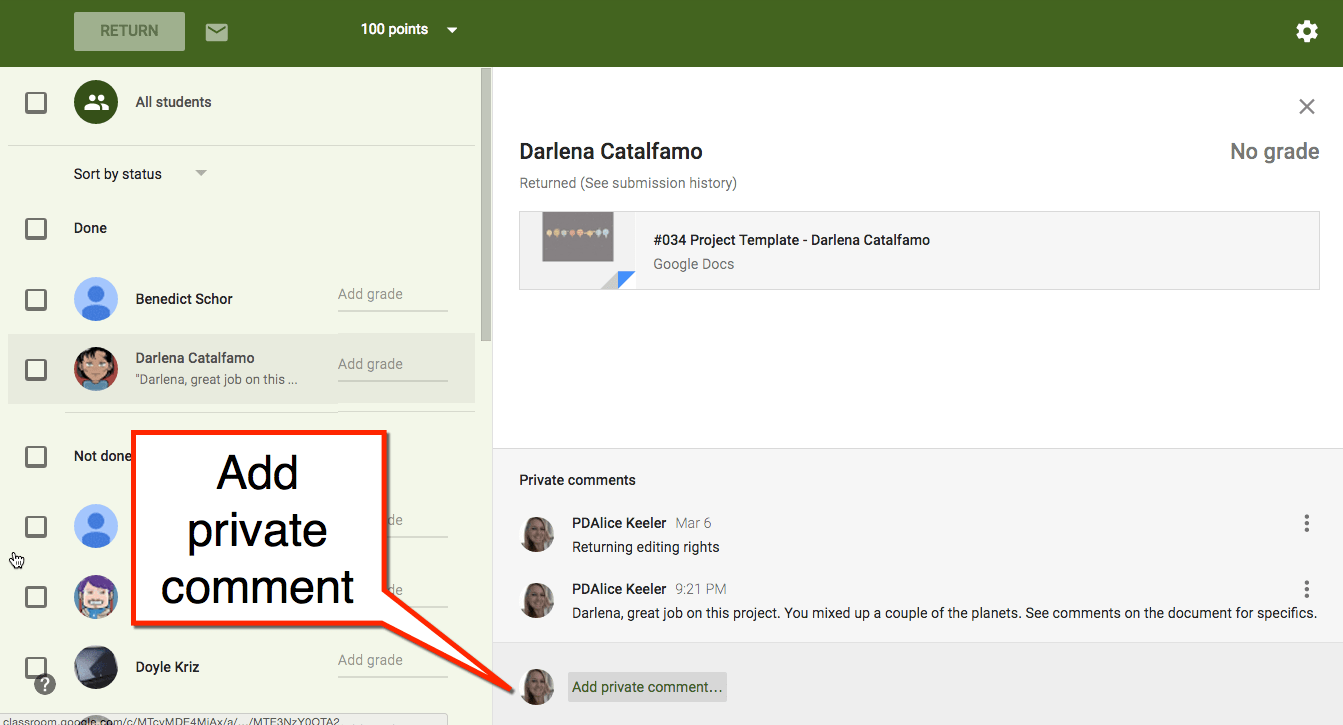
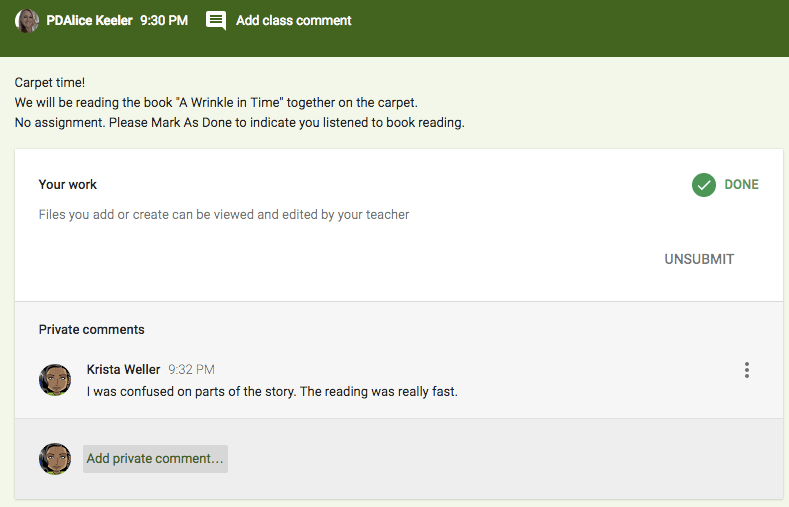
There are several ways you can use Google Classroom to make learning better. It is of course how you use it that makes learning better, not just that you use Google Classroom. What is amazing about Google Classroom, in my opinion, is the “private comment” spot for each assignment. Gradebooks usually allow teachers to leave comments for students but this is one way communication. Private comments in Google Classroom allow students to reply to teacher comments or initiate a question.
Locate the private comments by clicking on the assignment title in the Stream. Clicking on a students name on the left hand side reveals the private comment option in the right hand pane.
Conversations
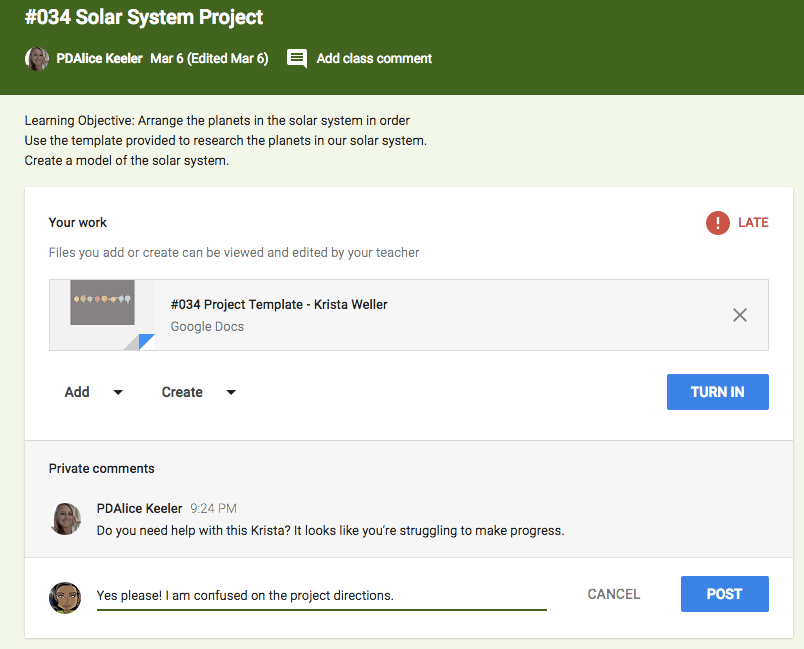
Private comments allow students and teachers to have conversations around their learning. Student are able to click on “Open” to view the student work page. Students can view teacher comments and reply. Unlike comments left in the Stream, private conversations on an assignment are only between the student and teacher.
Asking Questions
Announcements in Google Classroom do not allow for a private comment option. Posting all activities and announcements, digital or not, in Google Classroom as an assignment gives students an opportunity to ask a question. Even when teachers have positive relationships with students it can still be intimidating to ask a question. Quiet students or those who are concerned their question is “dumb” can safely ask a question in the private comments.






3 thoughts on “Google Classroom: Make EVERYTHING an Assignment”
I’ve been a big Schoology user, but we (finally) became a Google school this year and I’m kicking the tires on Classroom. What is “best practice” for posting a daily agenda? Announcement is no good. I’m wondering if Question would be better than Assignment. I know I can share a doc or slide, but I also want it to show on the Calendar each day. Thanks!
I create an assignment called Agenda and attach a Google Doc that is not boring.
Thank you for the reply. So you really do mean EVERYTHING as an assignment 🙂 BTW I follow you on Twitter and really enjoy your posts about Tech Ed. I am taking a lot more interest in Google Classroom now that we’re finally a Gsuite school. I’m still sticking with Schoology as my main LMS – a lot of quiz banks there – but can definitely see the ease of the submitting science lab reports, spreadsheets, and the calendar in Classroom. Most of my Schoology resources point to a Google Drive item already. Probably just a matter of time before I come over completely.