





Google Keep allows you to keep sticky notes to remind you of all kinds of things. I use it a lot for anything I want to remember later. Since it is a Google tool you can access it from ANY device. Go to keep.google.com or install the app on your phone. Google Keep shortcuts help you to use this amazing tool even better!
Make a New Note
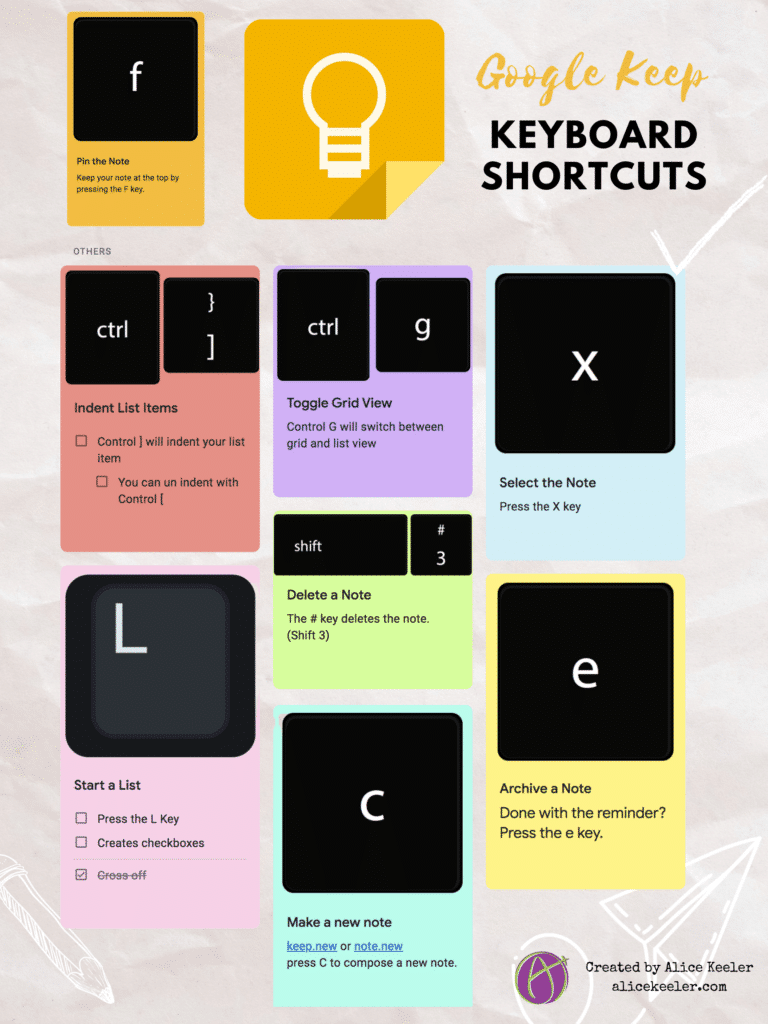
Go to keep.new or note.new and quickly create a Google Keep note. But once you’re in Google Keep simply press the letter C to compose a new note.

Pin the Note
You can pin your notes to the top of Google Keep by pressing the F key.

Want More Help with This? Become a Premium Member
Create Checkboxes
List your todo items or ideas in a new note with checkboxes by pressing the L key. This quickly allows you to create a List. Check off your items in the note as well!

Archive the Note
Done with your note for now? Archive it. Press the E key.

Delete the Note
Done with the note totally? Use the # key (Shift 3) to delete the note. Tip, this is the same keyboard shortcut for Google Drive to delete a file.

Select the Note
Press L to seLect the note.

Toggle Grid View
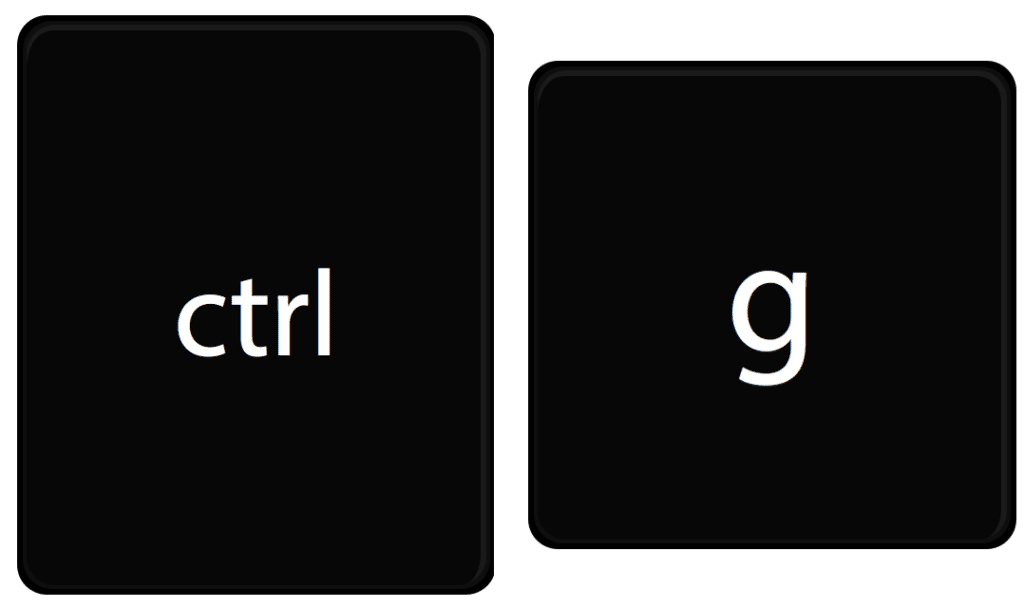
My favorite way to list notes is in Grid view, but you may just want a list of your notes. Try Control G (Command G on a Mac) to see it in a list.
Indent the List Items
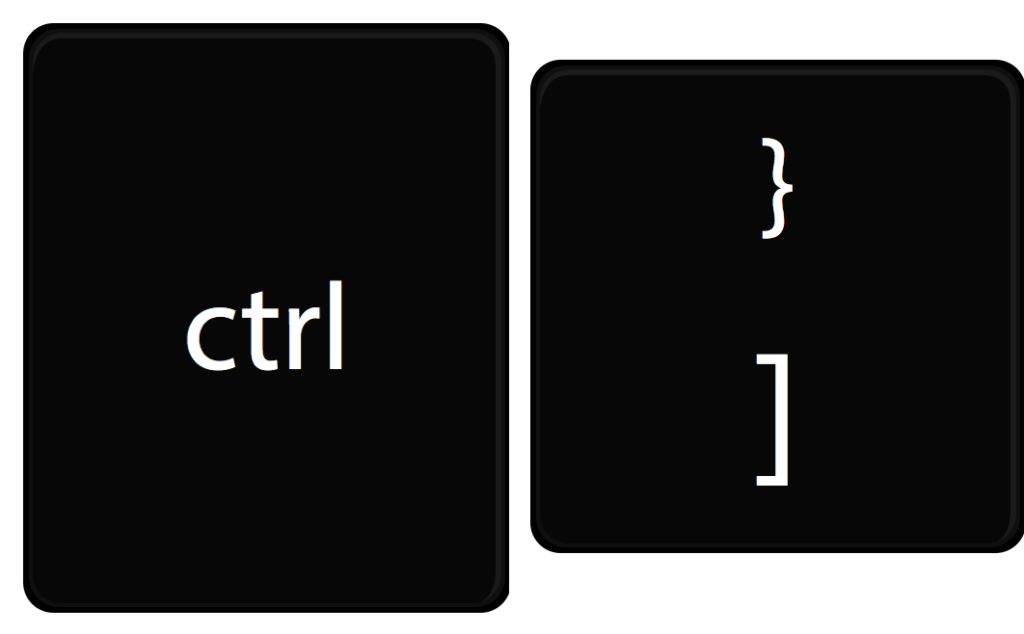
I just recently realized you can indent the checkboxes. Now I am using it all the time. Use Control Bracket to indent (or un indent) the list item. (Command ] on a Mac)
-
ReadWorks and the Power of the Daily Article Routine

ReadWorks is a free, research based, tool to aid in reading comprehension. Try the Article-A-Day to save time and provide differentiated options for readers.
-
DOK = Critical Thinking

DOK is the measurement of critical thinking on a task. Better understanding Depth of Knowledge helps you to better incorporate critical thinking into lessons.
-
3 Google Sheets Shortcuts You’ll Actually Use

The answer is always a spreadsheet, but sometimes the tips are hard to remember to implement. Practice these 3 Google Sheets shortcuts to really help
-
Transforming the Reading Log
Reading logs can lean into compliance over developing a love for reading. Try ReadWorks to help support building knowledge and a love of reading.
-
10 YouTube Hacks for Teaching
YouTube is a powerful tool in the classroom. Here are 10 hacks to help you get more out of YouTube.
-
Amplify Student Voice and Redefine Classroom Possibilities

Technology should serve as a bridge that connects students rather than a wall that isolates them. Curipod™ helps fulfill the true promise of educational technology by shifting the focus from passive clicking to active student voice.



