






Google Forms is always improving. Google Forms editing is not necessarily obvious. Here is a quick guide to updating a Google Form.
Find a Form
This post is about EDITING a Google Form. This assumes that you already have created a Form. Go to forms.google.com to find all of your Google Forms. Hint, this IS Google Drive. It does not look like Google Drive, it is a pretty filter of Google Drive for your Google Forms.
Want More Help with This? Become a Premium Member
Google Drive
Google Forms opened from Google Drive are automatically opened in edit mode.

Editing a Form from Preview
If you are opening up a Google Form from Google Classroom or other ways that show you the Form rather than the edit screen, look for the pencil icon in the bottom right hand corner. The pencil icon is ONLY visible if you have editing rights to the Form.

There is no version history in Google Forms.
Be aware that any edits you make are “permanent.” You can use Control Z to undo, but once you navigate away from the Form you can no longer use Control Z. There is no problem with you editing, changing, or updating a Form. However, please realize you can not restore it back to the way it was before.
Settings Tab
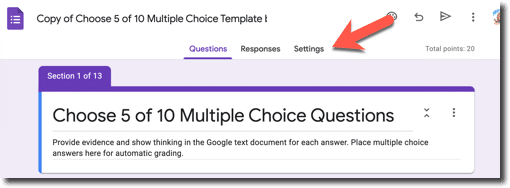
As soon as you open the Google Form you will notice there are 3 tabs. The default is “Questions.” The next tab is “Responses.” And the last tab is “Settings.” This Settings tab is new. It replaces the settings cog at the top of Google Forms. Double check the settings in the Form to ensure it displaying everything how you want.
Responses Tab
The Responses tab shows any Form submissions. When editing the Form, you may want to remove the previous responses. Use the 3 dots menu on the Responses tab and choose “Delete all responses.” This will refresh the summary of responses. This will allow the charts and graphs on the Responses tab to only show the updates to your Form.

Add Questions
It is no problem to add questions, delete questions, change the answer choices. Users submitting the Google Form moving forward will see the Form edits you made.
No Save Button
Just like Google Docs, Sheets, and Slides there is no save button. Edits are saved automatically. As soon as you edit the Form, anyone opening the Form will see the updates and changes.
Hold Off on Responses
If you are editing a previous Form and do not want people to see the edits until you are done, use the “Accepting responses” toggle on the Responses tab. Don’t forget to toggle it back when you’re ready to have people resume filling out the Form.





