The Google Docs Tools Menu
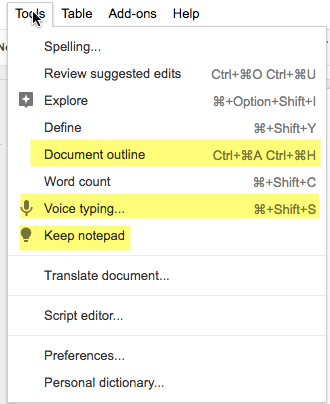
When using any program explore the menus to find those extra features that increase your productivity. Take a look at the Tools menu in Google Docs. Here are 3 noteworthy items in the Tools menu.
1. Document Outline
To the left of the document, the Document Outline should be visible. If it is not, activate it in the Tools menu.
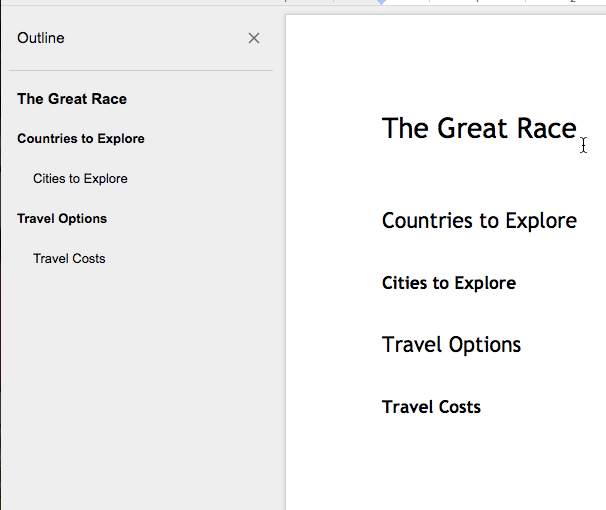
To create the outline you will want to use the headings in the toolbar. The default is “Normal text.” Change to “Heading 1” or “Heading 2”, etc… to create the outline on the left. The outline is dynamic. Click on the items in the outline to jump to that part of the document.

2. Voice Typing
I use voice typing a lot on my phone and it can be outright hilarious what my phone thinks I am saying. The mobile team should come visit the Google Docs team to learn how to program voice typing because the voice typing in Google Docs is magical. Activate voice typing in the Tools menu. Click on the icon to start recording. Type away with your voice!

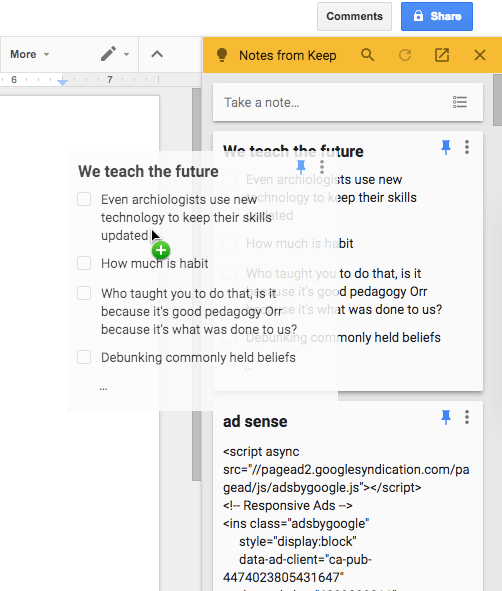
3. Keep Notepad
I am a huge fan of Google Keep. Go to keep.google.com and start making notes! It’s magical, you can take pictures of paper with text on it and then extract the text from the image. Google Keep integrates with Google Docs. Any notes you’ve created in Google Keep will show up in the sidebar of Google Docs. DRAG the notes from the sidebar into the document. You can also create a new Keep note right in the side panel.