






For some reason I was inspired this morning by the shift key. Here are some really handy things you can do with the shift key
- Hold down the shift key before you click on a link, this will cause the link to open in a new window.
- Place your cursor in your text and hold down the shift key. This allows you to highlight one character at a time.
- Hold down the shift key when you are resizing drawings to constrain the proportions (keep it from stretching funny).
- Hold down the shift key when drawing a circle, it will make a perfect circle.

- When you have a drawing object selected, hold down the shift key as you move it with arrow keys. It will move in smaller increments to allow for exact placement.
- When filling out a form you use the tab key to move from one field to the next, but if you hold down the shift key with the tab key (shift + tab) you move backwards. This works in Excel spreadsheets also. You use the tab to key to move from one cell to the cell to the right. Hold down the shift key and tab and you move one cell to the left.
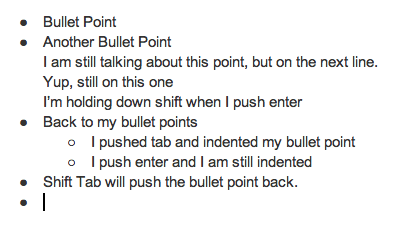
- Like bullet points?
Hold down the shift key when you push enter (shift + enter) and it will go to the next line without making a bullet point. But if you hit enter again without the shift key and it will create the next bullet. - When creating bullet points for an outline you might use the tab key to indent your bullets (make sub points). But if you want to go back to the left with your bullets use shift+tab and it will restore your bullets to the left.
So try it out, see what happens when you hold down the shift key when you do things. Magic might happen 🙂






2 thoughts on “Oh mighty shift key… how I love you!”
Thank you for this! It has been driving me nuts that I cannot go “back” (left) with bullet points. Huzzah!
Thank you, this is exactly what I was looking for.