






You have spent hours collaborating on a project in Google Docs, refining every sentence with your team. But the moment you try to move that content to your blog or a professional platform, everything breaks. Bold text disappears, lists get wonky, and hidden code creates a formatting nightmare. Using Gemini to Export Google Docs to Markdown can be a helpful way to generate a clean, web-ready version of your work and save you from a lot of frustration.

Delivering high-quality content, tools, and support for reading comprehension
ReadWorks is a free, research-based website designed to support educators in teaching reading comprehension across grades K–12. It provides a rich library of high-quality, standards-aligned instructional content.
Article-A-Day, helps students build knowledge and vocabulary in just 10-minutes a day.
The Value of a Universal Format
Think of Markdown as the universal translator for the internet. It is a lightweight language that uses simple symbols to handle formatting instead of hidden, messy code. It is designed to be human readable, meaning you can look at the raw text and still understand the structure without needing a special viewer.
A Markdown Tutorial
Getting started with Markdown is easier than you might think. Here are the most common symbols you will use:
Headings: Use hashtags at the start of a line. One hashtag (#) is a main title, while two (##) or three (###) create subheadings.
Emphasis: Wrap your text in double asterisks for bold (
**bold**) or single asterisks for italics (*italics*).Lists: Start a line with a dash (-) or an asterisk (*) to create a bulleted list. Use numbers (1.) for an ordered list.
Links: Put the display text in brackets and the URL in parentheses, like this:
[Visit Google](https://www.google.com).
Because it is essentially plain text, your work never gets locked into a specific software. It stays portable, professional, and ready for any platform.
The Built In Export Method
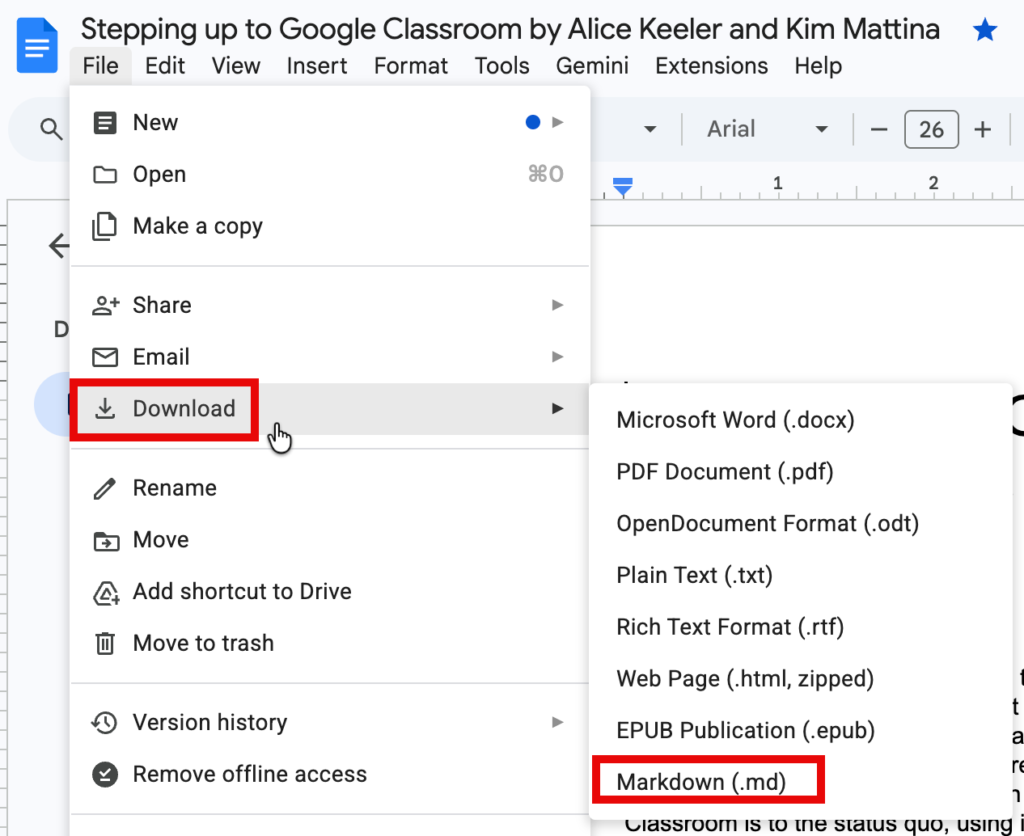
Before turning to AI, it is worth knowing that Google Docs has a built in feature for this. It is a quick way to get a file, even if the formatting sometimes requires a little manual cleanup afterward.
Use the File menu > Select Download> Choose Markdown
Real Time Cooperation in Google Workspace
Google Docs is incredible for brainstorming and real-time collaboration, but it carries a lot of digital “baggage” that websites hate. Here is why Markdown should be your final destination:
Clean Web Publishing: Platforms like WordPress, Ghost, and Medium love Markdown. It strips away the “junk” code that usually breaks your site’s design or messes up your font styles.
Future Proofing: You aren’t tied to a subscription. A Markdown file can be opened by any basic text editor fifty years from now. Your ideas stay yours, forever.
Developer Ready: If you are contributing to GitHub or using modern site generators, Markdown is the required standard. It is how the web is built.
Distraction Free: It removes the cluttered toolbars and menus, leaving you with nothing but your ideas and a clear, logical structure.
Improving on the Standard Download
While Google Docs does have an option to download your file as a Markdown document, the results can sometimes be inconsistent. You might find that complex lists or specific formatting styles do not translate perfectly during the native export process. Rather than spending your afternoon manually fixing these small errors, you can look for a more intelligent solution.
TidyDoc by AliceKeeler

Collects NO User Data
Quickly clean up your Google Doc™ with this FREE Add-on from Alice Keeler.
- One space after the period.
- Remove extra blank paragraphs
- Indent each paragraph
- All headings to TitleCase
- and more!
How to Convert Using Gemini and Google Drive
There are two primary ways to get your document into Gemini:
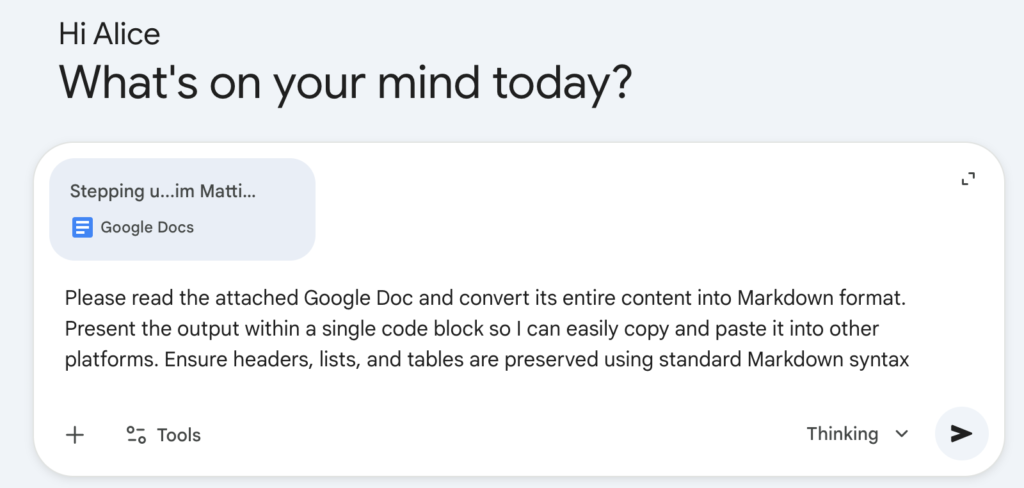
Using the Add Files Button: At the bottom of the Gemini chat window, click the Plus (+) or Add files icon. You can select Drive to browse your Google Docs directly or upload a version from your computer.
Using the @ Command: If you have the Google Workspace extension enabled in Gemini, you can simply type @Google Drive followed by the name of your document in the prompt box to link it.
The Conversion Prompt
Once the file is attached or referenced, use a specific prompt to ensure the output is delivered as a raw Markdown block. This prevents the model from adding extra conversational text or applying its own rich text formatting.
Please read the attached Google Doc and convert its entire content into Markdown format. Present the output within a single code block so I can easily copy and paste it into other platforms. Ensure headers, lists, and tables are preserved using standard Markdown syntax
Sharing Your Voice with Confidence
Technology should serve your creativity, not slow it down. By using Gemini to bridge the gap between a collaborative draft and a final publication, you remove the technical hurdles that often get in the way of sharing great ideas. This workflow respects your time and ensures your message remains the focus, not the formatting. Try it with your next post and feel the difference of a truly streamlined process.





