



For the last two years, we have been playing a game of fetch with artificial intelligence. We type a prompt, and the AI fetches an answer. While this can be a helpful trick for quick tasks, it often leaves us wanting more when it comes to managing our daily workload. By creating AI Agents in the sidebar of Google Docs, we can move beyond basic chatbots and build tools that actively support our teaching routines.
Moving to Proactive Agents
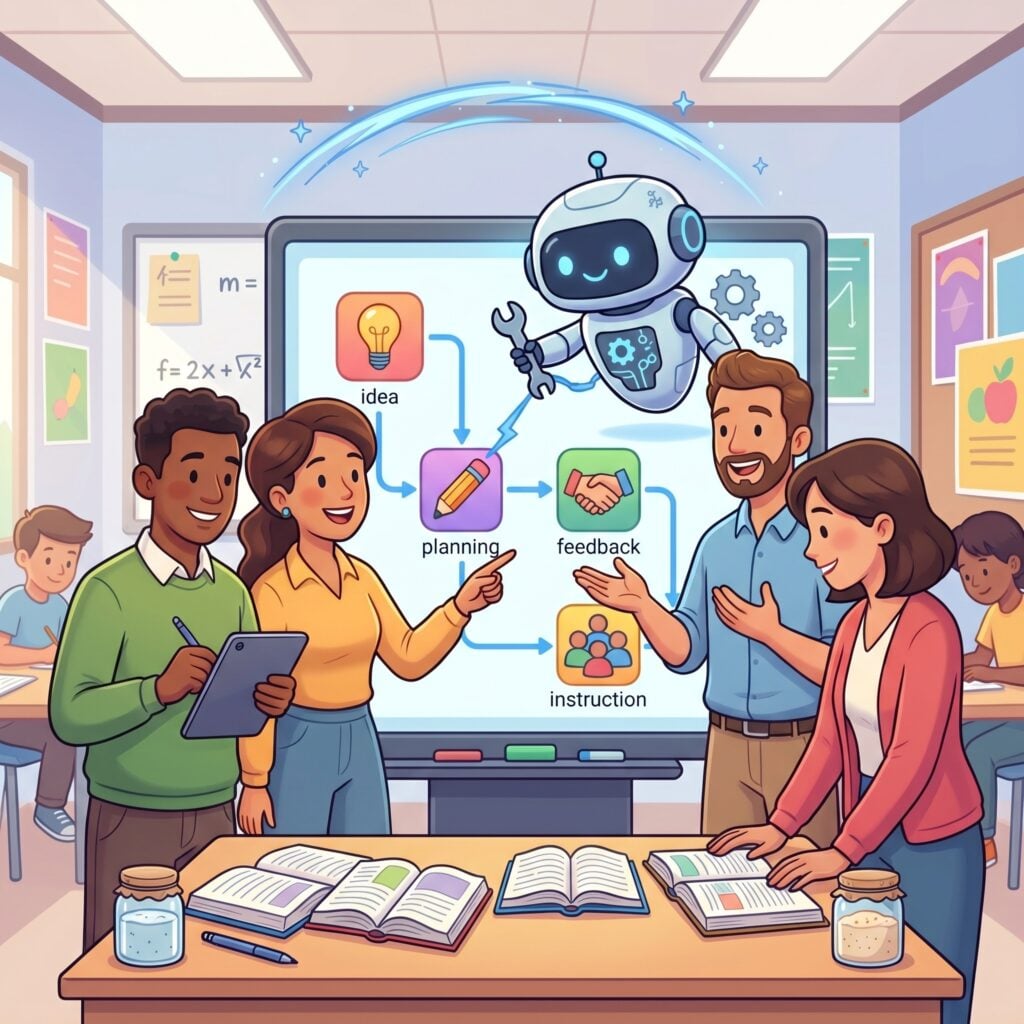
We are now witnessing a major shift from passive AI assistants to proactive AI agents. Unlike a standard assistant, an AI agent operates by reasoning and acting to achieve a goal. Agents do not just write a single response. They can manage multi-step processes right inside your Google Workspace environment. With the release of Gemini 3 Pro and Workspace Studio, the options for what is possible in our classrooms is expanding.

Delivering high-quality content, tools, and support for reading comprehension
ReadWorks is a free, research-based website designed to support educators in teaching reading comprehension across grades K–12. It provides a rich library of high-quality, standards-aligned instructional content.
Article-A-Day, helps students build knowledge and vocabulary in just 10-minutes a day.
What Exactly Is an AI Agent
Many of us are using AI chatbots. You type a question, and it replies. A chatbot is passive and waits for your instructions. AI agents are software systems that use AI to pursue goals and complete tasks on your behalf. They can observe your systems, show reasoning, and have a level of autonomy to make decisions. Instead of just reacting to a prompt, an agent works proactively.
A regular AI is like:
“Hey, what’s the weather?” → It tells you.
An AI agent is like:
“Check the weather, decide if I need a jacket, and remind me before I leave.”
It doesn’t just answer, it acts.
For a teacher, this means moving away from asking AI to write a single email. Instead, an agent can notice when you add a specific label to an email, draft a response based on your syllabus, and save it in your drafts folder for your review. The technology handles the background organization so you can focus on great instruction.
How to Create Your Own Teaching Agents
It is not complicated to get started with creating your own agents.
Create an Agent with Gemini Chat
Head over to Gemini and ask it to create, for example, a math warmup that is collaborative and DOK 2 level critical thinking and to send you one every Monday.
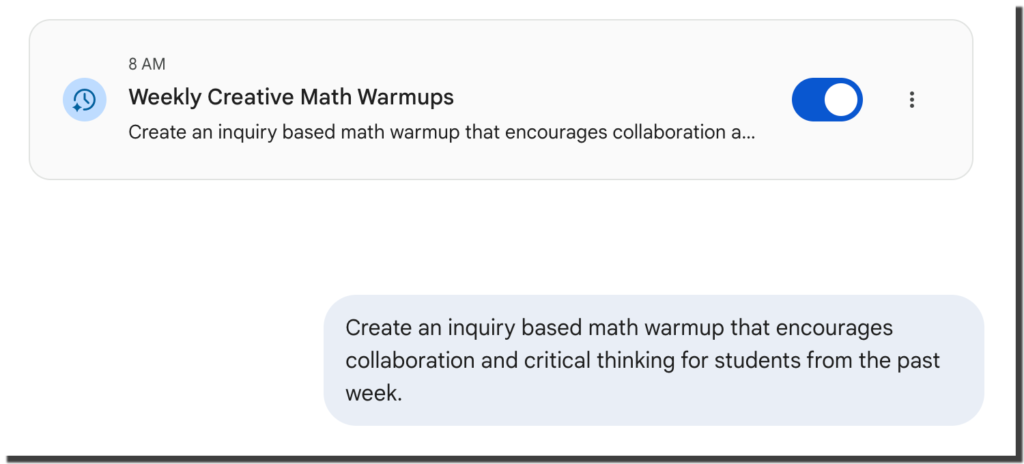
You just created your first agent! So think about anything you do regularly and that you want Gemini to just do for you on a schedule. Ask for it!
Going Further with AI Agents
Gemini is building agents into Gemini Chat so you might be using them and not even realize it. For more robust agents Try out Google Workspace Studio.
Try Out Workspace Studio
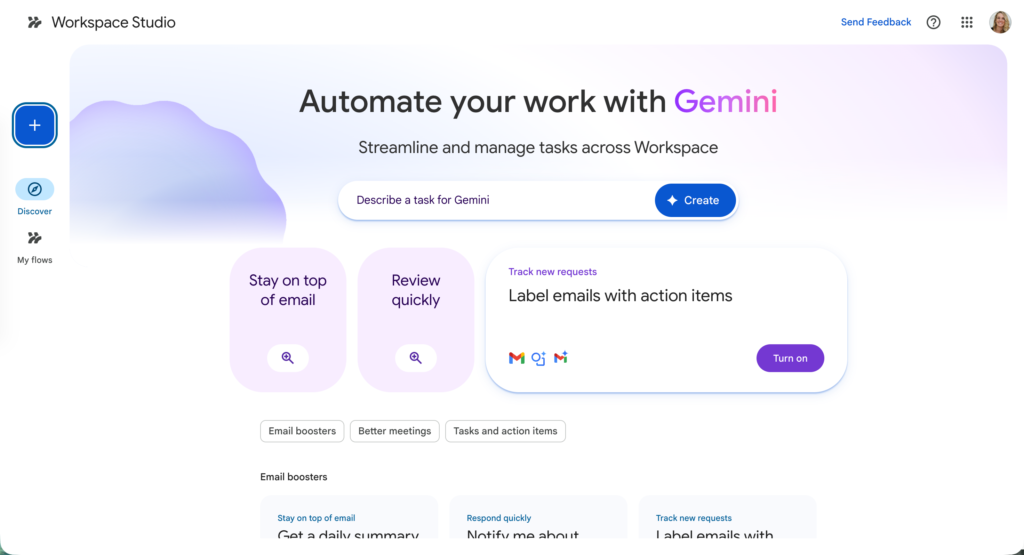
You absolutely do not need to be a computer programmer to build these tools. Google Workspace Studio provides a logical, no-code interface that feels just like chatting with an AI bot.
In Workspace Studio, you build a “flow.” A flow is a series of steps that automatically run in the background of your Google Workspace environment. The flow waits for a specific event to happen, and when it does, it triggers one or more actions.
You can create an agent by defining three simple parts.
The Starter This is the trigger that initiates the flow. For a teacher, this could be a specific day of the week, receiving an email from a certain person, or a change in a Google Sheet.
The Step This is the actual task the agent performs. You can instruct the agent to use Gemini to summarize a document, extract action items, or post a message in a Google Chat space.
The Logic This is how the agent reasons through the execution to ensure the actions are successful based on the context you provided.
Try Proactively Sending Positive Parent Communication
Building relationships with families is important. But, let’s be honest about the reality of the job. Trying to send a thoughtful good news email while you are scarfing down lunch or prepping for the next period is a recipe for burnout. We want to celebrate when a student is doing something well, but it’s hard to find the time and system.
That is where an agent makes a difference.
The point isn’t to let a robot talk to your parents because nobody wants a form letter, but to allow an AI agent to take your words and craft a thoughtful note.
The agent grinds out the first draft based on your actual classroom notes and leaves you to just add that one specific detail only you would know. This protects your planning period while keeping that human connection.
Creating an AI Agent with Google is easier than you think!
Setting up this agent in Google Workspace Studio is surprisingly simple and requires no coding.
Set Up Your Tracking Spreadsheet
Before building the agent, you need a place to organize your contact information.
Create a new Google Sheet.
Add columns for the Student Name, Guardian Name, and Guardian Email.
Fill in your roster and the family contact details.
Slides to Spanish+ by AliceKeeler

Collects NO User Data
Convert your Google Slides™ to “ANY” language.
Creates a copy of your Google Slides with a quick option to convert to Spanish. Use the sidebar to select any language supported by Google Translate™. FREE
Link a Google Form
Next, create a fast way to input your observations on the fly.
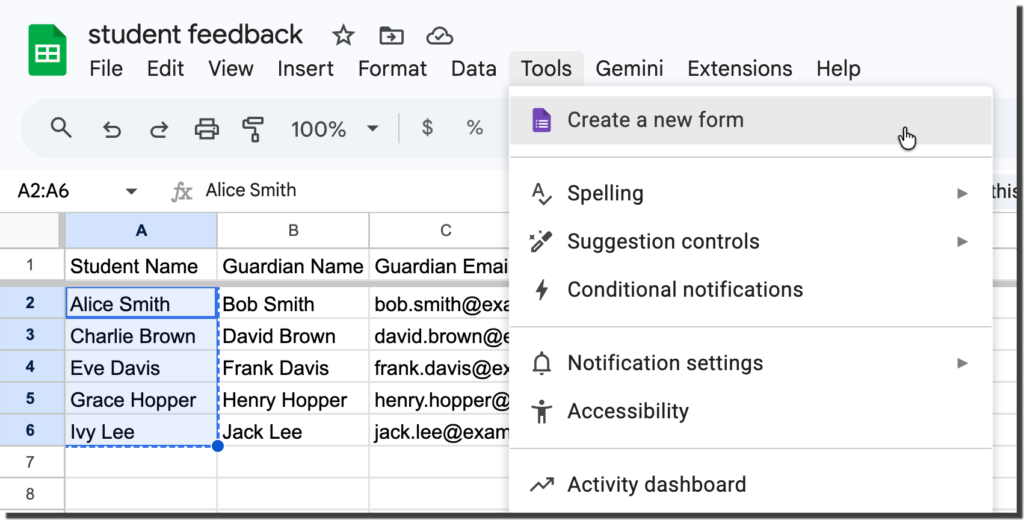
Open the Tools menu in your Google Sheet and select Create a new form. This automatically links your form responses directly to your spreadsheet.
Make your first question a dropdown list of student names. Ensure these names perfectly match the list in your spreadsheet so the system can link the observation to the correct parent email.
Add a text question where you can quickly type a positive observation, like “great teamwork on the math project.”
Build Your Agent in Workspace Studio
Now you can instruct your digital helper to connect the pieces.
Set the Trigger
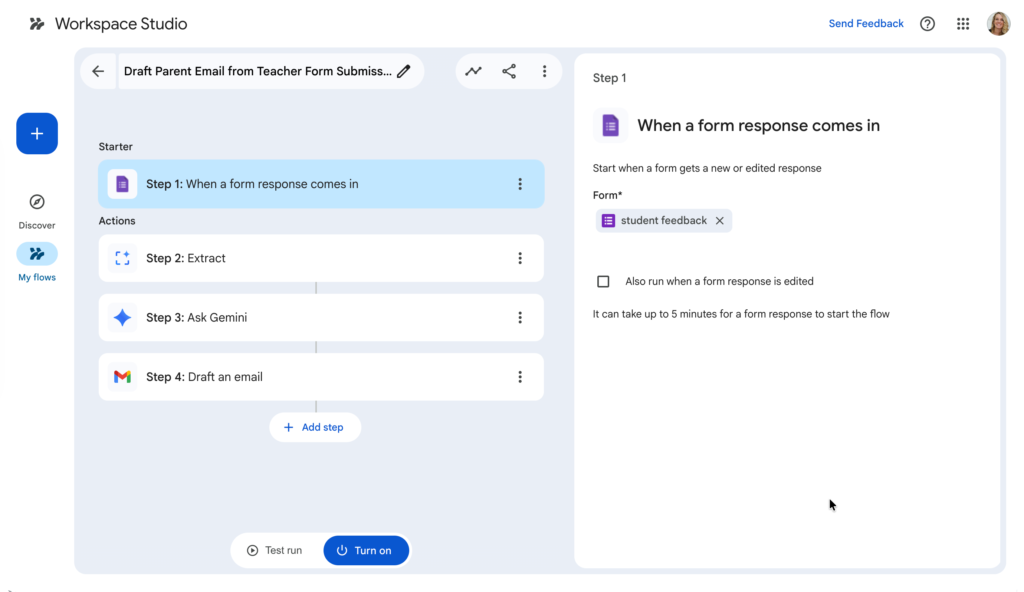
Open Workspace Studio and create a new flow. Choose the starter for when a Google Form is submitted and select your new observation form.
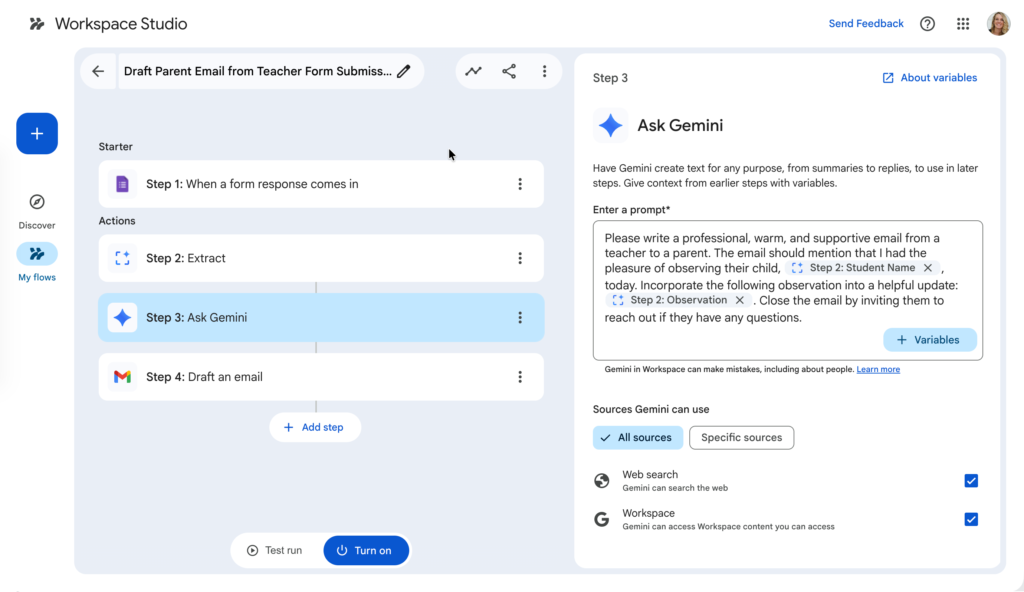
Prompt the AI:
Add a new step and select the Ask Gemini action. Type your instructions clearly. Tell Gemini to read the form submission and write a warm, positive email to the family celebrating the student. Use the Variables menu to insert your specific observation and the student name directly into your prompt.
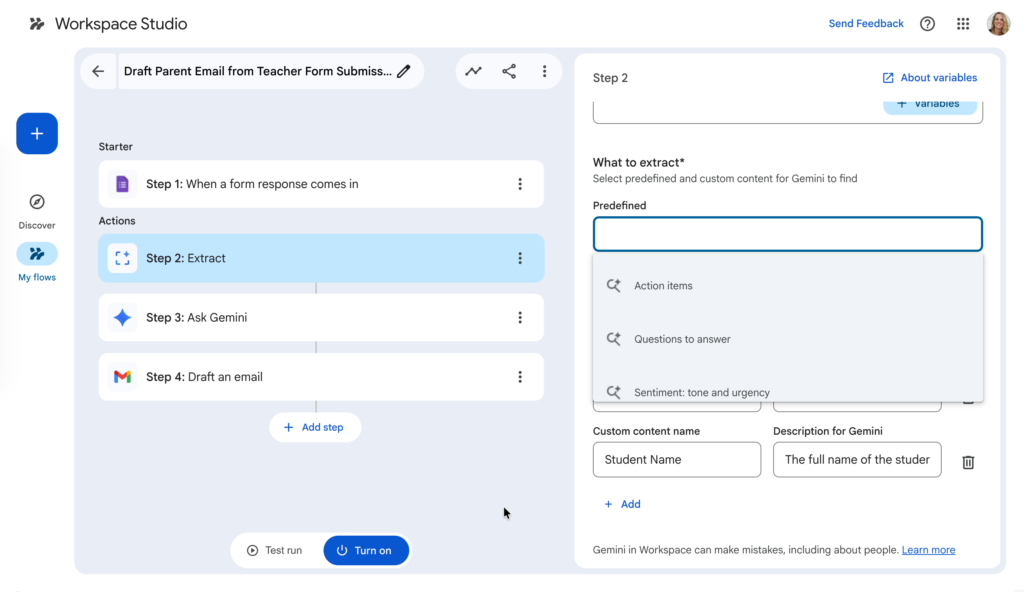
Define What to Extract
Tell your agent what you want it to look for in the submission. Action items? Questions? Tone?
Educator AI Assistant

Collects NO User Data
Use AI to create lesson plans, rubrics, newsletters, anything you want.
Educator AI Assistant is different by collecting ZERO data. Shows you the prompt and allows you to edit and share.
Runs locally in your own Google Sheets™.
Fully transparent and customizable.
Created by AliceKeeler
Ask Gemini
Prompt Gemini for what to look for and do.
Draft the Message:
Add a Gmail step to create the email. Use the parent email address from your spreadsheet for the recipient variable. For the message body, insert the variable containing the response Gemini just generated.
Test and Save:
Click the Test Run button to safely try your new agent. Always configure communication agents to create drafts rather than sending them automatically. You remain the ultimate decision maker and stay in total control of the final message.
Quick Crop Add-on
Crop Google Sheets™ quickly. Plus other quick spreadsheet needs such as hide other sheets.
Created by AliceKeeler – Collects NO user data. Completely free

Try Creating Your Own Agents
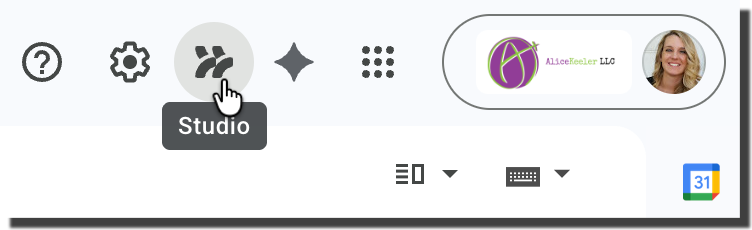
Agents are the next step after you’ve dived into using Generative AI such as ChatGPT or Google Gemini. If you have the upgraded Workspace account, look for the Studio icon in the upper right of your Gmail and start creating agents!