



As Kim Mattina says, “Get on the Jamboard train.” Google Jamboard is FREE. It is a Google tool. It saves to Google Drive. As is to be expected, it is collaborative.
Use Google Jamboard to get more than one student sharing ideas at a time.
Convert Your Google Jamboard Jams to FigJam
Google is discontinuing Jamboard. GOOD NEWS! It is super EASY to convert your files into FigJam. Sign up for a FREE educator account at figma.com/education. Go to figma.com to import your Jamboards Jams. Check out my converted files at figma.com/@alicekeeler.
Add a Sticky Note
It is so easy to create a Jam. My favorite method is jam.new. I will just fire up a Jam on the fly and share with students so they can “Add a sticky note.” Here is a sample Jam I used as a backchannel during a presentation.
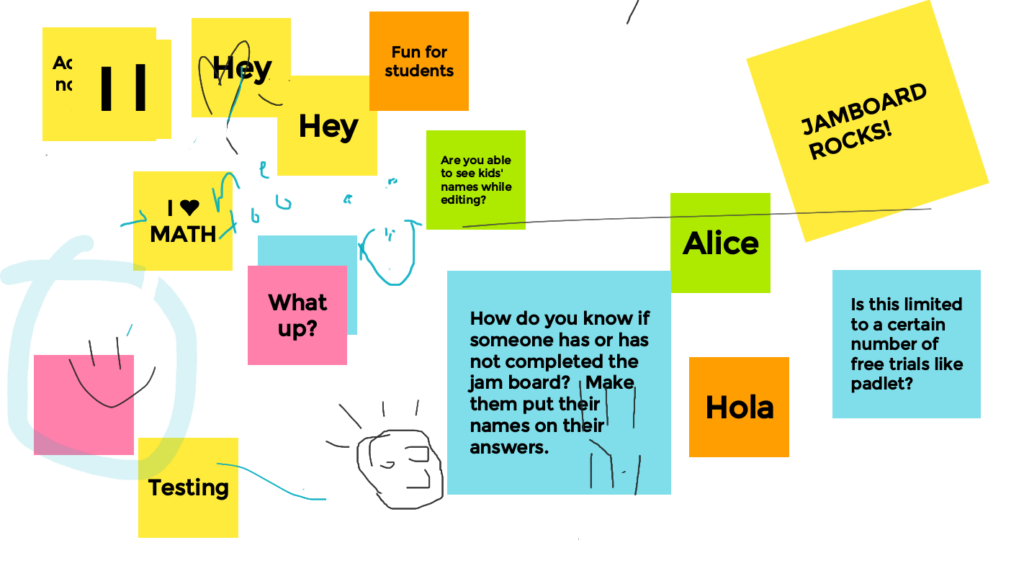
Allowing every student to share an idea without raising their hand is a game changer.
Save Frame as Image
“3 dots should make you excited.” A 3 dots menu means “more options.” After students have collaborated on ideas on a Jam, ask the students to use the 3 dots menu to “Save frame as image.” Depending on the activity, having students submitting a frame helps students to submit their participation.

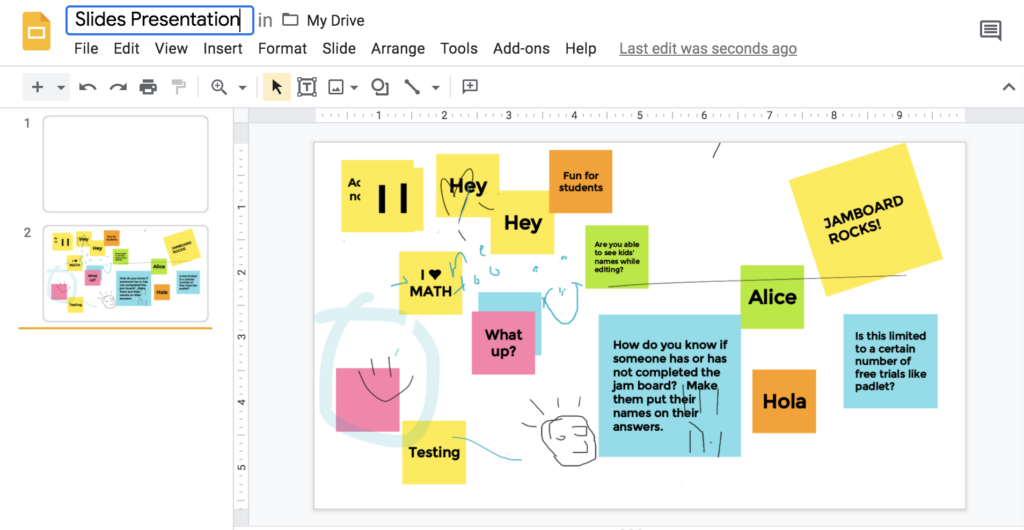
Add the Image to Google Slides
Jamboard is a collaboration tool not a presentation tool. After collaborating and sharing ideas, students can download the frames as an image and add them into Google Slides to allow them to create a presentation.
Background
In Google Slides, use the toolbar to select “Background.” Alternatively, right click on the slide to add a background. Select “Choose image” to upload the downloaded image from the Jam.