






I love to use Google Docs, however, sharing a Google Doc can be a bit of a challenge. The URL on a Google Document can be quite long.
https://docs.google.com/drawings/d/1WV_5CGA_0oV7dtCKRJA_yXuIYeApbmcbgHUdn22ylaw/edit
If I asked my students to type in that URL to access my document I would spend the entire class period trying to get students to the site.
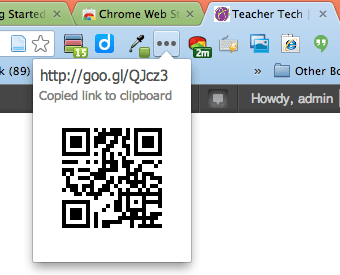
To solve this problem I have installed the Google Chrome web extension ShortenMe. This creates a goo.gl short URL and a QR code for each webpage.
Step 1:
Using the chrome web browser visit the Chrome Webstore and do a search for the extension ShortenMe. Install the extension.
Step 2:
On a Google Doc or any other website, look to the right of the omnibox (address bar) and click on the 3 dots icon.

Step 3:
Automatically the goo.gl short link is copied to your clipboard. Write this short code to on the whiteboard or onto your handout.
(adsbygoogle = window.adsbygoogle || []).push({});
Step 4:
If you want the QR code you will want to go back to the 3 dots icon and actually click on the QR code. By clicking on the QR code the URL to the QR code will be copied to your clipboard.
The link will look something like this:
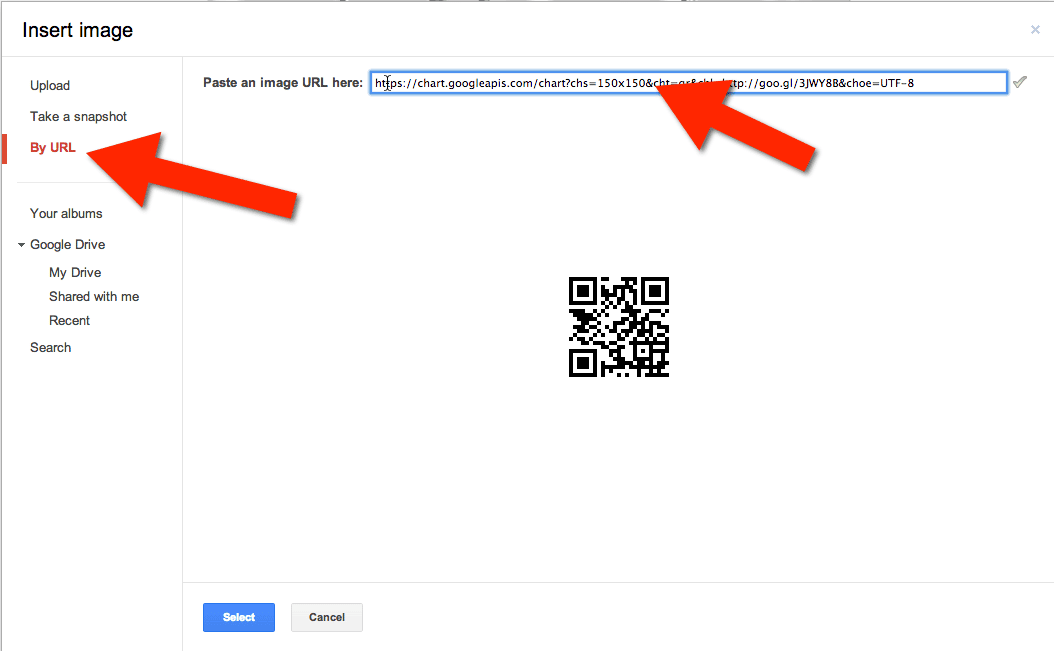
https://chart.googleapis.com/chart?chs=150×150&cht=qr&chl=http://goo.gl/3JWY8B&choe=UTF-8
Step 5:
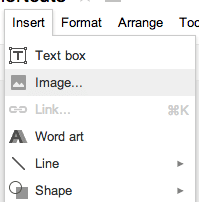
In a Google Doc or Google Site under the insert menu, choose to insert an image.
On the left hand side choose the option to insert the image “By URL.” Paste the QR code image link from the clipboard using command V on a Mac or control V on a PC.
(adsbygoogle = window.adsbygoogle || []).push({});





