Adding Text Side by Side with Images
The new Google Sites is pretty darn easy to use. I use a lot of Google Sites for exactly that reason, convenience. I go to sites.google.com/new, click the plus icon, and double click on the page to add content. Up and running fast!
Centering Text with an Image
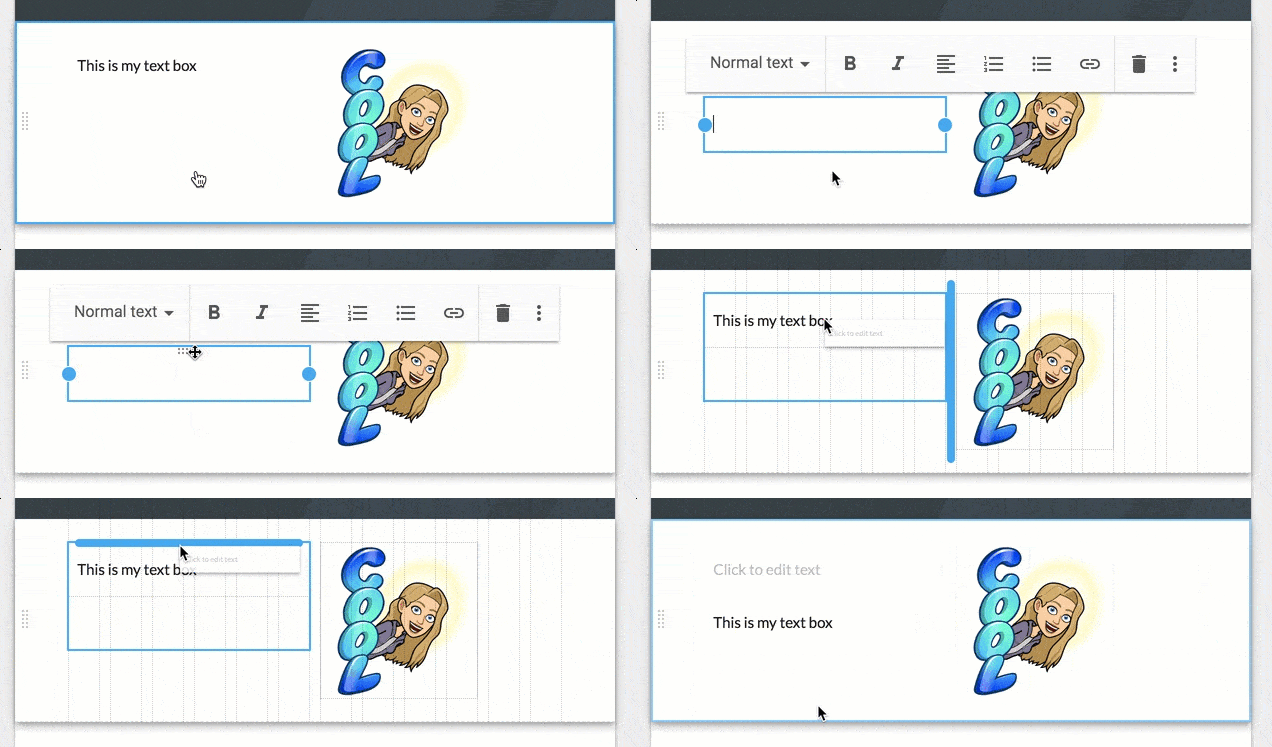
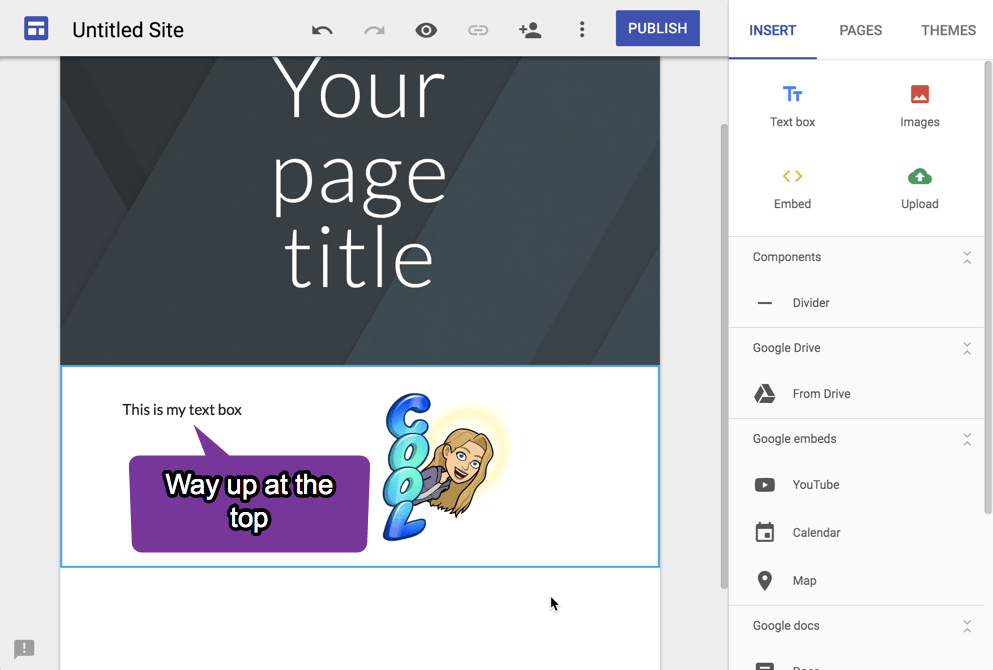
One of the challenges is when you put elements side by side. I double click and add a textbox. I resize the textbox to be skinnier so I can add an image to the right. The text is now in the upper left of the alignment with the image. This can leave a lot of white space. Centering the text would be preferred.
Add a Blank Textbox
The trick is to add additional textboxes without text. Double click and choose “Text.” Below that, double click and choose “Text” again. This stacks 2 textboxes together. Usually I forget that I want the blank textbox and I end up needing to create a blank textbox below the text. Look for the “grippy dots” that allow you to grab the blank textbox and drag it above the text. Thus centering your text with the image to the right.