Filter for emails from Google Classroom
First, I highly recommend you do NOT turn off notifications from Google Classroom. Instead, manage the email notifications through filters.
Consistent Text
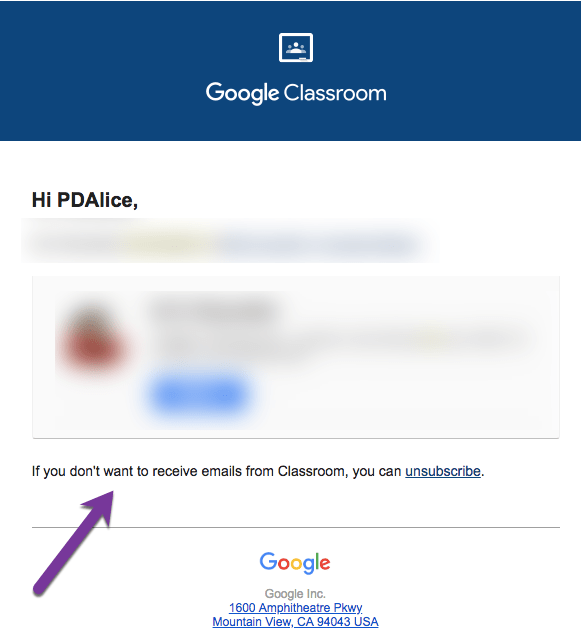
The trick to filters is to have consistent text that appears in each email that you can filter for. No matter the Google Classroom notification, all of them contain the text:
If you don’t want to receive emails from Classroom, you can unsubscribe.
Tiny Triangle
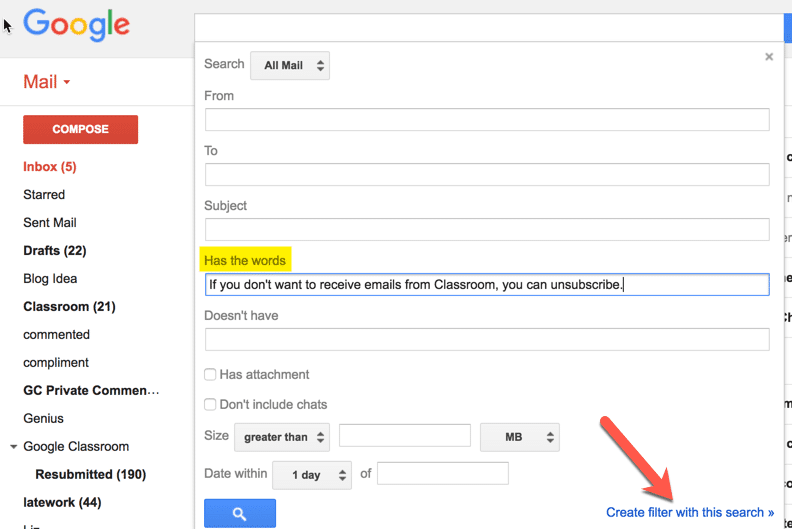
Click on the tiny triangle in Gmail to define a filter.

Has the Words
The text “If you don’t want to receive emails from Classroom, you can unsubscribe.” is in the body of the emails, not the subject lines. Paste the phrase into the “Has the words” box. Click on “Create filter with this search” in the bottom right.
Apply the Label
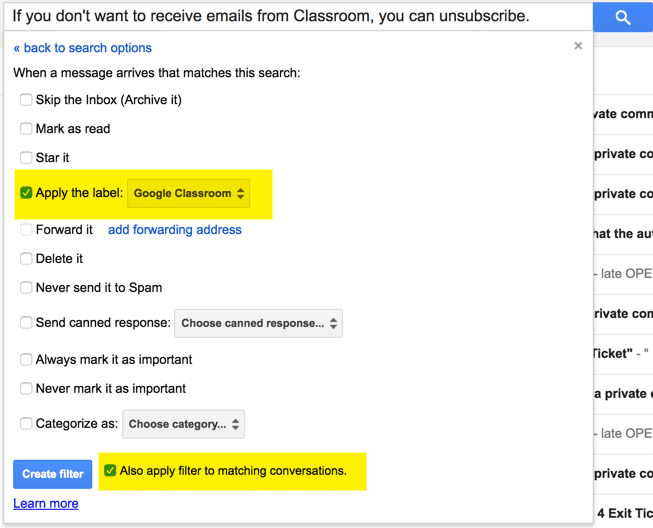
Choose what you want to have happen to the Google Classroom emails. You can have them skip the Inbox if you wish. Highly recommend that you at least “Apply the label” and create a new label called “Google Classroom.” This creates a Google Classroom folder that you can access on the left-hand side of Gmail.