



Distribute Evenly in Google Drawings (or Slides)
When creating visuals in Google Drawing or Google Slides I sometimes need to space out the elements evenly.
Control D
One keyboard shortcut I find helpful is Control D (Command D on a Mac). This duplicates. When creating numbered circles I will create a circle with a 1 in it, Control D duplicate it several times, and then edit to adjust the numbers to 2, 3, etc…
Red Lines
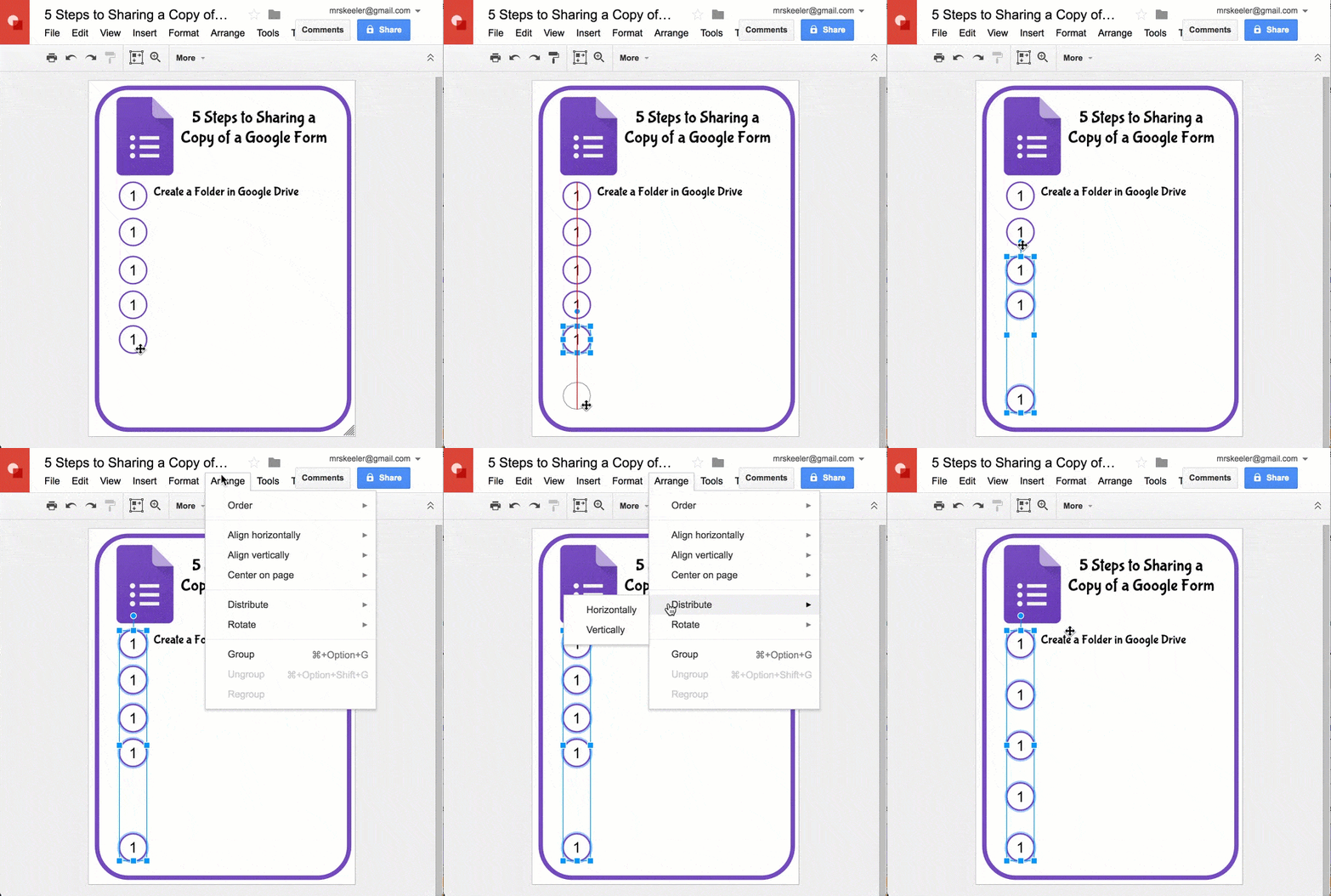
When moving shapes look for red horizontal and vertical lines to indicate that the elements is lining up with other elements in the drawing. I can keep the numbered circles aligned as I drag the dots into a row.
Last Element
To evenly space elements, place the first and last element where you want them. For example, if I have 5 numbered circles I have the first circle as high as I want it and the last circle as low as I want it. I do NOT arrange where I want the middle circles.
Shift Key
Hold down on the Shift key and click on all the elements you want to distribute evenly. Holding down shift allows you to selectively select multiple elements.
Arrange Menu
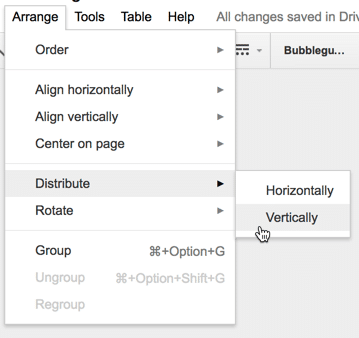
Under the Arrange menu at the top is the ability to “Distribute.” Choosing Vertically will align my numbered circles up and down the page, as my students say… like a hot dog.