






Protect Range in Google Sheets
One nifty thing about using Google Sheets is the ability to lock collaborators from editing your work. I love to create crowdsourced spreadsheets and invite people on social media to add to the document. It is normal for people to start typing when they open a document. This causes them to accidentally type over the content in the first few cells. Just to make sure the headers and the first few entries on the spreadsheet do not get accidentally deleted, I protect the cells from editing.
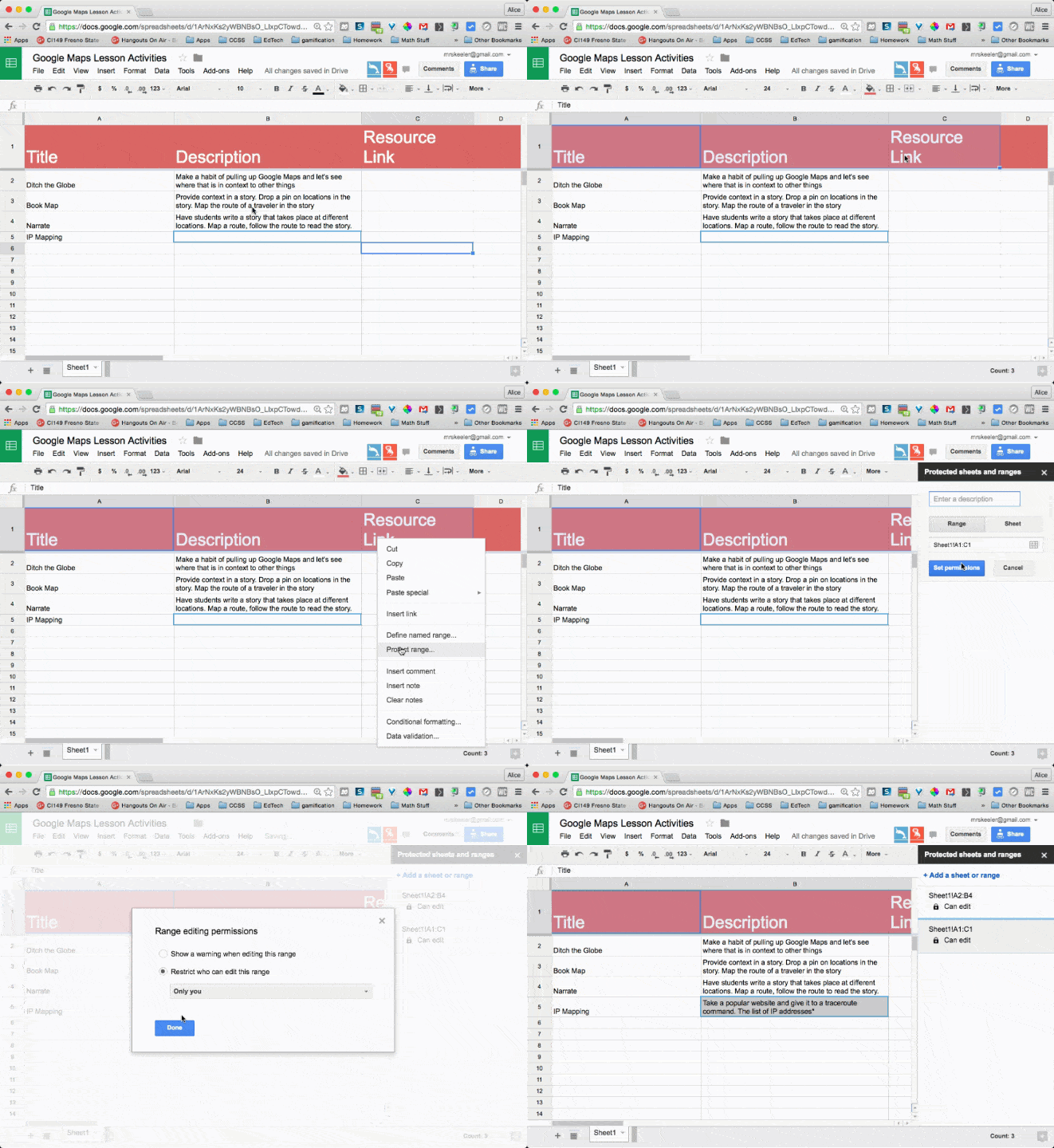
Notice on this collaborative spreadsheet for Google Maps lesson plan ideas, the header editing permissions are restricted.
Protect Range
Highlight a range of cells on a spreadsheet. Right click and choose “Protect range.” Set the permissions for who can edit the cells in the range.
Owner Rules All
The owner can not be restricted from editing the spreadsheet. If you are not the owner and you protect a range on the spreadsheet, the owner is still able to edit that range. For this reason, spreadsheets copied in Google Classroom to students can not restrict the student from editing certain parts of the spreadsheet. Students are owners of their own work and thus have full editing rights.






1 thought on “Google Sheets: Do Not Type There”
What a terrific source for quick google/chromebook tips written in a succinct way!