
Shuffling the order of a presentation sounds pretty silly at first. If you are giving a lecture, you probably want your slides to stay put. When you use Google Slides as a collaborative space for students, though, randomizing slides opens up a whole new set of active learning possibilities.
Randomize Slides Updated
I’m in the process (always) of updating my add-ons (alicekeeler.com/codedbyalice).
Turning Google Slides Into Collaborative Whiteboards
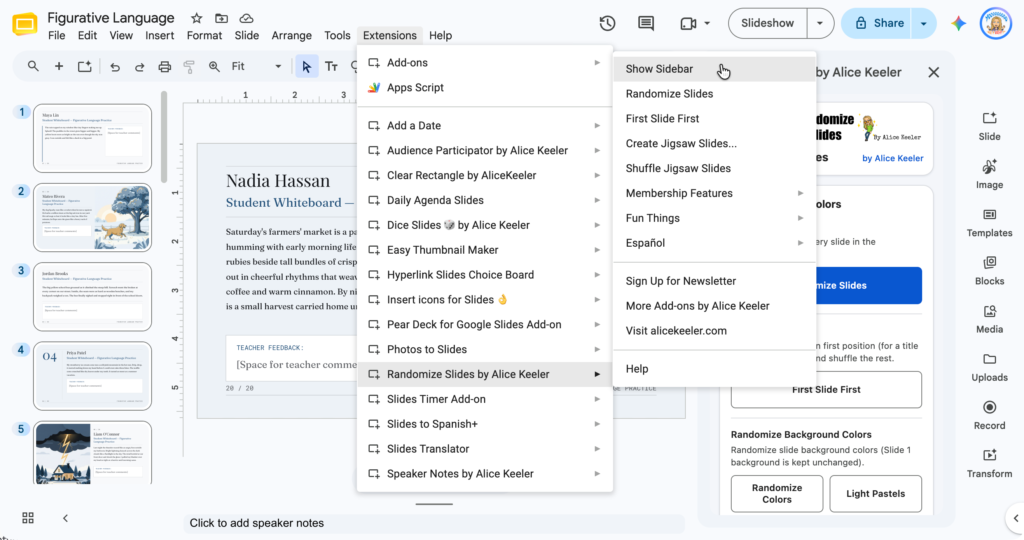
One of my favorite ways to use Google Slides is as a class set of digital whiteboards. I share a deck with edit access, each student claims a slide, and everyone shares their thinking or solves a prompt in the same file. Once students finish, I open the Extensions menu, select Randomize Slides, and show the sidebar.
Shuffle Quickly
Clicking Randomize Slides shuffles the entire deck in seconds. One of the eight mathematical practices asks students to critique the reasoning of others, and shuffling the slides lets us jump straight into a few random student responses as a class. It keeps discussions fresh, fair, and focused on student thinking. You can also use it for digital flashcards, review questions, and quick classroom games.
Keep the First Slide First
The first slide in a deck often will contain the directions or introduces the deck.
The First Slide First button locks Slide 1 right at the top and shuffles every slide after it. Your directions stay easy to find while the student work gets a fresh order.
Updated: JigSaw Slides
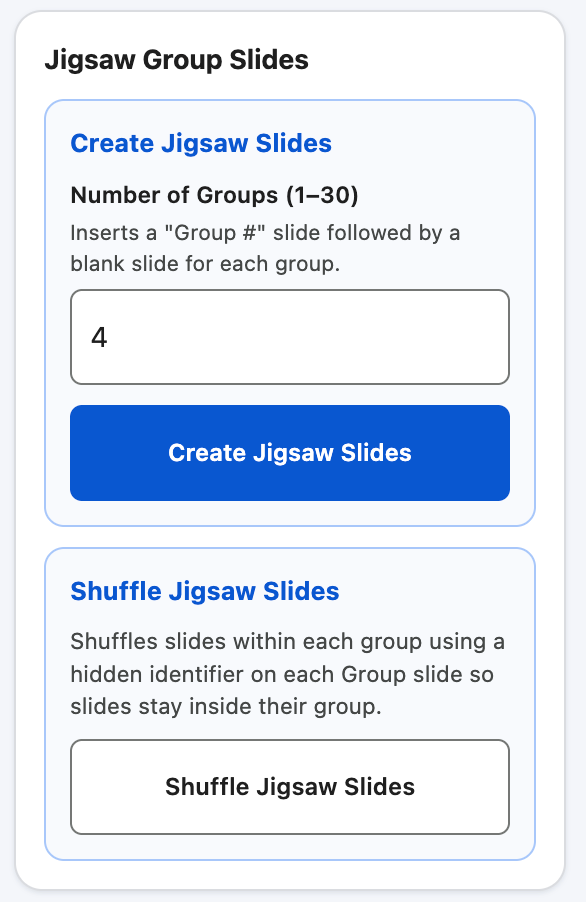
A jigsaw activity is a cooperative learning strategy where each group of students becomes the expert on one piece of a larger topic. Instead of every student researching or reading the exact same thing, each team tackles their own subtopic and then shares what they learned so the whole class puts the full puzzle together. Setting up a shared deck for a jigsaw by hand takes way too many clicks… so I built Jigsaw Group Slides right into the sidebar.
Create Jigsaw Slides
Pick anywhere from 1 to 30 groups, and the add on generates a Group header slide followed by a blank slide for each group. Share the presentation with your students, and each team has a dedicated workspace ready to go.
Shuffle Jigsaw Slides
When groups add multiple slides to their section, you might want to randomly pick one response from each group without mixing teams together. Shuffle Jigsaw Slides uses a hidden identifier on each Group header slide. Your group headers stay locked in order while student slides shuffle strictly inside their own group.
Adding Color and Playful Extras to Your Slides
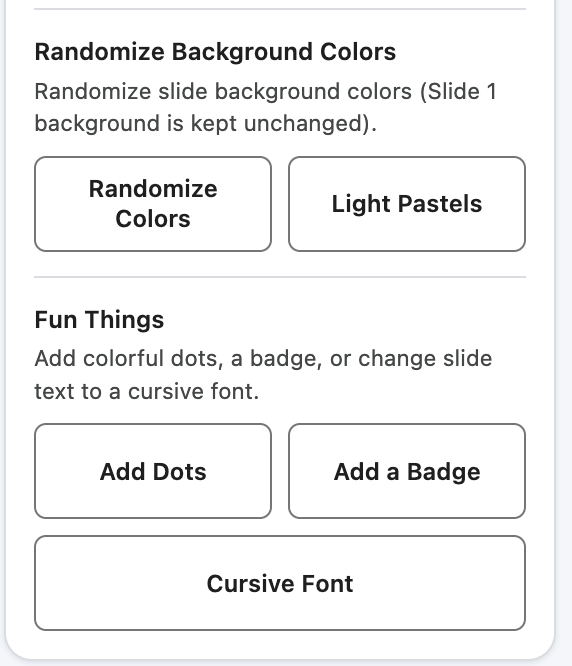
Adding some color to the individual slides can make the deck more fun but also easier to see how the slides shuffled. Use the “Randomize Colors” option in Randomize Slides by AliceKeeler.
For no good reason, I added an “Add Dots” option to put a bunch of random dots on the slide. Have fun!
“Add a Badge” inserts a circle with a thick border to quickly make gamification elements.
And if you need your slides in cursive… someone requested this and I obliged… use “Cursive Font.”
Bonus Features for AliceKeeler Members
I have over 40 Add-ons as well as other resources. You can support me to create more and keep the resources updated by becoming a premium member. Try these premium features in Randomize Slides:
Evenly Spread Items in a Grid
Drop a bunch of shapes, text boxes, or images onto a slide and click Evenly Spread Items in a Grid. The add on automatically lines up every movable object on the active slide into a clean, evenly spaced grid.
Randomize Objects on Slide
This one is pure magic for interactive activities. Randomize Objects on Slide grabs the exact X and Y coordinates of all text boxes, shapes, or images on your active slide and swaps their positions. You can shuffle matching games, seating charts, vocabulary boards, or number talks without dragging a single box.
Insert 52 Card Deck
As a math teacher, having a deck of cards handy is always a win. Insert 52 Card Deck adds a full standard deck, one card per slide, already shuffled. Use it for probability explorations, math games, or random draws whenever you need a quick card.
Data NEVER Collected
One thing that is important to me is to never collect data of any kind. I never collect PII or any other data. As a teacher and a mom of 5 kids I know how important privacy is. With AliceKeeler Add-ons, you can be assured they are safe to use.
🔧 Available Add-ons
| Add-on Name | Link |
|---|---|
| Educator AI Assistant | Access add-on |
| Make My MC Quiz | Access add-on |
| AliceTasks AI Work Sessions | Access add-on |
| Doc to Slides | Access add-on |
| Document Outline | Access add-on |
| Seating Chart Slides | Access add-on |
| Tiny Doc Remove Blank Lines | Access add-on |
| Audience Participator | Access add-on |
| Form Printer | Access add-on |
| Fresh Form Tab | Access add-on |
| Missing From | Access add-on |
| Notice Wonder Form | Access add-on |
| Popsicle Sticks Form | Access add-on |
| Quiz Helper | Access add-on |
| AliceKeeler Select the Cells | Access add-on |
| Bingo | Access add-on |
| CalAdd | Access add-on |
| DelCal | Access add-on |
| GC Rubric | Access add-on |
| HappyGrader for Sheets™ | Access add-on |
| Make a Test | Access add-on |
| Pixel Art | Access add-on |
| Quick Crop | Access add-on |
| Ridiculously Basic Email Merge | Access add-on |
| Scheduler 🗓️ | Access add-on |
| Sheet Streamer | Access add-on |
| sheetPusher | Access add-on |
| TemplateTab | Access add-on |
| toTabs | Access add-on |
| Add a Date | Access add-on |
| Clear Rectangle | Access add-on |
| Daily Agenda Slides | Access add-on |
| Dice Slides 🎲 | Access add-on |
| Hyperlink Slides Choice Board | Access add-on |
| Randomize Slides | Access add-on |
| Slides Timer Add-on | Access add-on |
| Slides to Spanish+ | Access add-on |
| Speaker Notes | Access add-on |