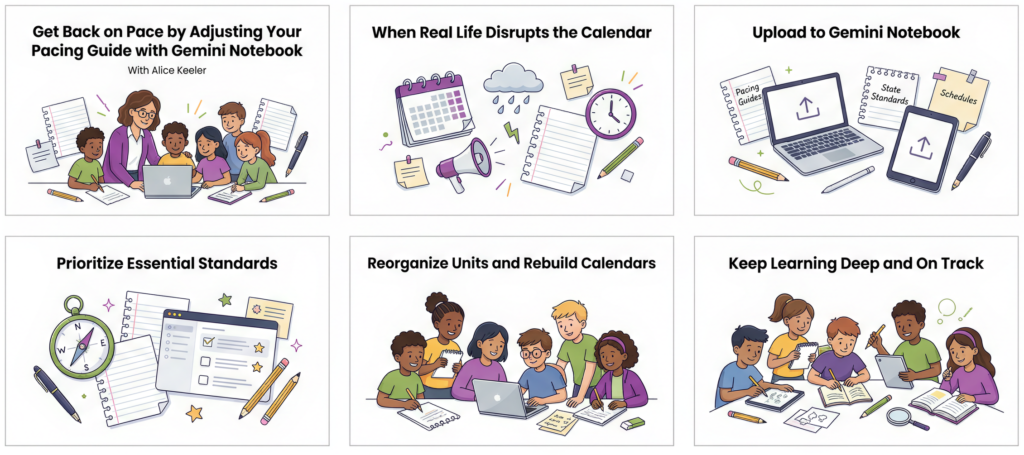




How far into the school year are you off the pacing guide? If you already feel behind by October you are not alone. Pairing smart pacing guide habits with Google Gemini and Gemini Notebook helps teachers build a realistic calendar, stay aligned to state standards, and adjust quickly as we all need to do.

OTIS Workshop "Get Back on Pace by Adjusting Your Pacing Guide with Gemini Notebook"
Please support AliceKeeler by signing up for a free OTIS account. I’ll be doing a workshop on “Get Back on Pace by Adjusting Your Pacing Guide with Gemini Notebook.” This is one of many workshops available through OTIS with ME!
Why We Even Have a Pacing Guide
A good pacing guide is a GUIDE and not set in stone.
The Impossible Math Problem
Researchers Robert Marzano and John Kendall analyzed 160 national and state standards documents and did the math. Teaching every single kindergarten through twelfth grade benchmark to mastery would take 15,465 instructional hours. Schools give us 9,042 hours. You are starting more than 6,400 hours in the hole before day one even begins.
Guaranteed and Viable Curriculum
Every student deserves grade level instruction no matter what classroom they walk into.
Every student deserves grade level instruction no matter what classroom they walk into. The real goal is simple… we need to figure out what we are going to teach from our grade level standards that actually fits in the calendar. Without a shared plan, favorite fall units stretch out and important spring standards get cut at the end of the year.
Teach Students and Not Curriculum
Planning out what you are going to teach each day is essential.
Still, we teach students and not curriculum. Judging yourself on whether you followed the calendar down to the exact lesson puts the focus in the wrong place. At the same time, we cannot spend three weeks teaching common denominators and run out of time for everything else. Looking at your pacing in weekly windows helps you hold that balance so your team stays lined up for common checkpoints while you still have room to respond to the learners in front of you.
Want more help with this?

Cancel Anytime
Benefits of Premium Membership
- Supports Teacher Tech.
- Exclusive Add-ons & Templates.
- Help with student-centered teaching.
- Office hours with Alice.
- Webinars & recordings.
Meet Your New Pacing Best Friend in Gemini Notebook
If you have only used regular AI chat tools before, Gemini Notebook is going to feel like a breath of fresh air. You might remember it under its earlier name, NotebookLM. It runs on Google Gemini, yet it works differently in one big way that makes it ideal for pacing guides.
Why Your Own Files Make All the Difference
When using Google Gemini App (gemini.google.com) it is pulling from the dumpster fire of the internet. Your pacing guide ONLY needs to be based on your school calendar and your actual standards.
Gemini Notebook is Gemini… but without the dumpster fire.
The first step when creating a Gemini Notebook is to add your own sources.
- District Calendar
- Activities schedule (assemblies, field trips)
- State Standards
- Department Policies
- Your notes, in a Google Doc, on what topics are key for you
- Your textbook outline
- Any research or pedagogy files that support your teaching style
Avoid doing “fast research” to add the dumpster fire of internet to your grounded notebook.
How Notebook is Laid Out
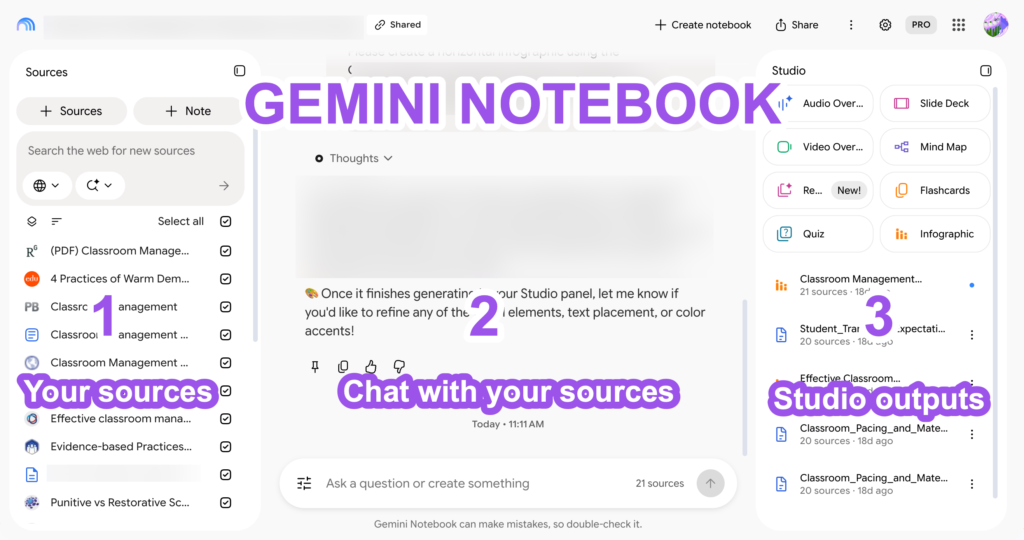
Once you click Create New inside Gemini Notebook, you see three panels on your screen.
- Sources panel on the left:
Holds your PDFs, links, and Google Drive files - Chat panel in the middle:
Where you ask questions and get cited answers from your files - Studio panel on the right:
Turns your files into study guides, tables, and Audio Overviews
Tip: Check and uncheck sources on the left panel when you chat with the middle panel.
Your Notebook, Your Pacing Guide
Back in the day I would get out a paper calendar and write out all of the chapters/sections as well as the possible quizzes and tests. Inevitably, I ran out of days and had to go back and erase and adjust the number of days I planned on a particular topic. It was a pain.
Gemini Notebook is different, I can keep coming back to my notebook to make adjustments.
Have AI Count Your Real Teaching Days
District calendars usually list 180 instructional days, yet holidays, half days, conferences, and state testing windows shrink that number fast. Drop a prompt like this into the center Chat panel so Gemini Notebook counts your actual teaching days for you.
Look at my uploaded district calendar and building schedule. Count the total number of full instructional days between the first day of school and the last day of school. Subtract all holidays, teacher work days, parent conference days, half days, assemblies, and state testing windows. Give me a month by month count of my real teaching days and list any color coded dates you were unsure about so I can double check them.
Generate a Draft Pacing Guide
Once Gemini Notebook knows your real teaching days, you can ask it to build your pacing guide table right inside the center Chat panel.
Create a pacing guide table for the school year based on my uploaded district calendar, state standards, and curriculum scope and sequence. Focus the schedule on priority standards first. Build in realistic time inside each unit for review, quizzes, tests, and reteaching so we are not introducing new content every single day. Include columns for Week, Unit, Priority Standards, Lessons, and Assessments or Reteaching.
Pin Your Pacing Guide
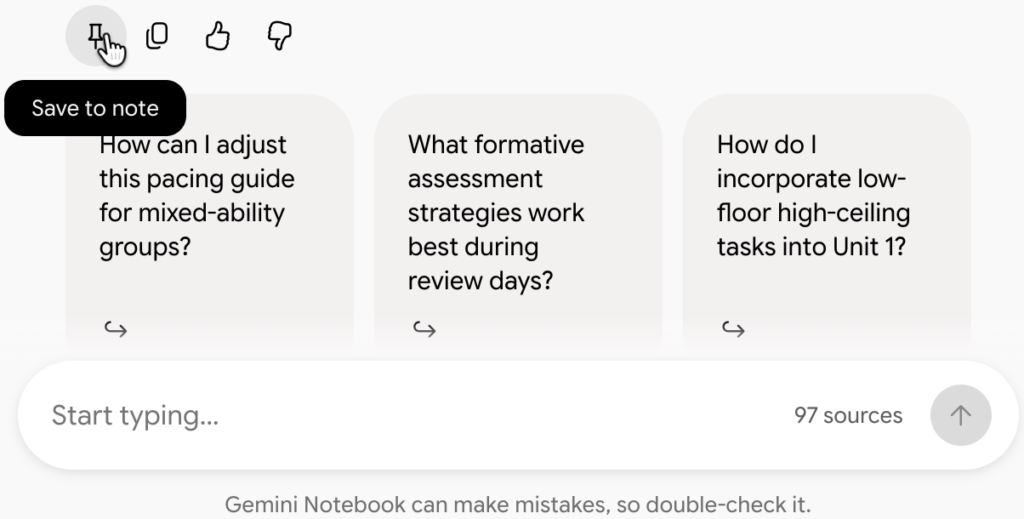
Click the push pin icon in the chat if it did not create a studio resource.
Pacing Guide as a Source
Make sure your pacing guide is a source on the left. A new feature is notes are now sources on the left, so that is automatic. However, if it is not on the left side, be sure to add it as a source.
Adjust Your Pacing Guide as You Teach
It is just a fact of teaching that students sometimes need more time on a concept, and sometimes they pick it up fast and need less. Add in a tornado drill (I live in Kansas) or a surprise assembly, and your calendar shifts. Back in my paper calendar days, that meant grabbing the eraser and rewriting half the semester. With Gemini Notebook, you just open your notebook and recalculate.
Every Day... Reflect
Google Docs sync with your Gemini Notebook. Keep a diary about how the lesson went, what students struggled with, and if you need to adjust the pacing guide.
In the Chat... Ask for Adjustments
This week we were not able to get very far. It was spirit week and the students are still struggling on the topic. Please adjust the pacing guide to help me keep focusing on the key standards and also build in more time to practice fact fluency. Give me an updated pacing guide for the rest of the year.
What I don’t want to do is just run out of time to finish the pacing guide. However, when I get behind… I need to make some hard choices about what I can still teach and to what level of depth I can teach it. So I keep coming back to Gemini Notebook. Having a confession about what is happening in my classroom in the chat and asking it to make me a new pacing guide.
I then replace the pacing guide in the studio with the updated pacing guide and keep on teaching.
Gemini Notebook is Your Pacing Guide Assistant
The old days of manually creating a pacing guide is over. Upgrade to having an assistant who can help you to daily make smart adjustments. Gemini Notebook is grounded in your sources and your notes to work with you to teach students over teaching curriculum.