






I love keyboard shortcuts. The key is to practice one keyboard shortcut at a time until it is muscle memory. One that I use daily is “Select All.” Here are 5 reasons you want to commit Control A to muscle memory.
Control A
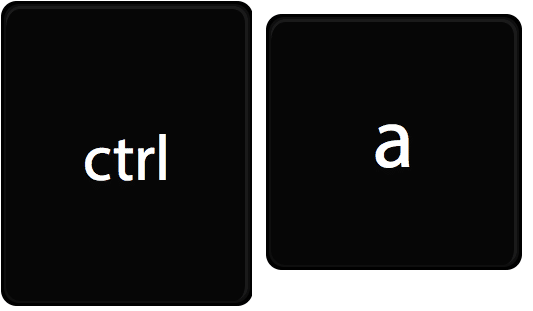
The keyboard shortcut for “Select All” is Control A. For Mac users, Command A. Holding down the Control key and pressing on A will highlight all of the content.
1. Delete Quickly
When I am typing a URL and have a typo, rather than using backspace backspace repeatedly, sometimes it is just easier to start over. Control A will select everything I have typed for the URL. Once text is highlighted you do NOT need to use the backspace key. Start typing.
I have written many an email that after writing it I have second thoughts on sending it. Realizing I want to choose my words more carefully perhaps. Control A to select all allows me to quickly start my message over before sending.
2. Filling Out a Form
Sometimes when filling out a Form I want a copy of what I submitted. Control A helps me to quickly select all of the text. Control C to copy. I then paste into a Google Doc with Control V.
If I have typed a significant amount of text that I definitely do not want to have to redo I will Select All and copy the text I just wrote. Pasting it into a Google Doc as a backup in case the wifi fails me. But not just because the internet connection might fail, but I need to have a record of what I have submitted. When submitting for a conference session I put in the session title and description. I need a copy of my own.
3. Sharing a Link
Trying to highlight a long URL can be problematic. It is essential to capture every character. Clicking at the top of the webpage you can use Control A to select the entire URL. Use Control C to copy the link. Note that you can also use Control L to highlight the entire link to the page you are looking at.
When giving a presentation I will paste the link to resources into the speaker notes of my Google Slides. If I need to share that resource link a quick Control A will select my entire speaker notes so I can share in the video chat. I may have more information than just the link in the speaker notes. Pre-preparing resources I want to share during a video meeting and putting them in the speaker notes makes it quick and easy to share out resources and notes during a presentation.
Plan what information you want to share in the chat during a video presentation and put this in the speaker notes of your slides.
4. Copy Slides to Another Presentation
In Google Slides if you click on a slide in the filmstrip and use Control A you will select ALL of the slides. This allows me to use Control C to copy the slides. In a new presentation, use Control V to paste into the new presentation.
5. Select All Files in a Folder
I use Control A quite a lot in Google Drive. To select all the files in a folder you want to make sure that all the files have loaded. Scroll down to the bottom. Otherwise only the visible files that have loaded in the folder will be selected when you use Control A. Selecting all the files allows me to drag them into a new folder all at once or to change the sharing permissions on all the documents all at once.
Press Period to Change Sharing Permissions
-

ReadWorks and the Power of the Daily Article Routine
ReadWorks is a free, research based, tool to aid in reading comprehension. Try the Article-A-Day to save time and provide differentiated options for readers.
-

DOK = Critical Thinking
DOK is the measurement of critical thinking on a task. Better understanding Depth of Knowledge helps you to better incorporate critical thinking into lessons.
-

3 Google Sheets Shortcuts You’ll Actually Use
The answer is always a spreadsheet, but sometimes the tips are hard to remember to implement. Practice these 3 Google Sheets shortcuts to really help
-

Transforming the Reading Log
Reading logs can lean into compliance over developing a love for reading. Try ReadWorks to help support building knowledge and a love of reading.
-
10 YouTube Hacks for Teaching
YouTube is a powerful tool in the classroom. Here are 10 hacks to help you get more out of YouTube.
-
Amplify Student Voice and Redefine Classroom Possibilities
Technology should serve as a bridge that connects students rather than a wall that isolates them. Curipod™ helps fulfill the true promise of educational technology by shifting the focus from passive clicking to active student voice.



