





Google Keep is an amazing tool that works offline. It is a note taking app but so much more. When I’m a passenger in a car and I have some ideas I want to get down, Google Keep is the fastest way to accomplish that.
Sticky Notes
Essentially, Google Keep is a sticky note application. However, it has notification and reminder capability as well as the ability to Share. It is Google after all.
You can find your Keep notes from your Google account. Create a note on your phone and then go to keep.google.com on your computer to easily access your note.
Google Docs
Google Keep integrates with Google Docs 2 ways. The first is the sidebar of Google Docs has a Google Keep icon. Click on that to show your notes while writing a document. You can also drag the note to the Doc.
Create a Google Doc
The other way is to fully turn your Google Keep into a Google Doc. You can do this from Mobile or Web.
From mobile click on the 3 dots icon to choose “Share.” One of the share options is “Copy to Google Doc.” This creates a brand new Google Doc in your Google Drive.
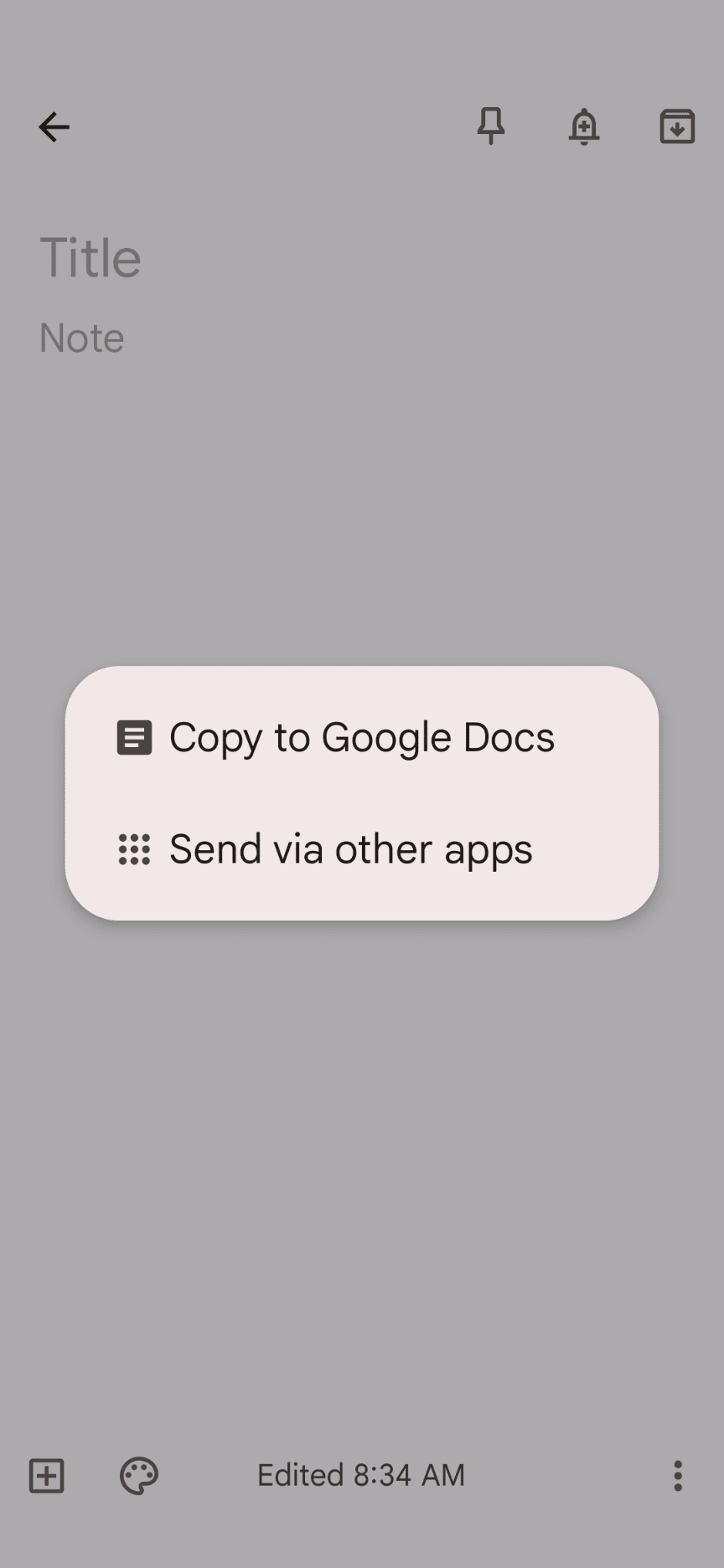
I find the copy to Google Doc to be so convenient. Brainstorming or getting my ideas down quickly is better in Keep. If it starts to develop into something more or I want to take it to my laptop, then converting it to a Google Doc is the way to go.
If it’s just general rambling I just leave the note in Keep and don’t have a Doc cluttering up my Drive.
-
ReadWorks and the Power of the Daily Article Routine
ReadWorks is a free, research based, tool to aid in reading comprehension. Try the Article-A-Day to save time and provide differentiated options for readers.
-
DOK = Critical Thinking
DOK is the measurement of critical thinking on a task. Better understanding Depth of Knowledge helps you to better incorporate critical thinking into lessons.
-

3 Google Sheets Shortcuts You’ll Actually Use
The answer is always a spreadsheet, but sometimes the tips are hard to remember to implement. Practice these 3 Google Sheets shortcuts to really help
-

Transforming the Reading Log
Reading logs can lean into compliance over developing a love for reading. Try ReadWorks to help support building knowledge and a love of reading.
-
10 YouTube Hacks for Teaching
YouTube is a powerful tool in the classroom. Here are 10 hacks to help you get more out of YouTube.



