


When is the last time you went to contacts.google.com? There have been many new updates. Here are a few things to try out.
1. Stop Suggesting Old Emails
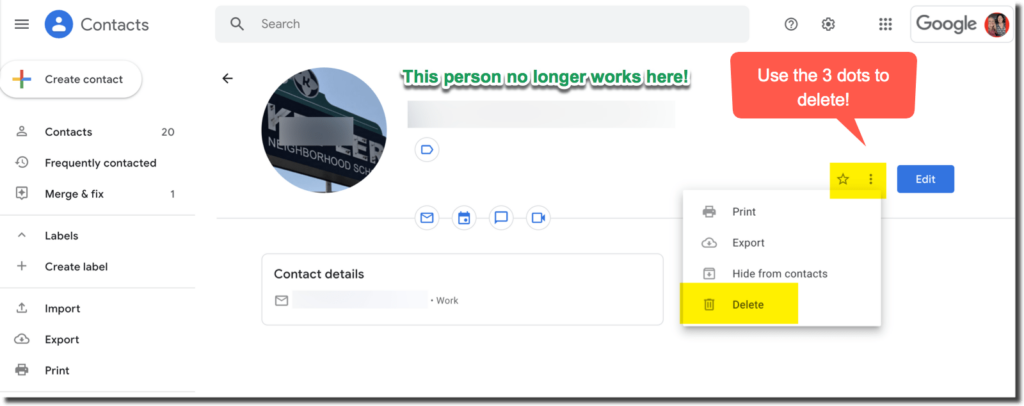
Sometimes when I am typing in someones name an old email address for them is suggested. It is very annoying, especially when I accidentally email them at an old address. When I see my email suggesting to me email accounts that I know are no longer valid I go to contacts.google.com and either delete them or update the information. Use the 3 dots menu next to “Edit” to delete the contact. This email will no longer be suggested to you.
2. Merge and Fix
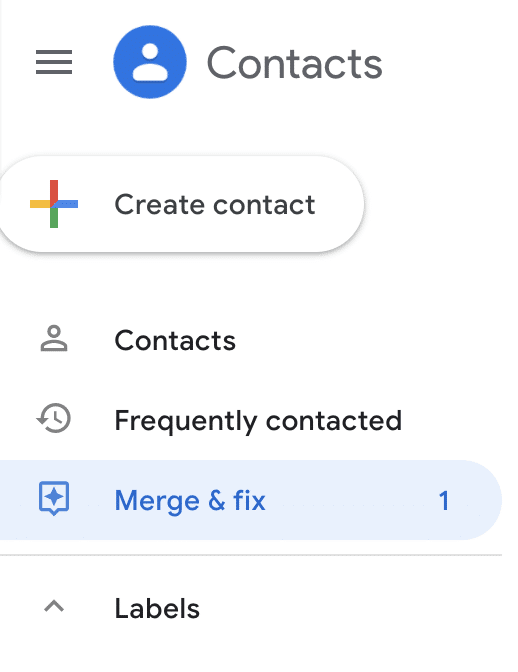
Everyone has a personal email and work email. They do not need to be 2 separate contacts in your address book. Google Contacts will automatically search for duplicates to merge together.
Want More Help with This? Become a Premium Member
3. Email a Whole Group
Tired of typing in the email address of every teacher in the math department only to forget someone? In Google Contacts a “label” is actually a group.
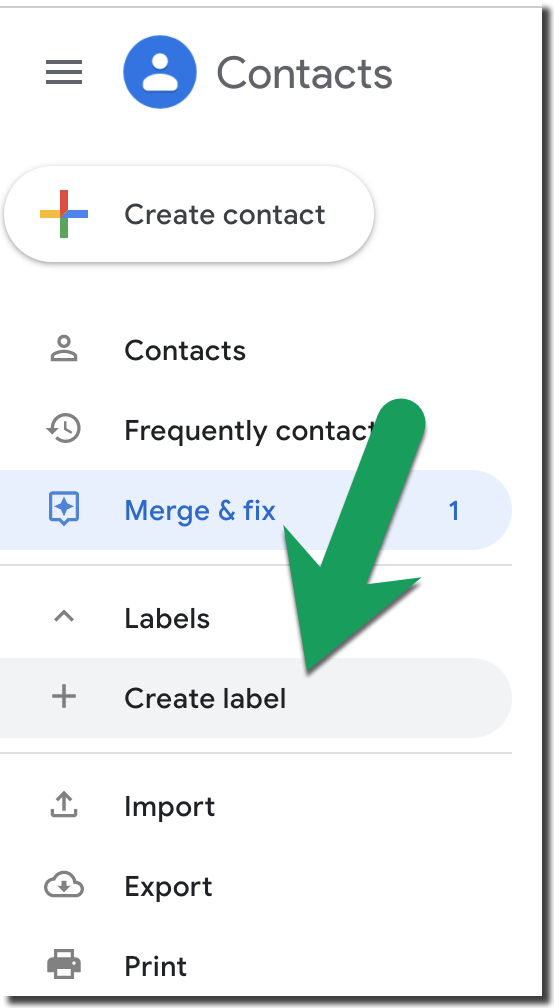
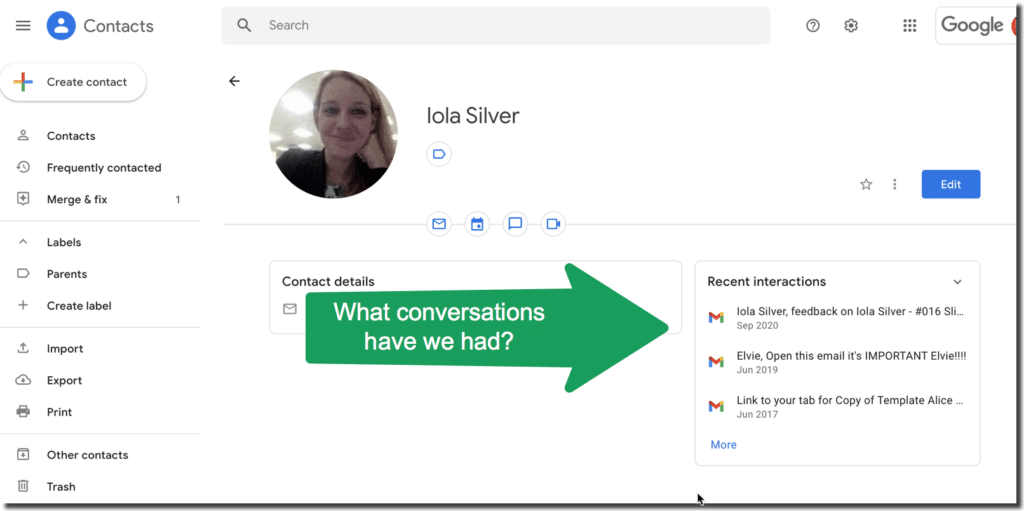
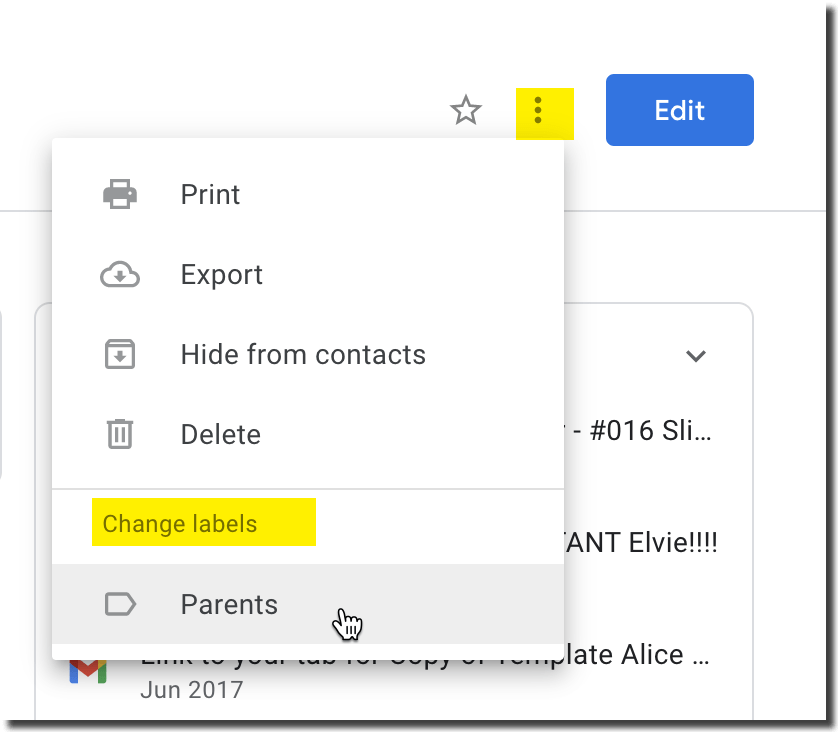
Once you create a group (label) you can open any contact and use the 3 dots menu to assign a label to the contact. For example you can see in the image below that I have a “Parents” label. Now I can type in “Parents” into the Gmail subject line and it will send the message to everyone in that label.
4. Determine What You Last Discussed
When you select a contact in contacts.google.com you will see a box for “Recent interactions.” Before going to a meeting with the department chair or a parent, see what recent conversations you’ve had to remind yourself what you all messaged last.