






Google Slides has updated how they show the colors for background and font. And I love it! When you click on the option to change the Background color or font color the “box of crayons” circles were at the top and the custom images at the bottom.
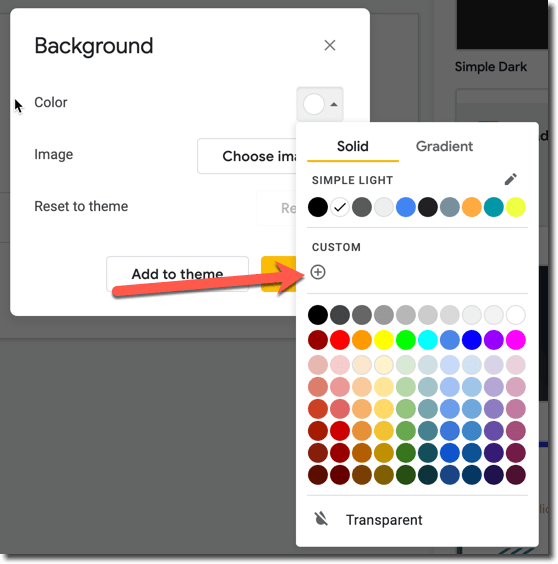
Custom At the Top
Notice the change in that the theme color is at the top and the “Custom” is at the top. I use custom colors ALL THE TIME! This requires the HEX code for the color. Check out these two sources I use frequently to get HEX colors to color match what I am making in Google Slides.
Background
The other day I was doing a presentation on Desmos. This has a very distinct green color. I used the ColorPick Eyedropper to get the HEX code for the green in the Desmos logo. Notice in the toolbar of Google Slides is the option for “Background.” I wanted to set the background to be Desmos green.
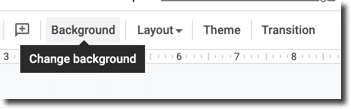
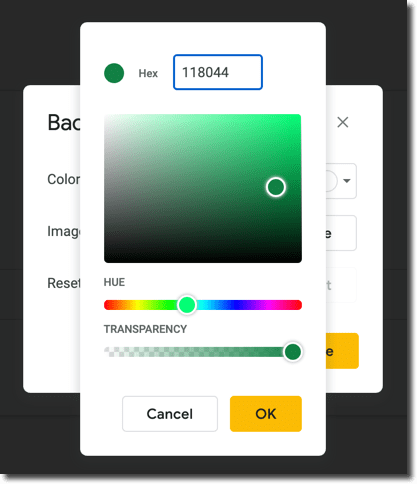
Clicking on “Background” and choosing “Color” I can click the plus icon under “Custom” to set my custom HEX color (that I got from using the ColorPick Chrome extension).
Trick
I keep a Google Slides template that has filled circles with the custom colors I use most often. When I copy and paste an element from one Google Slides to another that contains a custom color, that color is automatically added to the “Custom” menu for me to use throughout my Slides presentation.









1 thought on “UPDATED: Google Slides Colors”
Thanks,You give very good info!