





Google Classroom Improves Feedback Workflow
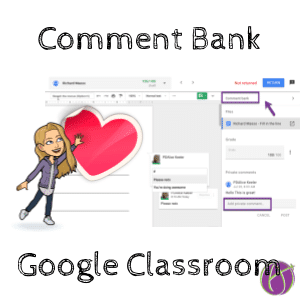
Yesterday Google Classroom gave a pretty major update to the Google Classroom BETA. Now when you click on student work from an assignment, an improved interface allows you to give feedback and points. Additionally, you can create your own comment bank to more quickly provide feedback.
Beta Access
If you want to sign up for Beta access, click here. You will NOT see this new feedback workflow if you do not have access to the Beta features. You will need to wait until the features roll out sometime in the Fall.

I made a quick video for you this morning. I will do a better one later.
Feedback Shell
When you click on a document from Google Classroom that a student has submitted, it will now open the document in a shell that allows for you to more efficiently provide feedback.
Grade
You can add your grade right in the sidebar without having to go back to Google Classroom to enter the score.
Private Comments
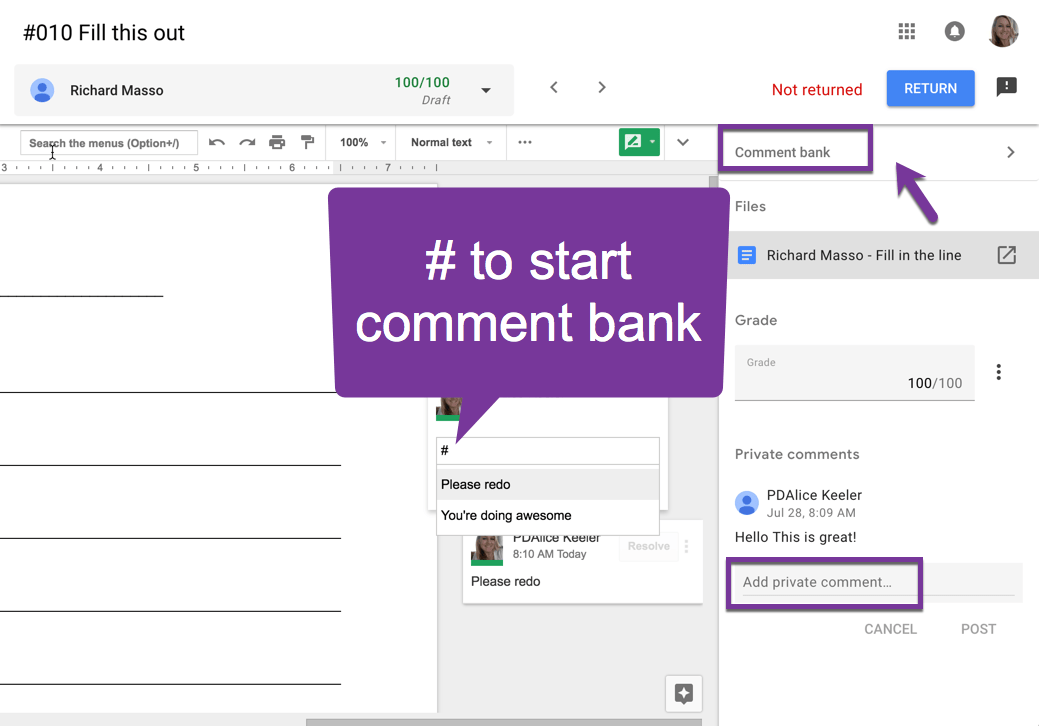
You can add a Private Comment that will be posted in Google Classroom right in the sidebar. No more need for side by side windows.
Comment Bank
This is possibly the most exciting. When you leave in document comments, you can pull from a bank of feedback comments. Click on “Comment bank” at the top of the sidebar. You can add your frequently used comments. When inserting a comment into the document, start your comment with the pound symbol (#) and a multiple choice drop down of your comments will appear.
Go to the Next Student
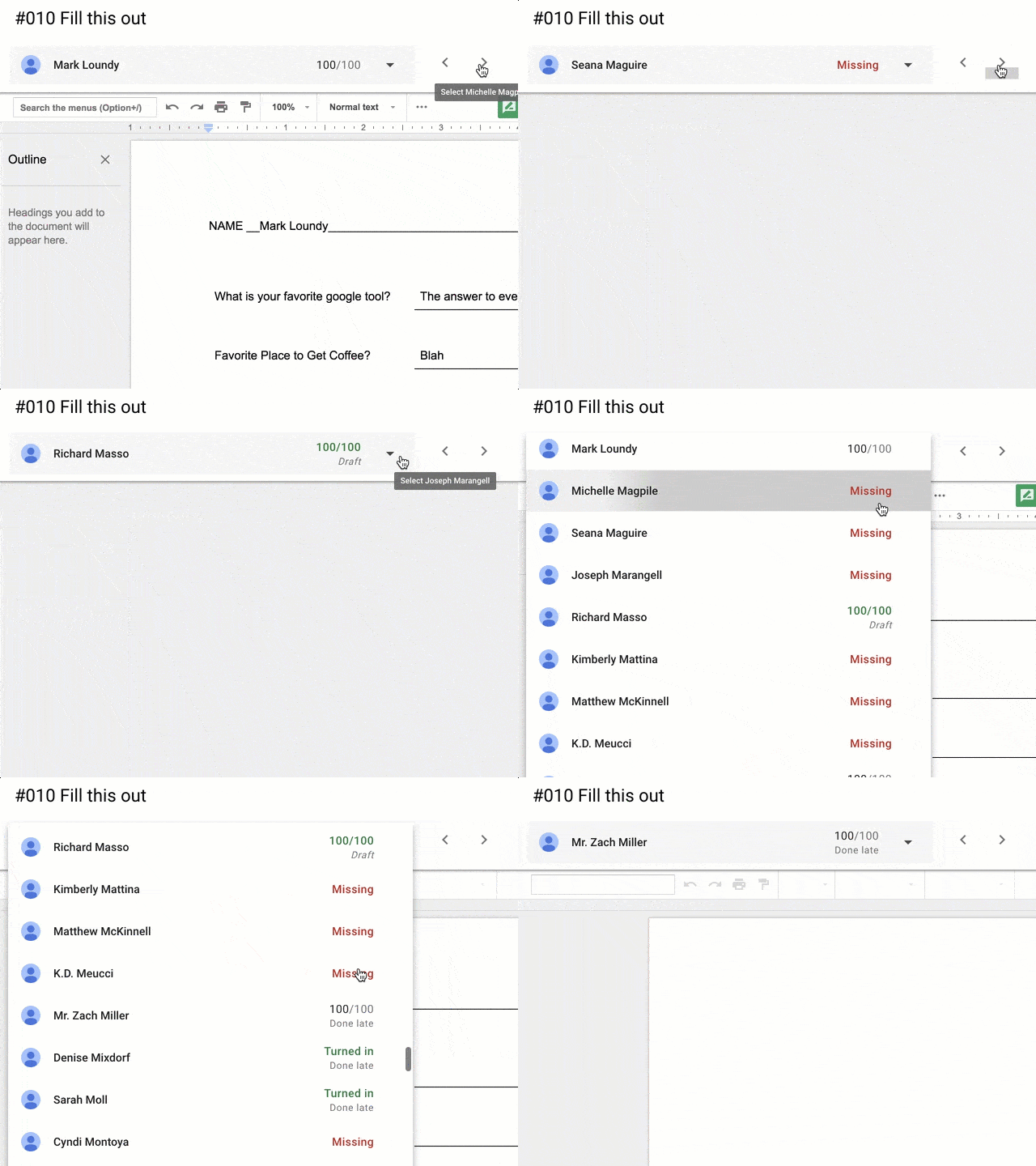
No longer do you need to open each student document individually. You can now simply press an arrow and go to the next student. You can also choose from a drop down which student paper you want to review next. This is a HUGE time saver.






9 thoughts on “NEW! Google Classroom Comment Bank”
Is the comment bank different for each assignment or generic to all?
Beta Access form is no longer available.
It is available now for everyone. No beta access needed.
Sorry if this is a repeat question, as I could not read the first question due to a graphic. The comment bank, is it assignment specific or will comment carry over from assignment to assignment?
Assignment to assignment
Argh, it’s awful! My doc is now SO small I cannot see the work the student has produced! It doesn’t seem to allow you to resize the windows of the comment boxes etc… ?
Use the zoom controls. I don’t have an issue
Students submitted a jpeg of their assignment and I added comments without the ‘#’. When returned with a grade and comments, they cannot see any of their comments on their assignment using both the app on their iPhone nor a desktop computer. Do you know why? What does the ‘#’ do?
If you do not return the comments are invisible