There are many things I love about using Google Docs. Sure, I need to do a few work arounds (2 column layout would be nice), but what I gain in access and collaboration makes up for it.
When I am collaborating with teachers (or students) I simply need to click on the blue share button in the upper right hand corner and add their email address. Without emailing attachments, the collaborators get instant access and we can edit the document AT THE EXACT SAME TIME!
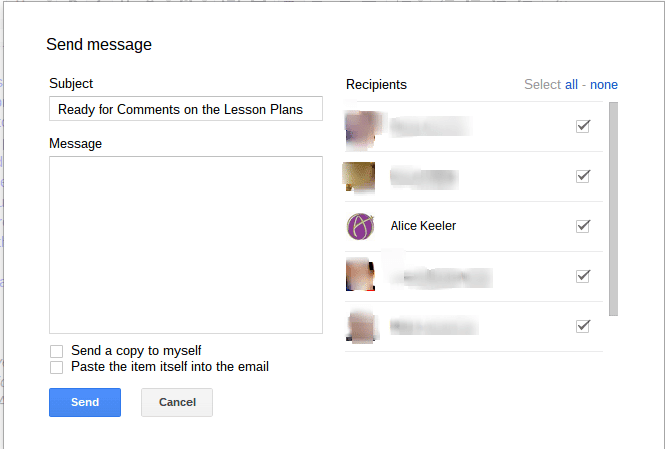
One feature I like is using the file menu to “Email Collaborators.” After contributing something to the document I may want to get input from the other collaborators or to signal that it is ready for their contribution. I could text or email them asking them to take a look but this has a couple of issues. First, I have to remember their email address or phone number. Secondly, the collaborator has to log into Google Drive and find the document. If the collaborator is busy, they may not get to the document right away due to the extra effort involved to get to the document.
Using File->Email Collaborators an email is generated to anyone the document is implicitly shared with. I can check box choose which collaborators to contact so I do not have to email everyone. Not only is an email automatically generated and sent out for me, it includes a link back to the document!! The collaborator gets my note and they can easily click on the link with minimal effort, including on their smart phone.