





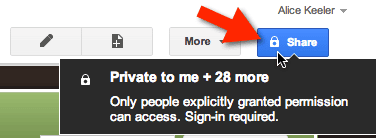
I like to have students create a website as a place to post their work. There may be issues of having students publicly post their work to the internet. In cases of young children or where students or parents have objections to student work being publicly displayed it is recommended to make the websites private.
In both WordPress and Google Sites the student websites can be set to private. Only people explicitly shared on the site would be able to view the work.
Google Sites
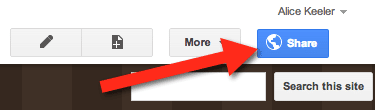
In Google Sites, after creating the website, students would click on the blue share button in the upper right hand corner. By default the websites are public. Notice the globe icon on the blue share button.
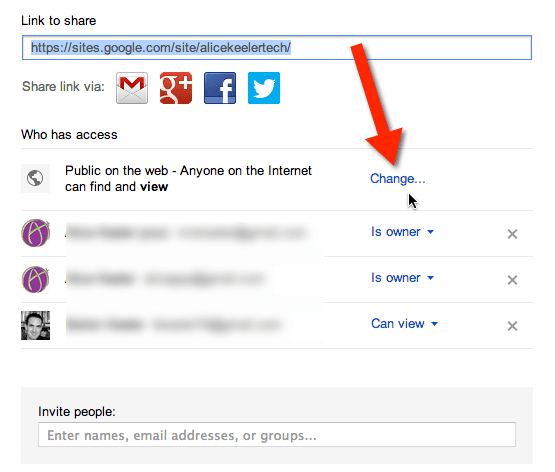
After clicking on the blue share button you will want to click “Change” next to where it says the site is Public on the web.

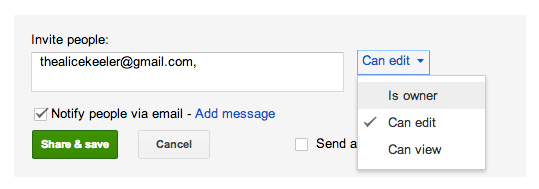
After saving, notice the option to invite people to the website. At the very least the student will want to invite the teachers email address. I would recommend that each student be required to share the website with their parents. If it is important that the student be part of the classroom community then the email addresses of the other students in the class should also be added.
When adding email addresses to the website the default is to give the person “Can edit” rights. However, people can be added with view only rights or can be given “Is owner” status. Unlike a Google Doc, a Google Site allows for multiple owners. I would recommend that the teacher and parents are given “Is Owner” status and that fellow classmates get “Can view” status.
WordPress
After establishing a free blog account at http://wordpress.com students are able to get into the back end of the blog by appending /wp-admin to the end of the website URL. For example if a student creates joecougar.wordpress.com, then the link to edit the website is http://joecougar.wordpress.com/wp-admin
On the left hand side go to settings. Choose Reading. Under Site Visibility, choose “I would like my site to be private.” Save.

Now go to Users on the left hand side. Add in the teachers email address, parents and any students who should be able to view the site.






