Google Drive – Sort the Files
When looking at student work in Google Drive I have 2 ways I like to sort the student files: Last Modified and Last Opened by Me. Both have data that is very helpful.
Last Modified
In Google Drive look for the column headers for the data shown. They are “Name”, “Owner”, and possibly “Last modified.”
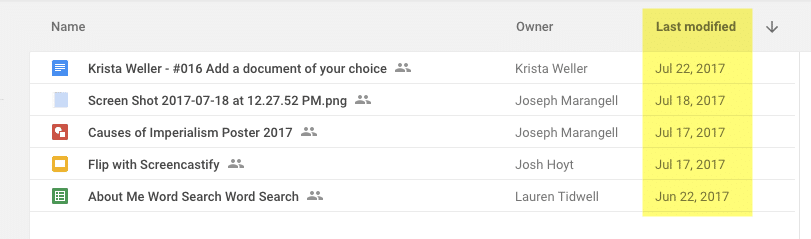
The last modified helps me to know if a student has worked on something recently. If the last modified date is when I assigned it… the kid hasn’t even looked at it. Don’t bother opening it.
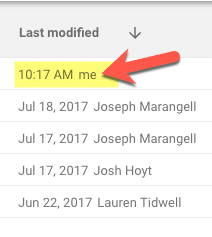
Google Drive also shows me WHO last modified the document. If it was me, I already looked at it. Don’t bother opening.
Last In First Out (LIFO)
In my accounting classes in college, we learned about FIFO and LIFO. “First In First Out” and “Last In First Out.” While these are accounting terms, I would like to apply them to giving students feedback. Faster feedback increases student motivation. If I respond to a student today with feedback they will care more about my feedback than if I respond to it 3 weeks from now. I am always trying to maximize my efforts for student learning. The faster I respond the more that student learns, so my approach is to give feedback to the most recent action on documents.
Last Opened by Me
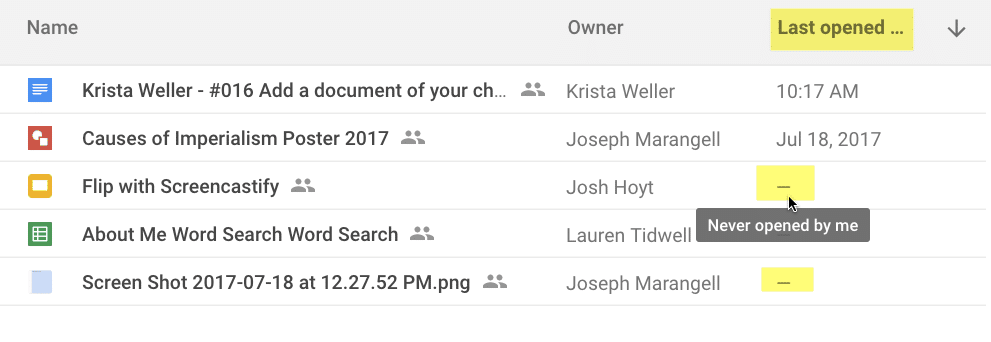
I alternate between sorting student documents by “Last modified” and “Last opened by me.” Click on “Last modified” to reveal a drop down menu to switch to “Last opened by me.”

This shows me the date I last opened the document. This is important data for me. If it has a minus sign it tells me “You’re a slacker Alice, you have NEVER opened this student’s document.” It helps me to make sure I get to every student’s document to give feedback.
Z to A
When I sort by Last Modified I like to have it sorted A->Z so that the stuff that was modified last is at the TOP of the list.
For Last opened by me, I prefer to sort it the other way. If I’ve opened it I want it to go to the BOTTOM of the list. Click on the arrow next to the tiny triangle to switch the sorting in Drive. The arrow might not be visible depending on how zoomed in you are. It’s there even if you can not see it. Just click to othe right of “Last opened by me” or “Last modified” and it will reverse the sorting.

Drive20
The Drive20 Chrome extension will open 20 Google Docs at once just by clicking on the extension icon. I sort my files by “Last opened by me” sorted Z-A where the ones I’ve looked at are at the bottom of the list. This is important because it opens the first 20 documents and you don’t want it to open ones you’ve already looked at.
You can right click on the extension and choose “options.” I recommend changing the default to 7 instead of 20. The more tabs you have open the more likely your computer is to cry.