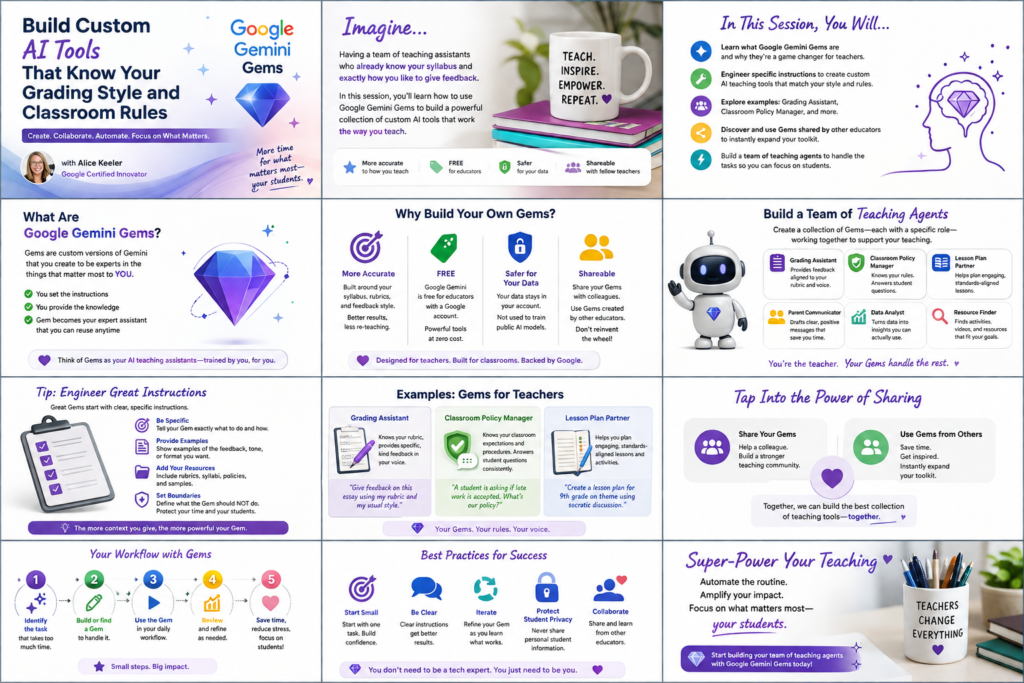



I hope you are using Gemini Notebook (formerly NotebookLM). It’s my everyday essential tool. One thing Gemini Notebook will do is create graphics or classroom resources for you. However, what if it isn’t exactly how you want it? How do you edit the graphics? Canva can save the day.
Hopefully you’ve joined me for OTIS workshops before. If not, please sign up for a free OTIS account. It is important that you login FIRST and then register for the workshop.
What is Gemini Notebook
Gemini Notebook is the ultimate educator tool. What we do not want when teaching is conspiracy theories from the dumpster fire of the internet nor do we want AI hallucinations. Gemini Notebook uses Google Gemini, but utilizes your reliable sources to assist you in your educator tasks.
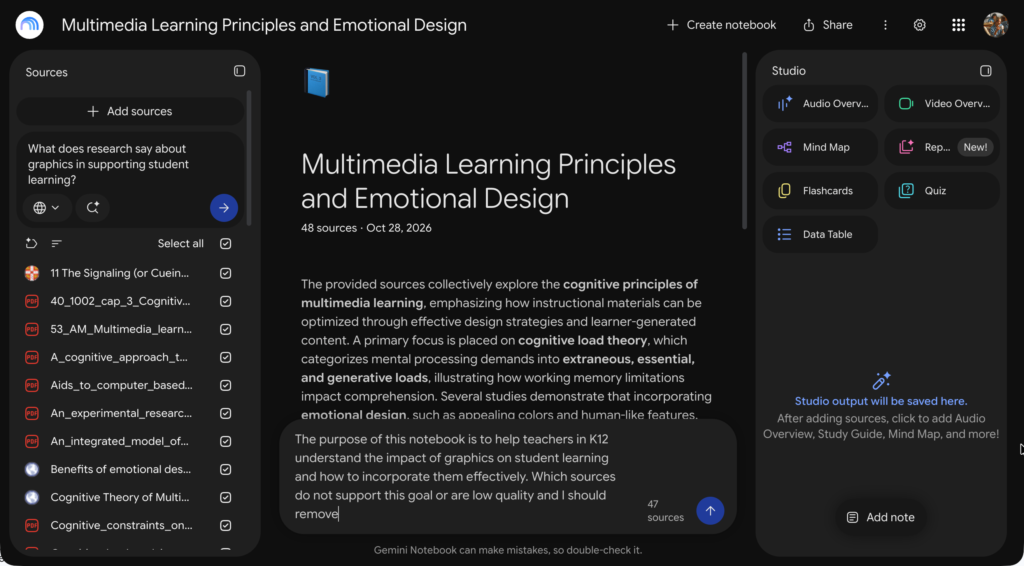
After starting a notebook the first thing you’re asked is to add sources. Add your standards, your syllabus, department policies, anything that shapes your lesson planning. If you have research articles or resources of PD sessions throw those in there too.
And if I can suggest… the most important source to add is your district calendar.
Adding your calendar allows you to use Gemini Notebook to build a pacing guide and adjust the pacing guide for you.
Search for Sources
You’ll notice you have the ability to search the Internet for sources. I always question my sanity when I use this. It can return Reddit as a source, which is definitely not credible for my classroom.
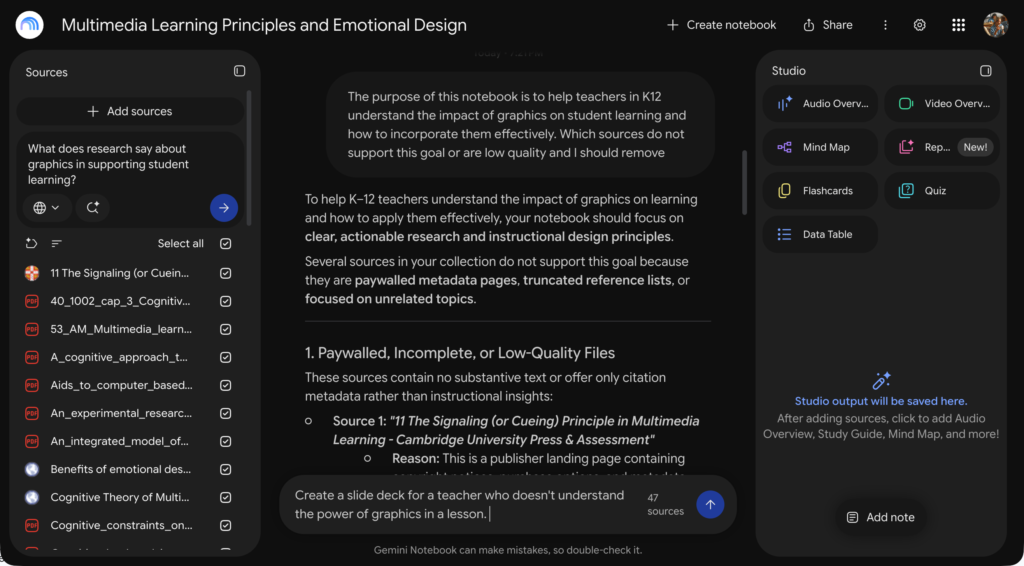
After adding sources and searching for sources I always put into the chat section, in the middle of the notebook, my goal for the notebook. I then ask which sources do not support this goal or are low quality and to please give me the titles so I can delete them.
Creating Classroom Resources
Unfortunately, Google has decided to restrict graphic creation in Gemini Notebook to upgraded Google accounts. While I understand the immense cost to Google of graphics generation, it really is an essential feature for teaching and learning and I hope they put it back in the free accounts for educators.
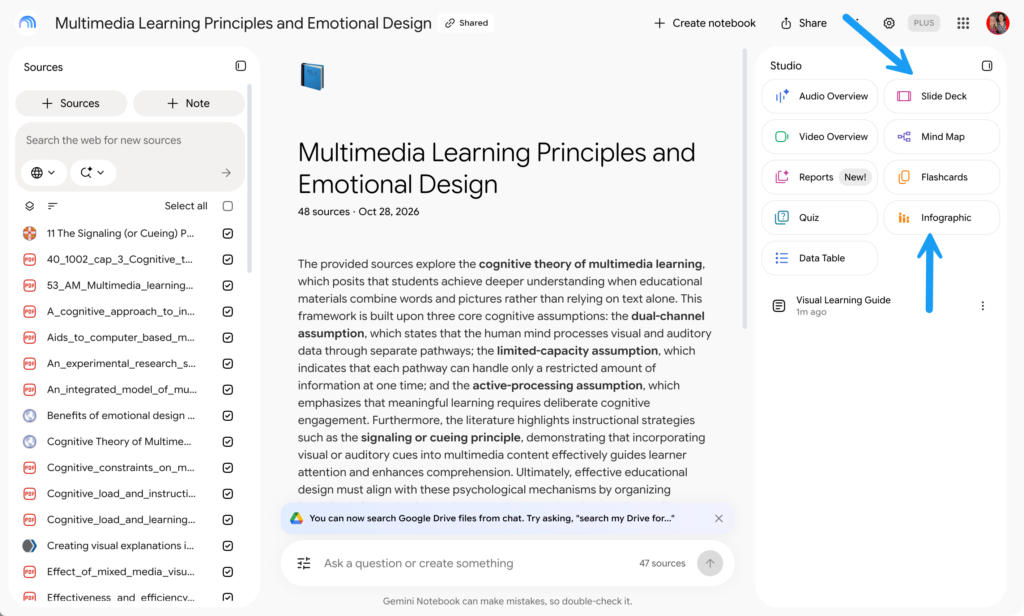
On the right hand side of Gemini Notebook is the Studio. This contains buttons to create different resources. I’ll admit, these days I find myself rarely clicking on these buttons and instead just asking in the chat for Gemini Notebook to make the resource. This is a new feature that you can ask for resources in the chat, and it’s my favorite way to access the resources.
If you have an upgraded Google Gemini account, you can create infographics or slide decks.
Join Me to Learn More
It really helps to support me if you register for these free Otis webinars. In “Making Your Notebook Graphics Editable with Canva” we will dive into some nifty features in Canva that allow you to easily edit your graphics.
When I create resources in Gemini Notebook I often want more space for the students to do their work or to word the directions differently, Canva let’s me do that. I hope you’ll join me or watch the recording afterwards.